
Social widget errors and fixing guide
Social Media Marketing, Website

Common Social Widget Errors and How to Fix Them (Complete Guide)

Social widgets help websites stay fresh, interactive and engaging. Whether you’re displaying an Instagram feed, customer reviews, LinkedIn posts, or a social wall, widgets encourage visitors to spend more time on your website and build trust in your brand.

Social widgets don’t always work as expected. A feed may stop updating, images might disappear or the widget could suddenly show a blank space. Most of these problems have simple solutions if you know where to look.

What is a Social Widget?

A social widget is an embedded component that displays content from social media platforms on your website. Instead of manually updating content, the widget automatically fetches posts, videos, reviews and feeds from connected accounts.

Businesses use social widgets to showcase their customer reviews, Instagram, Facebook or LinkedIn feeds; you can also display YouTube videos through a widget. It helps businesses increase website engagement.

Besides improving visual appeal, social widgets help keep pages updated with fresh content without requiring constant manual edits.

Why Social Widgets Stop Working

Most social media widget issues happen because websites rely on third-party platforms. Whenever a platform changes its API, security policies or authentication process, widgets may stop functioning properly.

Some of the most common causes for an issue include:

  • Expired access tokens
  • API updates
  • Plugin conflicts
  • Browser caching
  • Website theme incompatibility
  • JavaScript errors
  • Slow hosting
  • SSL configuration issues
  • Incorrect widget settings

Most of these errors can be fixed in no time.

12 Common Social Widget Errors and How to Fix Them

The widgets may face some issues; these can be due to several reasons. Let’s look at what the issues can be and how to fix those issues.

1. Social Feed Not Loading

This is one of the most common issues website owners face. Instead of showing posts, the widget displays a loading icon, a blank area or an error message.

This can be due to:

  • Issue in internet connectivity
  • Incorrect widget configuration
  • Expired authentication
  • API restrictions
  • Disabled JavaScript

How to Fix It

Start by refreshing your website in an incognito window. If the problem remains:

  • Connect your social account again.
  • Verify the widget settings.
  • Enable JavaScript, if not.
  • Clear website and browser cache.
  • Confirm your API is still valid.

If you’re using a CMS like WordPress, temporarily disable other plugins to identify any conflicts.

2. Access Token Expired

Social media widgets need an access token to communicate with platforms such as Instagram, Facebook and LinkedIn. These tokens eventually expire for security reasons.

When that happens, your widget may stop updating or disappear entirely.

Way to fix it:

In your widget provider’s dashboard, reconnect your social account. Platforms automatically create a new access token after successful authentication.

After connecting again:

  • Save the new settings.
  • Clear your cache.
  • Refresh your website.
  • Validate that recent posts appear.

Prevention Tips

  • Schedule regular token renewals.
  • Enable email notifications from your widget provider.
  • Use long-lived tokens whenever supported.
  • Avoid changing account permissions unless necessary.

3. Exceeded the API rate limit

Social platforms limit how often applications can request data within a given period. If your widget exceeds this limit, new content may stop appearing until the limit resets.

Common Reasons

  • Refresh intervals set too frequently
  • Multiple widgets using the same account
  • Heavy website traffic
  • Repeated manual refresh requests

How to Fix It

Reduce the refresh frequency of your widget instead of checking for updates every few seconds.

You can also:

  • Enable caching.
  • Remove duplicate widgets.
  • Display fewer posts.
  • Upgrade to a provider that uses optimised API requests.

Most websites don’t need real-time updates every minute. Refreshing every 30–60 minutes is sufficient for many business websites.

Read More about – Social Media Widget Examples: Which Feed to Use & Where on Website

4. Widget Displays a Blank Space

A blank widget is frustrating as there is no visible error message, so it does not tell what exactly the issue is.

It may be caused by:

  • CSS conflicts
  • Missing JavaScript files
  • Issue in theme compatibility
  • Incorrect embed code
  • Browser cache

How to Fix It

Inspect the page using your browser’s developer tools to check for JavaScript errors.

Then:

  • Verify the embed code.
  • Clear cache files.
  • Test the widget on the default website theme.
  • Disable recently installed plugins.
  • Check whether CSS rules are hiding the widget.

Sometimes, a simple CSS property like display: none; or an incorrect container width can make this happen.

Tips for prevention:

  • Test new themes before publishing them.
  • Avoid editing widget code unless it’s necessary.
  • Back up your website before making major updates.

5. Missing Media Files

Sometimes the widget loads correctly, but the media files, such as videos or photos, don’t appear. At times, visitors may only see empty placeholders or captions.

Why It Happens

Media content depends on secure delivery through CDNs, platform permissions and browser compatibility. If any of these fail, images or videos may not load.

How to Fix It:

  • Refreshing the widget cache.
  • Confirm that the original posts are still public.
  • Check whether media permissions have changed.
  • Make sure your website uses HTTPS.
  • Update your widget plugin to the latest version.

If the content was deleted from the original social platform, the widget cannot display it.

6. Slow Loading Social Widget

A slow widget hurts both the user’s experience and website performance. Visitors may leave before the feed appears, which increases bounce rates.

Common Causes

  • So many posts are displayed
  • Large-sized image or video
  • Multiple widgets on a single page
  • Slow hosting server
  • Caching setup issue

How to Fix It

Improve loading speed by:

  • Displaying fewer posts at once.
  • Enabling lazy loading.
  • Compressing images where possible.
  • Removing unnecessary widgets.
  • Using browser caching.

Also, place widgets below the fold when they are not essential to the initial page view. This allows the main content to load first.

7. Social Widget Doesn’t Update Automatically

A widget that displays outdated posts does not serve its purpose. Automatic updates may stop because of cache settings, expired tokens or synchronisation delays.

How it can be fixed:

Check the refresh interval in your widget settings. If it’s too long, shorten it to match your preferred time.

You can:

  • Clear the cache.
  • Connect the social media account again.
  • Make sure that API permissions are active.
  • Refresh the widget manually to test the integration.

Avoid refreshing frequently; this triggers API rate limits.

8. Widget looks broken on mobile

A widget looking perfect on desktop may be broken on mobile devices. Since mobile devices account for a large share of traffic, widgets must be displayed properly. Images may get overflowed or maybe text gets cut. This can happen due to:

  • Fixed widget width
  • Custom CSS overriding responsive settings
  • Unsupported layout

How can you fix it:

  • Test your website and widgets on different screen sizes.
  • Remove conflicting CSS.
  • Your website theme may have got outdated; updating it may fix it.
  • Replace fixed-width with percentage-based width.

9. Social widget doesn’t match your website design

The social widget should feel like part of the website, not pasted from elsewhere. If the design does not match the website’s UI, it may disrupt the experience of the user. 

Causes for this can be:

  • Default widget style
  • Theme conflict
  • Unsupported fonts
  • Custom CSS errors

How can we fix them:

  • Font style and size
  • Border radius
  • Feed layout
  • Background colors

10. Mixed Content or HTTPS Errors

Modern browsers automatically block insecure content, so keeping everything on HTTPS is essential. If your website has HTTPS but your widget is loading on HTTP, widgets may not function properly.

It can be fixed by:

  • Ensuring the website has a valid SSL certificate.
  • Replace outdated HTTP codes.
  • Remove third-party scripts that are not secure.

11. JavaScript Conflicts

Many social widgets rely on JavaScript to load content. If another script on your website interferes, the widget may stop working.

This can happen due to:

  • Multiple JavaScript libraries
  • Plugin conflicts
  • Improper script loading features

It can be fixed by:

  • Disable recently installed plugins, one at a time, to determine which plugin is causing this issue.
  • Update outdated plugins.
  • Load JavaScript files in the recommended order. 

12. Social Widget Stops Working After Platform Updates

Social media platforms continuously update their tools and softwares. When an update happens, an older widget may stop functioning.

It may get fixed by:

  • Updating your widget plugin/ software.
  • Reconnecting your social accounts.
  • Review your provider’s documentation for recent changes.

Read More about – Tools To Embed Free Social Media Widget for Website

Quick Checklist

Let’s quickly have a look at some of the most common issues faced by people. Check if you also have the same problem,

CheckWhy It Matters
Internet ConnectionEnsures your website can reach social platforms.
Access TokenPrevents authentication failures.
Widget SettingsConfirms the correct account and feed are connected.
Plugin VersionFixes known bugs and compatibility issues.
Website cacheForces the latest feed to appear.
API PermissionsEnsures the widget still has access to the connected account.

Getting your problem on the checklist will save you hours of time identifying it. 

How to Prevent Social Widget Errors

Most widget problems can be fixed easily, but prevention is even better. Regular maintenance can help you keep your social feeds working reliably. 

Preventions you can take are:

Keep plugins and Integrations updated

Developers constantly release updates to improve apps and widgets, making them more compatible and user-friendly. Ignoring these can lead to broken feed widgets.

Renew Access Tokens Before They Expire

Many times, authentication errors occur simply because access tokens have expired. Set reminders or enable notifications to avoid this issue.

Avoid Overloading Pages

Overloading a page puts weight on the website, increases loading time and may create unnecessary API requests. Display only the feeds that provide value to the viewers.

Test After Every Website Update

Whenever you update anything on the website, whether it’s the CMS, theme or plugin, always verify that your widgets are still working correctly. Updating a part of the website may affect other sections.

Best Practices for Reliable Social Widget Performance

Following best practices helps keep your widgets stable and provides a better user experience. 

Choose a Reliable Widget Provider

Use a trusted platform that actively maintains integrations with major social networks and responds quickly to API changes. Tagembed and Tagbox are among good and reputable widget providers.

Display Only Relevant Content

Instead of embedding dozens of posts, highlight content that supports your goals, whether that’s customer reviews, product updates or user-generated content.

Optimize Loading Speed

Enable lazy loading, minimise unnecessary scripts, and compress media where possible. Faster widgets contribute to a better browsing experience.

Maintain Consistent Branding

Customise colours, fonts and layouts so your widget complements the rest of your website. Maintaining your brand consistency helps the audience to remember you.

Review Website Performance Regularly

Reviewing your website’s performance is crucial for maintaining your brand’s reputation. Check your widgets at regular intervals to make sure feeds update as planned and the website does not load slowly.

Test Across Browsers

Test your website across different browsers, such as Chrome, Safari, Edge and Firefox, to catch browser-specific issues before your visitors do.

A maintained social widget not only avoids technical problems but also improves engagement, builds trust and keeps your website looking active.

When Should You Contact Your Widget Provider?

Many social widget issues can be solved by correcting settings, refreshing across tokens and updating plugins. Some problems require help from your widget provider, especially when the issue is beyond your website’s control.

Connect with them in the following cases:

  • You can’t restore the feed even after reconnecting your social account.
  • The widget stops working after a social platform updates its API.
  • The dashboard shows authentication errors you can’t resolve.
  • Incorrect or incomplete content is displayed on your widget.
  • The feed remains broken after you’ve cleared the cache, updated plugins, and checked for JavaScript conflicts.
  • You need help customising the widget beyond the available settings.

Conclusion 

Social widgets are an excellent way to keep your website dynamic, show fresh content and build credibility with visitors. Same as any third-party integration, they require occasional maintenance to perform reliably.

Most issues, whether it’s a feed that won’t load, an expired access token or a slow-loading widget, can be resolved with a few simple troubleshooting steps. Regularly updating your plugins, monitoring API changes, renewing authentication and testing your widgets after website updates can prevent many common problems before they affect your visitors.

As we understand common social widget errors and how to fix them, you’ll save time troubleshooting and deliver a seamless experience that keeps your audience engaged and happy.

Frequently Asked Questions

  1. Why is the social widget not showing posts?

Your widget is not showing posts because of an expired access token, incorrect configuration, API restrictions, or caching issues. Connecting your account, clearing the cache, and checking the widget settings usually fix the problem.

  1. How do I correct an expired access token?

Log in to your widget provider dashboard and connect your account again. It creates a new access token. After the changes have been saved, clear your website cache and refresh the page to confirm the latest posts appear. 

  1. Why is the social feed loading slowly?

It is loading slowly if you’ve displayed too many posts, large media files, multiple widgets on one page or if your hosting performance is poor. Showing fewer posts, enabling lazy loading and using cache can significantly improve speed.

4. Can cache prevent my social widget from updating?

Yes, either browser or website cache can prevent the social feed from updating and serve older versions of your social feed even after new posts are published. Clearing cache or adjusting the widget’s refresh interval usually fixes the issue.

5. Do social widgets affect website speed?

Yes, they do if they aren’t optimised. Loading multiple widgets, large images or videos may slow down your website. Using lightweight widgets, lazy loading and caching helps maintain good performance.

6. Why did my social widget stop working after a WordPress update?

A WordPress update may have compatibility issues with your theme or plugin. Update the plugin, check for conflicts and test the widget with a default theme to identify the cause.

7. How often should I update my social widget plugin?

If there is any update, install it. An updated plugin improves security, fixes bugs and ensures compatibility with the latest social media platform APIs and website technologies.

Tiktok-SEO-benefits
Website

Benefits of Embedding TikTok Videos On Your Website

TikTok is replacing Google. It is not us who are saying this. 

According to a senior executive at Google, TikTok is now more like a search engine, especially for Generation Z. This means that the platform is not just a social media app but also a tool for discovering new content.

To keep its users engaged, TikTok is constantly improving its algorithm. And introducing new features such as suggested users at the bottom of videos in the comment section. 

If you are an individual or business looking to increase your presence on the platform, integrating TikTok videos into your website is a critical consideration. By optimizing your content to be more discoverable and appealing to TikTok’s algorithm and users, you can enhance your visibility and reach.

In this article, we will explore the benefits of embedding TikTok videos on your website from an SEO perspective. Also provide you with some tips on how to use it to your advantage.

The Most Effective Benefits of Embedding TikTok Videos on a Website from an SEO Perspective:

TikTok has almost 1.7 billion users worldwide, and this figure continues to grow. By tapping into the vast potential of the platform, you can get to interact with millions of users of the platform. Embedding TikTok videos on a website is beneficial from an SEO perspective. 

How?

A TikTok widget provides all the benefits to your website’s search engine optimization for a successful online presence. 

Take a look at the benefits mentioned and leverage more of them. 

1. Enhanced User Engagement

Integrating TikTok videos on a website can significantly enhance user engagement. TikTok videos are typically short, visually captivating, and entertaining, making them an excellent tool for grabbing visitors’ attention and keeping them engaged for longer. 

By showcasing TikTok videos on your website, you can flaunt your products in the best possible way and encourage visitors to interact with them. This increased engagement can lead to longer visits to your website and lower bounce rates. Ultimately resulting in better conversion rates.

2. Diversified Content

Don’t hesitate to experiment with new tactics. One of the advantages of incorporating TikTok videos on your website is to combine various TikTok content and utilize it for your website.

You can gather user-generated content from multiple TikTok creators and apply it to your website. TikTok videos offer a broad range of content, from informative guides to humorous skits.

By integrating TikTok posts relevant to your website’s field, you can offer your audience a diverse range of content that keeps them engaged and up to date.

3. Social Recognition 

What started as a short video-sharing platform has now become an integral part of customers’ purchasing decisions. According to statistics from Insider Intelligence, TikTok will have 33.3 million US social buyers this year. 

In addition to building social proof and trust, embedding TikTok videos on your website can also help you create a strong community around your brand. By featuring user-generated content, you can showcase the experiences of your customers. And build a sense of belonging among your audience.

TikTok videos can help you generate ideas for your content marketing strategy. You can study the trends and topics that are popular on TikTok and create content that resonates with your audience on both TikTok and your website.

Integrating TikTok videos on your website can help you create a more engaging and diverse experience for your audience. By leveraging the viral nature of TikTok videos and the platform’s unique algorithm, you can attract new visitors to your website and foster a deeper connection with your brand. So, if you’re not already using TikTok videos on your website, it’s time to start exploring this powerful tool and take advantage of its many benefits.

4. Cross-Promotion Of The Platforms 

Interested in tapping into the wide range of the market? Well, cross-promotion is the way. 

Integrating your TikTok content onto your website offers a powerful form of cross-promotion. By showcasing your TikTok videos on your website, you’re inviting your website visitors to explore your TikTok account. This creates a seamless transition between the platforms: your website and your TikTok account. 

This encourages them to follow you on TikTok, granting them access to a wider range of your content and fostering a deeper connection with your brand. Remember that social media platforms are designed to seem friendly, and this is what TikTok videos do when taken to your website. They seem friendly to the visitors and invite them in to take the action. 

5. Improved User Experience

In addition to increasing engagement and driving more traffic to your site, incorporating TikTok videos into your website can also enhance the user experience. With TikTok being one of the most popular social media platforms, featuring its videos on your website can attract a wider audience, especially among younger generations.

Furthermore, TikTok videos are known for their virality, which means they can be shared widely across social media platforms, increasing your site’s visibility and reach. By incorporating TikTok videos into your website, you’re not only providing your audience with dynamic content, but you’re also expanding your brand’s online presence.

6. Audience Reach

Apart from the vast and diverse user base, TikTok has also gained immense popularity due to its unique algorithm. The algorithm shows users content that is tailored to their interests and preferences. This means that by embedding TikTok videos on your website, you can showcase your brand to an audience more likely to engage with your content.

Moreover, TikTok’s short-form video format is perfect for grabbing the attention of audiences with short attention spans. By creating engaging and informative TikTok videos, you can entice viewers to visit your website and learn more about your brand.

TikTok’s massive audience reach and unique algorithm make it a valuable platform for businesses to expand their reach and connect with potential customers, including TikTok for business. By incorporating TikTok videos into your website, you can leverage this platform to drive growth for your brand.

Key Strategies You Should Know For TikTok Videos 

Take a look at the basic ways to get your TikTok SEO right with minimal effort. 

A. Keyword Research

Identify relevant keywords and phrases that are popular on TikTok within your niche. Use these in your video captions and profile description. Make sure to stay within the 500-character limit in your caption by including the required keyword. However, do not go overboard with the keywords. Keep your captions natural.

B. Hashtags

On TikTok, users use specific hashtags based on their intent. Utilize trending and niche-specific hashtags to make your content more discoverable. You can also mix high- and low-volume hashtags for your TikTok videos. Create unique branded hashtags if you’re a business.

C. Engage with Trends

Participate in trending challenges and use trending sounds to ride the wave of popularity. Get people to interact with your videos by liking, commenting, and sharing. The more interaction you get, the more likely TikTok will promote your videos. Respond to comments, collaborate with other users, and engage with your followers to foster community.
D. Consistency

Regularly post high-quality content to keep your audience engaged and encourage the algorithm to promote your videos. Ensure that your profile is complete and effectively represents your brand or personality. 

If you want to read more about it, you can follow this blog to learn about the TikTok Aggregator guide in detail. 

The Final Call 

As a savvy marketer, it’s important to stay ahead of the curve in understanding your target audience. With Gen Z being the upcoming buyers, it’s essential to recognize that TikTok is their platform of choice. 

If you’re looking to connect with this demographic, it’s time to explore the potential TikTok offers. We have mentioned all the benefits of integrating TikTok videos on a website. Check them out and leverage them as soon as possible.

social media widget examples
Social Media Marketing, Website

Social Media Widget Examples: Which Feed to Use & Where on Website

Your website is often the first place potential customers interact with your brand. While a clean design and compelling copy are important, visitors also want evidence that your business is active, trustworthy, and engaging. That’s where social media widgets make a real difference.

Instead of asking users to leave your website and visit your social media profiles, widgets bring your latest content directly onto your pages. Whether it’s an Instagram gallery showcasing customer photos, a LinkedIn feed highlighting company achievements, or a YouTube playlist demonstrating your products, social media widgets add freshness and credibility to your website without requiring constant manual updates.

However, simply embedding every social platform isn’t the best approach. Each platform serves a different purpose, and the effectiveness of a widget depends largely on where you place it. An Instagram feed that performs well on a fashion brand’s homepage may not deliver the same value on a B2B software company’s pricing page.

In this guide, we’ll explore practical social media widget examples, explain where each type of feed works best, and share tips to help you create a website that feels dynamic, trustworthy, and engaging.

Why Social Media Widgets Matter

Today’s customers rarely rely on a website alone before making a decision. They browse social media to see how active a brand is, read customer experiences, and evaluate whether a company feels authentic.

Embedding social media content into your website bridges this gap. Instead of sending visitors elsewhere, you bring that social proof directly to them.

There are several benefits to doing this:

  • Your website stays fresh with automatically updated content.
  • Visitors spend more time exploring interactive elements.
  • Customer-generated content builds trust more effectively than traditional marketing copy.
  • Recent posts demonstrate that your business is active and responsive.
  • Social feeds encourage visitors to follow your brand across multiple platforms.

Most importantly, social media widgets make your website feel alive. Static websites can quickly appear outdated, whereas live feeds create the impression of an active business that regularly interacts with its audience.

Choosing the Right Feed Starts with Your Goal

Before selecting a social media widget, ask yourself one simple question: What do I want visitors to do on this page?

Different pages have different objectives. A homepage is designed to make a strong first impression, while a careers page should showcase company culture. Product pages need to inspire confidence, whereas blogs aim to educate.

When the widget supports the purpose of the page, it feels natural rather than distracting.

Instead of treating social feeds as decorative elements, think of them as content that reinforces your marketing message.

Instagram Feed Widget: Perfect for Visual Storytelling

Instagram remains one of the most popular platforms for showcasing visual content. For brands that rely on aesthetics, creativity, or lifestyle marketing, an Instagram feed can instantly enhance the appearance of a website.

Fashion retailers often display customer photos wearing their products, restaurants highlight their latest dishes, travel companies feature destination photography, and beauty brands showcase tutorials and influencer collaborations.

An Instagram widget works particularly well on:

  • Homepages
  • Product pages
  • Gallery sections
  • About Us pages

For example, an online clothing store can display recent customer photos tagged with a branded hashtag. Visitors don’t just see professionally staged product images—they see real people using the products, which adds authenticity and encourages purchasing decisions.

The key is to feature high-quality, relevant posts rather than every image from your account.

LinkedIn Feed Widget: Building Professional Credibility

Not every website needs colourful visuals. For B2B companies, professional services, agencies, and technology firms, credibility matters more than aesthetics.

A LinkedIn feed allows businesses to showcase company announcements, employee achievements, hiring updates, industry insights, awards, and thought leadership.

Visitors researching your business can immediately see that your company is active within its industry.

LinkedIn widgets are particularly effective on:

  • About pages
  • Careers pages
  • Company overview pages
  • Investor relations sections

A software company, for instance, might display posts about product launches, conference participation, customer success stories, and employee recognition. This reinforces expertise without requiring visitors to leave the website.

Facebook Feed Widget: Keeping Communities Connected

Although many brands now focus heavily on Instagram or TikTok, Facebook continues to play an important role for local businesses, educational institutions, nonprofits, healthcare providers, and community organisations.

Facebook widgets are ideal for sharing:

  • Upcoming events
  • Community announcements
  • Reviews
  • Local updates
  • Business news

For businesses that regularly organise workshops, fundraisers, or local events, displaying these updates on the homepage or events page helps visitors stay informed without manually updating website content.

Rather than acting as a promotional tool, a Facebook feed often serves as an information hub for existing customers and community members.

YouTube Widget: Educating Visitors Through Video

Some products and services are easier to explain through video than text.

Embedding a YouTube feed gives visitors access to tutorials, demonstrations, webinars, interviews, customer stories, or educational content without interrupting their browsing experience.

Businesses commonly place YouTube widgets on:

  • Product pages
  • Resource centres
  • Help documentation
  • Blog articles
  • Learning hubs

Imagine a SaaS company introducing a new feature. Instead of writing lengthy instructions, it can display a short tutorial video directly beneath the feature description, allowing users to learn visually.

Video content also tends to increase time spent on a website, which can improve overall user engagement.

TikTok Feed Widget: Showcasing Authentic Brand Personality

TikTok has changed how brands connect with audiences. Short-form videos often feel more genuine than polished advertisements, making them particularly effective for lifestyle brands and consumer products.

A TikTok widget can showcase:

  • Behind-the-scenes content
  • Product demonstrations
  • Customer reactions
  • Trending campaigns
  • Creator collaborations

These widgets work best on campaign landing pages, ecommerce homepages, or promotional pages where creativity and entertainment play a larger role in influencing purchase decisions.

The emphasis should always remain on authentic content rather than purely promotional videos.

X (Twitter) Feed Widget: Delivering Real-Time Updates

Some industries rely on timely communication more than visual storytelling.

Technology companies, financial institutions, media organisations, sports brands, and event organisers often use X to share announcements as they happen.

Embedding an X feed can keep visitors informed about:

  • Product launches
  • Industry news
  • Live event updates
  • Service announcements
  • Company statements

For businesses where information changes rapidly, a live feed ensures visitors always see the latest updates without requiring constant edits to the website.

Where Should You Place Social Media Widgets?

Placement has a significant impact on performance. Even the best content loses value if it appears on the wrong page.

Homepage

The homepage is usually the first impression visitors have of your business.

A carefully selected social media widget can immediately communicate that your brand is active and trusted. An Instagram gallery, customer-generated content, or recent LinkedIn updates often work well here because they introduce visitors to your brand personality.
Avoid filling the homepage with multiple feeds. One well-designed widget is usually more effective than several competing for attention.

Product Pages

Visitors on product pages are closer to making a purchase.

This is the ideal place to display customer photos, product demonstrations, or short social videos that show products being used in real life.

Authentic customer content often answers questions that polished product photography cannot.

About Us Page

People visiting the About page want to understand who you are.

Instead of relying solely on company history, display content that reflects your workplace culture, community involvement, employee achievements, or company milestones.

LinkedIn updates and selected Instagram posts usually perform particularly well here.

Careers Page

Recruitment pages should help candidates imagine themselves working within your organisation.

Employee celebrations, office events, volunteering initiatives, and workplace culture videos provide valuable insight into daily life at your company.
LinkedIn remains the strongest platform for this purpose.
Blog Pages

Educational articles can become even more engaging when supported by relevant social content.

For example, an article discussing digital marketing trends could include a YouTube tutorial or an embedded LinkedIn post from an industry expert.

The embedded content should enhance the article rather than distract from it.

Footer

Many websites include simple social icons in the footer, but a compact widget can sometimes provide additional value.

A small Instagram strip or recent LinkedIn post can reinforce your social presence without overwhelming visitors.

Keep footer widgets lightweight to maintain page speed.

Best Practices for Using Social Media Widgets

Successful implementation is about balance.

Choose platforms your audience actively uses rather than embedding every available feed. A luxury hotel benefits far more from Instagram photography than from an X timeline, while a cybersecurity company is likely to gain more value from LinkedIn.

Consistency is equally important. Your widget should blend naturally with your website’s typography, colours, and layout rather than appearing like an unrelated element.

Website performance should also remain a priority. Too many embedded feeds can slow loading times, especially on mobile devices. Using responsive widgets and enabling lazy loading helps maintain a smooth user experience.

Finally, curate your content. Automatic doesn’t always mean appropriate. Regularly review which posts appear on your website to ensure they align with your current campaigns and brand messaging.

Common Mistakes to Avoid

One of the biggest mistakes businesses make is assuming more widgets equal greater engagement.

Displaying feeds from Instagram, Facebook, LinkedIn, TikTok, YouTube, Pinterest, and X on a single page creates unnecessary distractions and often confuses visitors.

Another common issue is neglecting mobile optimisation. Since a significant percentage of users browse websites on smartphones, oversized widgets can negatively affect both SEO benefits and loading speed.

Businesses also forget that outdated content reflects poorly on their brand. If your most recent embedded post is several months old, visitors may assume your business is inactive.

Finally, avoid placing widgets where they interrupt the user’s journey. Every element on a page should support the visitor’s objective, not compete with it.

How to Decide Which Widget Is Right for You

There isn’t a single “best” social media widget. The right choice depends on your audience, industry, and business goals.

If your products rely on visual appeal, Instagram and TikTok are strong choices. If you’re focused on professional credibility, LinkedIn is more suitable. Educational businesses benefit from YouTube tutorials, while organisations that regularly communicate updates may find Facebook or X more valuable.

Instead of asking which platform is most popular, consider which one consistently produces the type of content your customers actually want to see.

When your website and social media work together strategically, visitors enjoy a smoother, more engaging experience that builds confidence in your brand.

Final Thoughts

Social media widgets are much more than decorative website elements. When used thoughtfully, they become an extension of your brand story, bringing fresh content, customer experiences, and real-time updates directly into your website.

The most effective websites don’t try to showcase every social platform. Instead, they select feeds that align with each page’s purpose and enhance the visitor’s journey. A well-placed Instagram gallery can inspire shoppers, a LinkedIn feed can strengthen credibility, and a YouTube playlist can simplify complex products or services.

As you evaluate your own website, focus on quality over quantity. Choose widgets that provide genuine value, keep them visually consistent with your design, and place them where they naturally support user intent. Done well, social media widgets can increase engagement, reinforce trust, and help turn casual visitors into loyal customers.

Instagram Widget for HTML
instagram, Website

Benefits of Embedding Instagram Feed on HTML Websites

Adding an Instagram feed directly to your HTML website is one of the simplest ways to make your site more engaging, visually appealing, and dynamic—without constantly updating content manually.

In this guide, you’ll learn the key benefits of embedding an Instagram feed on HTML websites, along with practical insights and methods to implement it effectively.

What Does Instagram Feed on HTML Mean?

To add Instagram feed on HTML, you embed posts or a full feed from Instagram into your website using HTML code, widgets, or APIs.

This can be done using:

  • Native Instagram embed HTML
  • Third-party tools
  • Custom instagram feed html code
  • An instagram widget for html for easy integration

👉 A basic embed instagram feed html setup displays real-time posts directly on your webpage.

Why Embedding Instagram Feed on HTML Websites Matters

Modern websites need constant updates to stay relevant. When you embed instagram feed on website html, your site automatically updates whenever you post on Instagram.

This creates a seamless connection between your social media and website.

Top Benefits of Embedding Instagram Feed on HTML Websites

1. Keeps Your Website Content Fresh Automatically

One of the biggest advantages of using instagram feed on website html code is automatic content updates.

Every new Instagram reel or post appears on your website without manual effort.

Why it matters:

  • Saves time
  • Keeps your website active
  • Enhances user experience

2. Boosts User Engagement

Visual content performs better than plain text. When you add a html instagram feed, visitors are more likely to interact with your site.

Impact:

  • Higher time on site
  • More clicks and interactions
  • Better user experience

3. Builds Social Proof and Trust

Displaying real posts using embed instagram html shows authenticity.

Visitors can see:

  • Real customers
  • Real experiences
  • Real product usage

👉 This builds credibility and trust.

4. Improves Website Design and Visual Appeal

An Instagram feed enhances your design instantly.

Using instagram feed html code, you can:

  • Add modern grid layouts
  • Showcase high-quality visuals
  • Create a dynamic interface

5. Increases Instagram Followers

When users see your feed, they are more likely to follow your profile.

A well-placed embed instagram feed on website html code acts as a direct funnel to your Instagram page.

6. Encourages User-Generated Content (UGC)

Brands often display customer posts using hashtags.

With html embed instagram feed, you can:

  • Showcase user content
  • Run campaigns
  • Build a community

7. Supports E-commerce Conversions

For online stores, Instagram feeds can influence buying decisions.

Using instagram feed on website html code free tools:

  • Highlight product usage
  • Add product links
  • Show real-life visuals

8. Easy to Implement (Even Without Coding Skills)

You don’t need to be a developer to embed instagram feed on website html.

Options include:

  • Copy-paste embed code
  • Free tools and widgets
  • Pre-built solutions

9. Mobile-Friendly Experience

Most instagram embed html solutions are responsive by default.

This ensures:

  • Smooth mobile experience
  • Better usability
  • Consistent design

10. Centralizes Your Content Strategy

Instead of managing multiple platforms separately, your Instagram feed becomes part of your website.

Using html instagram feed, you:

  • Sync content across platforms
  • Maintain consistency
  • Reduce manual effort

How to Embed Instagram Feed on HTML Website

Here are the most effective methods to embed instagram feed on website html code:

Method 1: Official Instagram Embed

  1. Open any Instagram post
  2. Click on the three dots (menu)
  3. Select “Embed”
  4. Copy the instagram embed html code
  5. Paste it into your HTML file

Method 2: Using Taggbox (Recommended)

Taggbox is a popular tool to create customizable Instagram feeds for HTML websites.

Steps to embed using Taggbox:

  1. Go to Taggbox and sign up/login
  2. Select Instagram as your source
  3. Connect your Instagram account
  4. Choose feed type (profile, hashtag, mentions)
  5. Customize your widget design (layout, colors, themes)
  6. Click on “Publish”
  7. Select Embed on Website (HTML)
  8. Copy the generated embed instagram feed on website html code
  9. Paste the code into your HTML page

Why use Taggbox:

  • No coding required
  • Highly customizable
  • Fast and responsive widgets

Method 3: Custom HTML + API (Advanced)

For developers:

  • Use Instagram Graph API
  • Fetch posts dynamically
  • Build a fully customized instagram feed html code

Best Practices for Embedding Instagram Feed

To get the best results when you add instagram feed on html, follow these:

✅ Optimize Loading Speed

Avoid heavy scripts that slow your site.

✅ Keep Layout Clean

Use structured grids or sliders.

✅ Limit Number of Posts

6–9 posts is ideal.

✅ Make Feed Clickable

Link posts to Instagram or product pages.

✅ Ensure Mobile Responsiveness

Always test across devices.

Common Mistakes to Avoid

  • ❌ Embedding too many posts
  • ❌ Using slow-loading widgets
  • ❌ Ignoring mobile optimization
  • ❌ Not linking back to Instagram
  • ❌ Poor visual consistency

Final Thoughts

Embedding an Instagram feed is one of the easiest ways to upgrade your HTML website without constant manual updates.

By using the right instagram feed html code, you can:

  • Improve engagement
  • Build trust
  • Enhance design
  • Grow your social presence

If you’re planning to add instagram feed on html, this simple integration can deliver long-term value with minimal effort.

FAQs

How do I add Instagram feed on HTML website?

You can use Instagram’s embed feature, third-party tools, or APIs to insert feed code into your HTML.

Is there free Instagram feed HTML code available?

Yes, many tools provide instagram feed on website html code free that you can copy and paste.

What is the easiest way to embed Instagram feed in HTML?

The easiest way is using Instagram’s official embed option or a widget tool.

Can I customize Instagram feed in HTML?

Yes, using tools or APIs, you can fully customize layout and design.

Reviews, Website

How To Add Yelp Reviews Widget On Shopify Website?

Nowadays, local businesses like bars, restaurants, gyms, massage parlors, and many more are opting to embed Yelp review widgets on the Shopify website. That helps them to present their business visible in front of potential customers.

Customers are now smart enough to go through Yelp reviews before engaging with any business product or service. And Yelp customer reviews become much more important for any local business to increase credibility and authenticity.

If you have positive Yelp reviews, then adding them to your Shopify website will be a great combo that assists potential customers to form trust in your brand. Not only it builds trust but it let users feel comfortable purchasing from your business.  

Adding Yelp reviews also help you to increase traffic on the Shopify website and reduce the bounce rate of the website as you are providing them with social proof that showcases feedback about your product or brand.

The embedding process looks hectic but in this blog, you are going to learn how you can add Yelp reviews on Shopify website.

Easy Way To Add Yelp Reviews Widget On Shopify Website:

You just require an assemblage tool that can collect all the Yelp reviews and embed them on your Shopify website. And by using Tagembed you can do so. Tagembed is an aggregator tool that helps you to embed Yelp reviews on your Shopify website. Tagembed includes various features to look your feeds creative and attractive to increase customer volume on your website.

Follow these easy steps to embed Yelp reviews widget on Shopify website:

Step 1: Assemble Yelp Reviews 

  1. Sign up to create a free Tagembed account or log in if you used it previously.
  2. You will be redirected to the dashboard of Tagembed
  3. Your first widget will be already on the screen, just click on the open button to proceed.
  4. A popup will appear, select yelp reviews as your widget
  5. You can add Yelp reviews in 2 ways-

    Business Page: Paste your business page URL to fetch Yelp reviews.
    Business Name:  Enter the location and keyword to fetch the Yelp reviews.
  1. Now click on create feed button to start the aggregation.

Also, read – Add Yelp Reviews On Squarespace Website

Step 2: Initiate Embed Code for Shopify Website

  1. After returning to the dashboard click on the embed widget button.
  2. In the next step choose your platform as Shopify in the list.
  3. You can modify the height and width of the widget
  4. Lastly, press copy code button to copy the embedding code

Also, read – Add Yelp Reviews Widget On HTML Website

Step 3: Embed Yelp Reviews widget on your Shopify website

You can embed Yelp reviews widget on Shopify website in 3 different ways that are mentioned below:

Default Page

  1.  Login to the Shopify admin account and go to the backend of the website where you want to embed Yelp reviews.
  2. On the left side menu panel you will find the online store under the sales channel option, click on it to open more options
  3. Select Theme, then click on Customize button
  4. Navigate to the left menu panel and select Custom content>Custom Html, paste the code, and save changes.
  5. Reload the page to see the changes.

Also, read – Add Yelp Reviews On Wix Website

New Pages

  1. Log in to your Shopify account, and select Sales channel>online store>pages.
  2. Create a new page by clicking on add page button
  3. You will find an embed icon (<>) like this on the right side of the screen, click on it and paste the embedding code.
  4. Save the changes and reload the page

Blog Posts

  1. Login to Shopify admin account and glide through Sales channel>online store>blog posts.
  2. Now click on create blog post button on the page.
  3. You got an icon like (<>) on the screen, click on it.
  4. Paste the code and save the changes made.

Also, read – Display Yelp Reviews Widget On Webflow

Conclusion

Kudos, you have successfully completed the process of embedding Yelp reviews widget on Shopify website. This will increase user engagement and increase visibility to the customers. As the online market becomes bigger and better, thus this is the right time to take a step and make your business presence through reviews.

Reviews, Website

How To Add Yelp Reviews Widget On HTML Website?

Want to add Yelp reviews widget on HTML website? Then you are at the right place; in this blog, you are going to learn about how you can add your Yelp reviews to your HTML website.

Yelp is a review platform where user can share their first-hand experience with the services they got from local businesses. If you are listed on Yelp, you must take advantage of positive reviews by embedding them into your HTML website. That can help you to convert potential customers into your customers.

As we all know that customer reviews have the power to boost business success to new heights. Customer feedback also helps the business to build brand loyalty and increase awareness about the business. Adding Yelp reviews widget to your HTML website shows social proof to the users and increases credibility. 

HTML is a language that is used to create and describe the structure of a web page. Adding Yelp reviews to HTML websites can boost organic traffic, user experience, and dwell time of the website. As most customers rely on feedback before making any decision in favor of the product or service.

Easiest Way To Embed Yelp Reviews Widget On HTML Website:

The process of embedding seems complicated, but it’s relatively easy with Tagembed. Tagembed is a social media assemblage tool that allows you to embed feeds, reviews, stories, etc to your website in just a few clicks. All you need to do is to follow these simple steps that are mentioned below:

Step 1: Aggregate Yelp Reviews with Tagembed

  1. Firstly, sign up to create a free Tagembed account or log in if you are already a user.
  2. You will be directed to the Tagembed dashboard.
  3. Your first widget gets created automatically, click on the open button to proceed
  4. A popup will appear, select Yelp reviews as your reviews platform.
  5. After selecting Yelp Review widget you can add the review widget by 2 methods.
    1. Business Page – To collect Yelp reviews from the business page paste your Yelp business page URL.
    2. Business Name – enter a location or enter a business name to collect Yelp Reviews.
  6. Click on create feed button to start the assemblage.

Also, Read – Add Yelp Reviews On Squarespace Website

Step 2: Create Embed Code for the HTML Website

In this step, you will get to know how you can create embedding code for the HTML website.

  1. Click on the Embed feed button given on the left bottom side of the screen.
  2. A new popup will appear in which, select HTML as your website CMS.
  3. Now you can adjust the height and width of your widget
  4. Finally, click on copy code button to copy the code.

Also, Read – Display Yelp Reviews on Weebly Website

Step 3: Embed Yelp Reviews on HTML Website

You are just a few clicks away from adding your Yelp reviews to the HTML website.

  1. Login to the admin account of your HTML website.
  2. Direct to the page where you want to embed your Yelp reviews on HTML
  3. Paste the embed code in the body tag
  4. Save the changes and reload the page to have a look at Yelp reviews on your HTML website.

Also, Read – Add Yelp Reviews On WordPress

Conclusion:

Congrats here it ends, you have reached your destination. You have followed all the necessary steps that are needed to embed the Yelp reviews widget on HTML website. It will hopefully help you to reach new heights of success.

Reviews, Website

How To Add Google Reviews Widget On Shopify Website

According to research by (Global Newswire) 95% of customers read Google reviews before buying any product online, which tells the story of why Google reviews are important for the business. And as consumers are spoilt for choices due to various online stores, you might have noticed the trend where businesses are actively opting to embed Google reviews on Shopify stores.

We all know Shopify eases the whole process of creating an online store. Adding Google reviews to the store adds more functionality and authenticity to the business. In simple words, adding Google reviews widget Shopify website can help you to win customers’ trust and product awareness, increase engagement, and build brand value. In this blog, we will tell you a simple way to add a Google review widget to Shopify.

Simplest Way To Add Google Reviews Widget On Shopify Store

Step 1: Accumulate Google Review

These simple steps will assist you in embedding Google reviews into the Shopify website:

  • Create your free Tagembed account or log in if you have an existing account.
  • After you log in to your Tagembed account, you will land on the Tagembed dashboard page.
  • If you are new to the Tagembed, a widget will appear by default. If you are an existing user, then click on Create widget button; a screen will pop up. Give the widget name, and then click on create widget.
  • A screen will display “Pick a source,” go to the review widget and click on Google reviews.
  • Here again, a popup will appear where you will get 2 options, my places, and Other places. My Places will help you to get customer reviews from Google My Business reviews, whereas the other Places option gives the 5 most important reviews in 50+ languages.
  • Lastly, click on the create feed tab to start.

Also, read – 4 Best Social Media Auto Post Apps for Shopify Merchants

Step 2: Generate Embed Code For Google Reviews Widget Shopify

  • On the left-side bottom corner, click on the “embed widget” button. Click on the button to go to the next screen
  • After clicking on the embed widget button, it will direct you to the popup called “Choose your platform,” and select Shopify as your CMS.
  • Now, a webpage will appear where you can modify the height and width of your Google review feeds.
  • Click on copy code option to copy the generated code

Also, read – Tips To Increase Your Shopify Website Traffic

Step 3: Embed Google Reviews on Shopify Store

A-Default Page-

Here is the step-by-step guide for the default page

  • Log on to the Shopify store account and go to the backend page of the website
  • On the left side of the page, there is the option for an online store under sales channels; click to get more options
  • Click on the theme button; after that, you will find customize button; select it
  • After that, navigate to the left side of the page, click on custom content
  • Select custom HTML, paste the embed code generated by Tagembed, and save it

Also, read – Google Reviews on Shopify as a new marketing strategy

B- new pages

  • Login to the Shopify account, go to the menu, select sales channels, click on an online store for more options, and then select pages.
  • Add a new page by selecting add page button.
  • A symbol (<>) will appear under the content section; click on it, and paste the embed code.
  • Lastly, save changes.

Also, read – 3 Trustworthy Ways To Get Google Reviews For Your Business

C- blog posts

  • Log on to your Shopify account, go to the menu, and go through sales channels – online store – a blog post.
  • Click on Create blog post button to create a blog
  • After that, a screen will appear where you will find a symbol like (<>); click on it
  • Paste the embed code on the editor, then save the changes.

Conclusion

There you have it; now you are ready to add Google reviews Shopify store. So what are you waiting for? Embed Google reviews on Shopify using Tagembed and take your business to new heights.

Technology, Website

Advantages Of Airbnb Review Widget – Embed Airbnb Reviews On Website

On the internet spectrum, people have multiple options and a variety of things in hand due to the availability of internet services the world over. But to hold on to the better choices, we thankfully now have the most authentic source of reviews: Airbnb reviews.

The most trusted and leading review platform is Airbnb reviews. With over 150 million people worldwide consulting Airbnb reviews before making any purchasing decision makes, the review platform is very genuine and a crowd favorite. 

Marketers and website developers should consider adding an Airbnb review widget on their website to boost their website traffic. Below mentioned are some of the key benefits of embedding Airbnb reviews on your website.

Advantages of Adding Airbnb Reviews On Your Website:

#1 Increases credibility:

Adding Airbnb reviews on your website increases your website’s credibility and garners more trust online. Airbnb is one of the most trusted and genuine review portals, and reviews coming from there onto your website automatically increase your website’s credibility.

#2 Drives traffic:

The website traffic also enhances drastically when there are authentic and genuine experiences from existing users that intrigue the new website visitors. This assists the website in driving the desired traffic.  

#3 Widens reach:

Eventually, embedding positive and helpful Airbnb reviews on your website widens your website’s reach and makes your website more visible online in front of a wider audience. 

We have curated a list of some stunning ways in which you can opt to add an Airbnb video review widget to your website.

Stunning Ways to Embed Airbnb Reviews On Your Website:

These are some of the easiest ways our users can embed Airbnb reviews on the website. The readers can go through all the methods and decide what is best and most suitable for your website.

A). Social media aggregator tools:

The first up method on our list is using social media aggregator tools. These tools are fully equipped and work efficiently in gathering the desired and positive reviews from Airbnb. The tools are also equipped with a dedicated review widget that can be customized and adjusted according to the users’ needs and requirements.

The tools also provide a wide variety of customization and styling options presented in front of the users to choose from them and unleash their creative potential so that their websites get beautified and attractive. 

The user also does not require any technical knowledge and coding skills, as the tool is extremely user-friendly. The tools also offer the users handy and useful features like profanity filters and moderation that makes sure the most suitable and appropriate content goes up on the website.

B). WordPress plugins:

Next up is using WP plugins for embedding positive and preferred Airbnb reviews on your websites. However, these plugins are crafted especially for WP websites but are very compatible and efficient with other websites. The plugin offers similar features to that of a social media aggregator tool. Adding a review widget to your website widens the website’s reach and influences the masses’ buying decisions. The user here also does not require any pre-acquired technical knowledge as the reviews plugin is designed in a manner to provide full convenience to the user. This makes embedding rapid and easy for the user to embed genuine and positive  Airbnb reviews on their websites.

C). Screenshots:

Last but not least, the method to embed the Airbnb reviews widget on your website allows the user to opt for screenshots. This is one of the simplest ways to carry out the work. The user can use screenshots to embed just a few Airbnb customer reviews on their website. This would help their website to look more attractive and impressive. The user has to take the screenshot and simply put it in the backend of their website. Thus they are done with their embedding task!

Over To You:

Airbnb reviews will add charm to your website and assist in increasing your page’s engagement and bounce rate. However, sometimes finding the most suitable method to embed an Airbnb reviews widget on your website can be an enduring task. Thus, to help our readers save time and effort, we have mentioned some of the easiest and most stunning ways readers can embed Airbnb reviews into their websites.

Digital Marketing, Website

Types Of Customer Reviews Examples To Supercharge Your Business

When it comes to business, we and the entire internet are convincing the world to add a Review widget to our website. In fact, Podium Nearly nine out of ten (88 percent) consumers worldwide try to consult reviews when discovering a local business. 

It does not matter if you own a small coffee shop or a multi-million dollar business; you must have a review marketing strategy for your business. So, here are some customer review examples for your website that you can use as a guide for your brand.to flaunt the reputation of your brand.

To showcase your brand’s reputation in the market, knowing about different review platforms and using them for your website is essential. This blog will discuss the best review platform you must be aware of and active on. Later on in this blog, we will discuss the benefits of a review widget on your business website and vsco search. So read till the end because this blog has a lot to offer.

All About Customer Reviews Examples You Should Know: 

reviews

When it comes to purchasing decision-related queries, humans do not think independently. They like to consult with people who have bought the products previously. And know their opinion on whether the product or service is worth investing in. That’s precisely where you will need the review platforms. Have a look at the famous and reliable review platforms to include them in your marketing strategies. 

#1. Google Reviews Examples

Google Review is a global platform where your existing and potential customers hang out. The statistics according to Web Tribunal, Google accounts for 57.5% of all reviews worldwide. Google reviews are a powerful tool for businesses to manage their online reputation and attract new customers. Your positive review examples can help businesses stand out in search results and drive more traffic to their website or physical locations. On the other hand, negative reviews can harm a business’s reputation, so businesses need to monitor their reviews and respond to them appropriately.

#2. FB Reviews Examples

When it comes to providing a review platform, Facebook is the only social media platform to help you out. Facebook has 2.85 million active users, which gives you a huge scope to use Facebook reviews for your business. You can also embed Facebook review examples on your website and encourage them to leave feedback for you. 

#3. Airbnb Reviews Examples

Airbnb is a great marketplace connecting property owners with travelers seeking accommodation facilities. Travelers can rent out their property owners. As a property owner, you can also embed Airbnb reviews examples on your website. This will act as social proof on your website. 

#4. Yelp Reviews Examples

If you are a local business owner, Yelp is your platform. This platform has a page dedicated to restaurants, barbers, schools, etc. Being on Yelp attracts local customers and acts as virtual word-of-mouth marketing. You can also use the Yelp reviews examples on your website to showcase the trust invested in you by past or existing customers. 

Also, readCustomer Reviews Plugin For WordPress Website

Benefits Of Customer Review Widget On Website 

Online businesses are growing unprecedentedly, and they must stand out. Integrating a review widget on your website is one effective way. A review widget is a functional block that displays customer reviews on your website, allowing potential customers to read what others have said about your business. This blog will discuss the benefits of using a review widget on your website.

a). Increased Trust

Customers often hesitate to trust a business they have never dealt with before. Integrating a review widget on your website provides potential customers with social proof that your business is legitimate and trustworthy. Reading positive reviews from other customers will give potential customers a sense of security that they are making the right choice by doing business with you. A customer reviews examples widget on the website can help you achieve all the trust of your potential customers. 

b). Improved SEO

Search engines, like Google, value customer reviews as they add fresh and relevant content to your website. This, in turn, can help your website rank higher in search engine results. Integrating a review widget can encourage customers to leave reviews and generate valuable content for your website.

c). Increased Conversions

Reviews can be incredibly persuasive. Potential customers are more likely to purchase when they read positive reviews. Studies show that customer reviews can increase conversion rates by up to 270%. By displaying customer reviews prominently on your website, you can increase the likelihood of converting website visitors into paying customers.

Also, read: Anime PFP

d). Helps Customers To Know Your Products Better

Your customers are looking for easy ways to understand your products. And no matter how fancy words you use, they will resonate with the feedback from familiar people like them. Trust us; they will skip the beautifully crafted production description part and make the purchasing decision based on a review written in colloquial language. 

e). Competitive Advantage

In today’s crowded marketplace, it’s important to differentiate your business from the competition. Integrating a review widget on your website can showcase positive reviews and differentiate your business from others in your industry. This can be a powerful tool for attracting new customers and building customer loyalty.

Also, readWhy You Shouldn’t Miss Out On Using Google Reviews Widget

In A Nutshell 

Integrating a review widget on your website can benefit your business. A review widget can be a powerful tool for any online business, from increasing trust and conversions to improving SEO and the customer experience. If you haven’t already, consider integrating customer review examples on your website to take advantage of these benefits and set your business apart from the competition.

Technology, Website

How To Add TikTok Feed Widget On Webflow Website?

Add TikTok feed widget on Webflow website to leverage huge profits for merchants and retailers in both ways: engage users and display social proof to drive conversions on their videos with authentic content.

TikTok is a highly used social media platform to promote, reach, and sell more products to target audiences.

In this blog, we shall be telling you about the effective method that can be used to add TikTok feed widget on Webflow website.

How to Add TikTok Feed Widget on Webflow Website (Complete Steps)

Step A: Create TikTok Widget & Collect TikTok Video Feeds
Step B: Generate TikTok Feed Embed Code
Step C: How to Embed TikTok Feed Widget on Webflow

Step A: Create TikTok Widget & Collect TikTok Video Feeds

1. Firstly Log in to your Tagembed account or sign up if you don’t have an account yet.

Sign up

2. Now login if you are a new user, then your first widget will be created by default; just click on the Open button to proceed. Another option is if you are an existing user, then click on the Create Widget button, and provide the desired name to the widget.

Embed tiktok Feed on webflow Websites

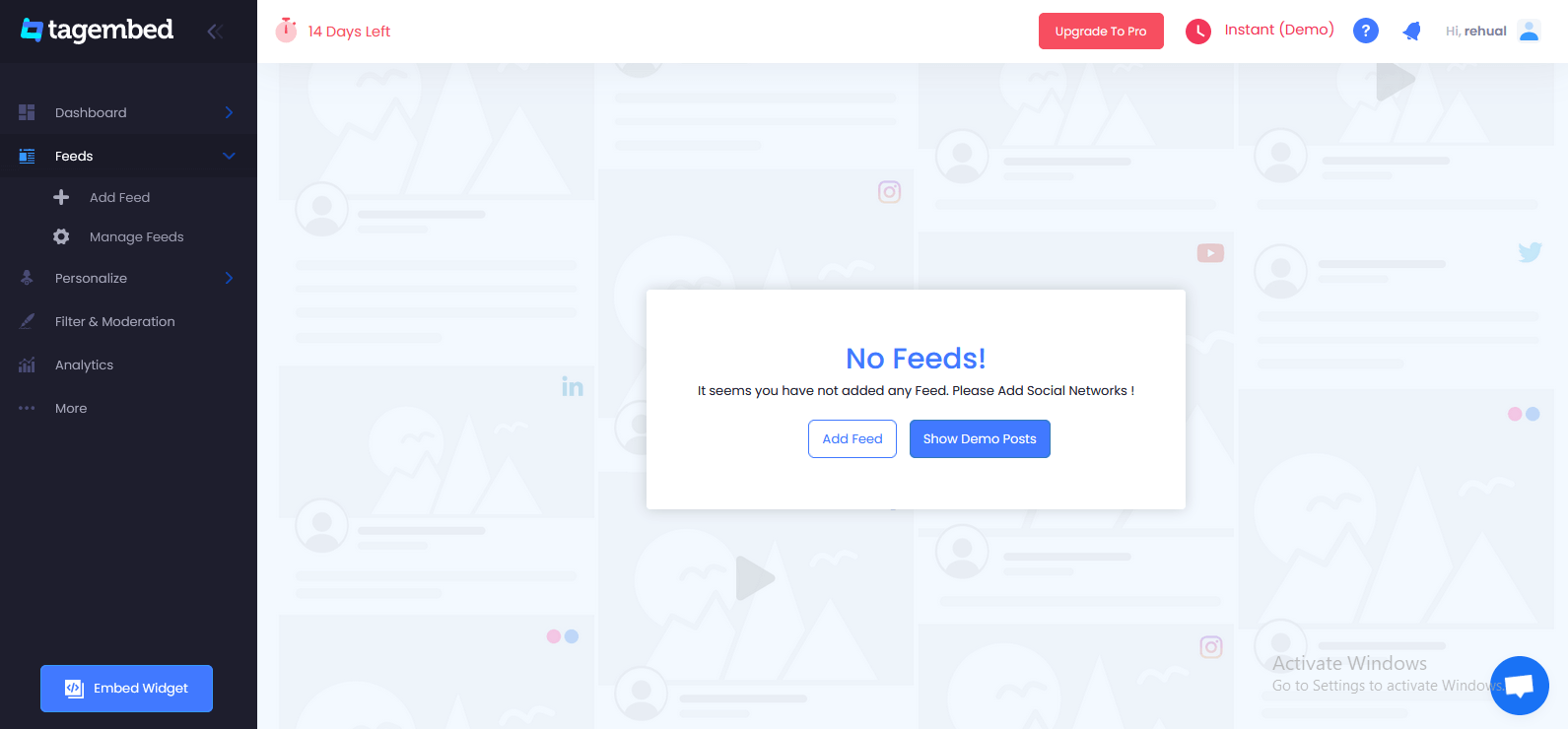
3. A new pop-up window will appear on your screen and choose TikTok from provided social media networks.

social media

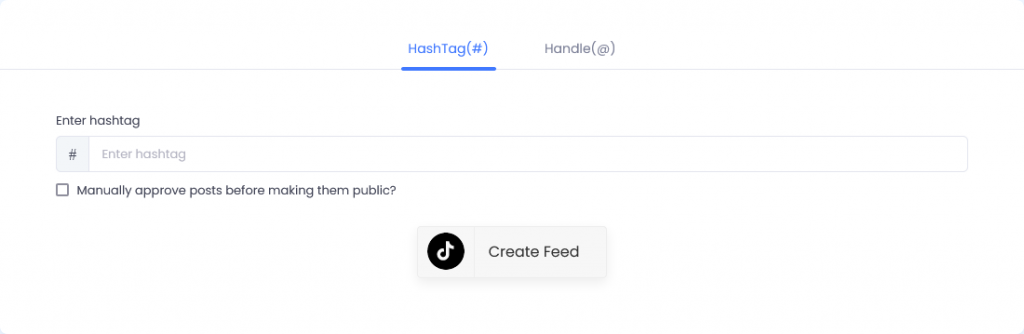
4. Tagembed widget tool provides two connection types to fetch posts, TikTok HashTag(#) and Handle(@) feeds. Select the suitable connection type, provide mentioned details, and click on Create Feed button.

tiktok connection types

Step B: Generate TikTok Feed Embed Code

1. After that your TikTok video feeds to display on your screen and now click on the Embed Widget button on the bottom left side of the window.

tiktok feeds weebly

2. Choose Other(Webflow) from Choose Your Platform pop-up.

website platform

3. Now you can adjust the height & width of your TikTok video feed.

Other-Get-Code

4. And now copy the embed code for your Webflow app.

Step C: How to Embed TikTok Feed Widget on Webflow

1. Now navigate to the Webflow website and login to the admin panel.

2. Head to the “Add Element” & scroll down and click on the “Embed” button.

tiktok feed widget on webflow

3. Drag & drop it where you want to display the TikTok feed widget for the Webflow App Website. And paste this unique code into the iframe and click on Save/Publish it.

Key Takeaways

We call it a wrap! It brings us to the end of this blog, and we are positive that you will be completely pumped up and motivated to add TikTok feed widget on the Webflow website right away!

I hope you are now aware of why adding TikTok videos is helpful for your Webflow app marketing.

What are you waiting for now? Start the embedding process right away and reap the amazing benefits and more!

Technology, Website

Why You Shouldn’t Miss Out On Using Google Reviews Widget

The internet has completely transformed the way business is done today. Consumers now find more comfort and searching for the products online and making their purchases. As there is growth in online shopping, there is great relevance to online reviews as well. After all, trust plays a huge factor in the online shopping space.

Even brands understand the importance of online reviews, and hence to help their customers and prove credibility, businesses are now actively using Google review widgets on their websites. 

Google review widgets are like functional blocks on websites that enable displaying Google reviews without any hassle.

There are many tools currently available on the internet that offer a dedicated Google review widget and allow you to embed the Google review widget on the website smoothly. Moreover, these tools also provide some additional features that bring tremendous value to this strategy of adding Google reviews.

In this blog, you will learn why the Google review widget on the website has such relevance and need to businesses. In short, here are some of the benefits of adding a Google review widget on a website that you can enjoy if you use it for your business.

Benefits Of Utilizing Google Review Widget On The Website

Google review widget has ample benefits, but in this blog, we have handpicked some of the major benefits that might provide you with an idea of how the Google review widget impacts your business. If you aren’t yet using the Google Customer review widget for your business, you are missing out on these benefits.

1. Builds trustworthiness for the business

We all know that competition in the marketplace is fierce, and customers are spoilt for choices. And hence, to win customers’ trust, it is necessary to prove credibility. With the Google review widget on the website, consumers can read the reviews related to your business and make up their minds.

Moreover, reviews help to know the customer’s point of view of the business and hence help them make their purchase decision. Often, current users of the product or customers provide images with the review, which also works as proof of the product and eventually helps build some reliability.

2. Improves brand reputation

As there are numerous brands in the market, there could be some brands that do not deliver the product that they promise or sometimes mislead or misguide their customers. So, showing your reviews on the website helps produce a reputation in the market and build trustworthiness.

In addition, reviews on the website also show that you are a transparent brand. That means you are not shy to showcase reviews on the website and provide complete information about their respective products. It eventually helps create a brand reputation and showcases that your brand acknowledges customers’ feedback and even displays it on the website.

3. Brings an engagement to the website

As mentioned above, consumers have ample options in the online marketplace; hence it becomes vital that your website stands out from the rest. And visitors’ engagement on the website has a crucial role to play. An engaging website helps make an everlasting impression and keeps the visitors on the website. Google review widget allows in this cause as well.

Google review widget provides all reviews related to your business, keeping your visitors engaged. Moreover, they provide real-time updates, which means as soon as someone uploads reviews on the source, the widget displays it without delay. 

4. Holds visitors to the website

Visitors often visit different websites and platforms to read reviews related to a brand. If you embed the Google review widget on a website and provide them with all the Google reviews about your brand on your website itself, it will be helpful for them as they don’t have to explore more places for the reviews.

It will help you to hold your visitors on the website, as they will be spending more time on your website, and there are chances that they might end up buying from your brand. Also, with the help of tools that provide you with a Google review widget, you can even moderate the content on the widget. That means you can remove the reviews that mention the names of some other brands and keep your visitors focused on your brand only.

Also Read: Technology blog

5. Reduces bounce rate of the website

Consumers usually visit search engines while searching for a product or even a brand. Hence, it is vital to have a better search engine ranking so that consumers get to know about your brand and visit your website.

There are ample ways to get a better search engine ranking, and a reduced bounce rate is one of them. When customers have the privilege to read the reviews on the website and make a purchase, they are less likely to exit the website. Hence with Google review widget you can increase the website’s engagement and reduce the bounce rate.

Summing It Up

As mentioned before, there are ample advantages to using Google review widgets on websites. The advantages mentioned above are just the tip of the iceberg. There are many other benefits associated with the Google review widget, but to enjoy them, you need to embed Google reviews on the website

You can find tools like review aggregators that ease the embedding process and assist you in providing the desired results. 

To find these tools now, embed a Google review widget on your website with the help of these tools and take your business to new heights.

Technology, Website

How To Quickly Add Instagram Feed On Elementor Website – For Free

Do you want to learn how to add an Instagram feed on the Elementor website for free?

If you want to without coding builds beautiful web pages for your Elementor website, Elementor is one of the best options to create engaging pages without touching a single line of code.

And the amazing news is there’s an easy way to make your web pages even more engaging. You can quickly add an Elementor Instagram feed to your WordPress website.

elementor

Add Instagram Feed On Elementor Website For Free (Without-Any-Coding)

Right now, we will show you how to quickly add an Instagram feed on Elementor in just a few easy steps are:

A. Log In & Aggregate The Instagram Feeds 

1. To begin, either create a Tagembed Widget account or log in to an existing one.

free account

2. You will be sent to the Tagembed Widget Dashboard. To begin adding Instagram feeds to your widget, select Add Social Media Feeds from the drop-down menu.

tagembed dashboard

[ Tip: You may combine many feeds from different sources, such as Facebook Widget, Twitter Widget, and Google Review Widget into one widget.]

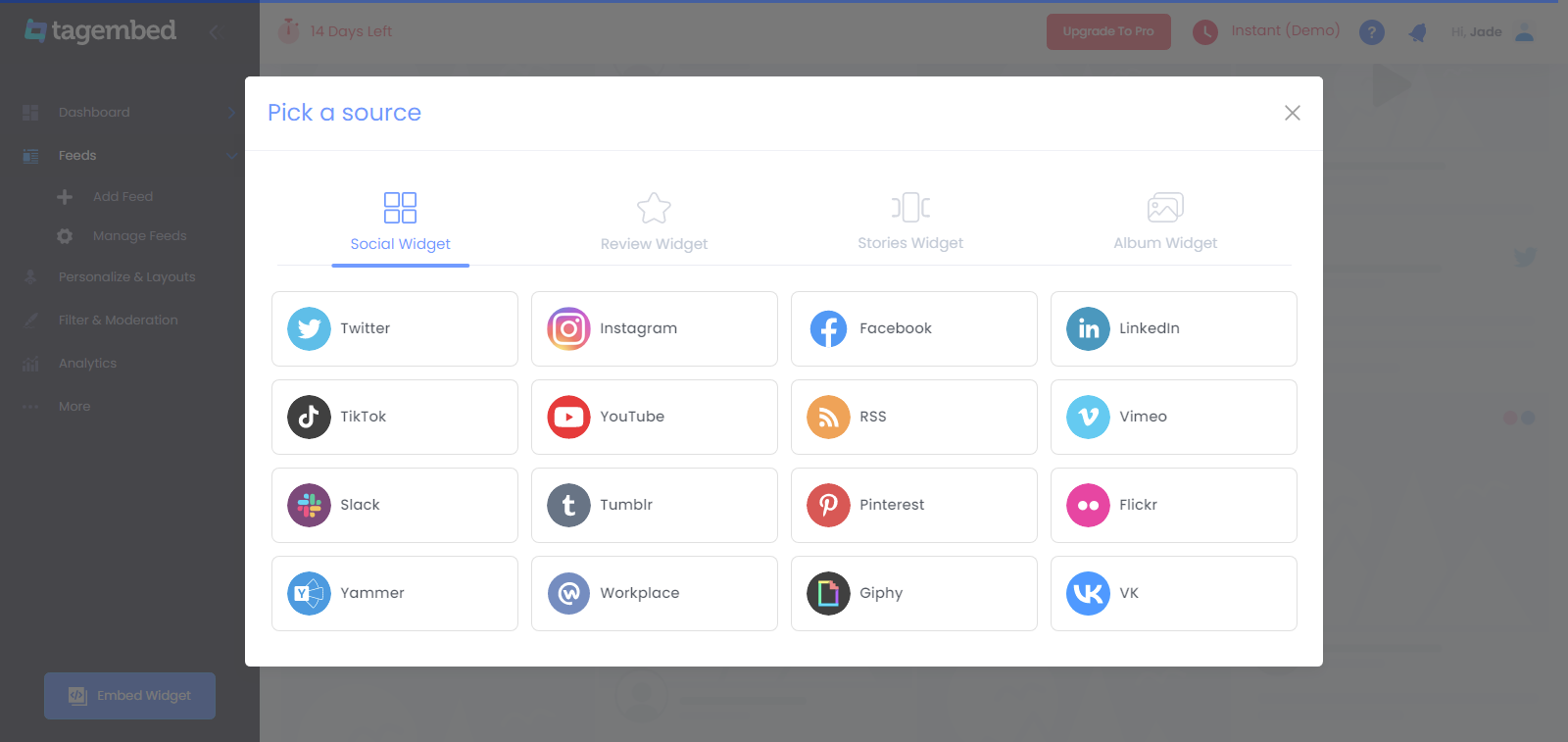
3. In the new Pick a source dialogue box, pick Instagram Business as your aggregating feed source.

social media

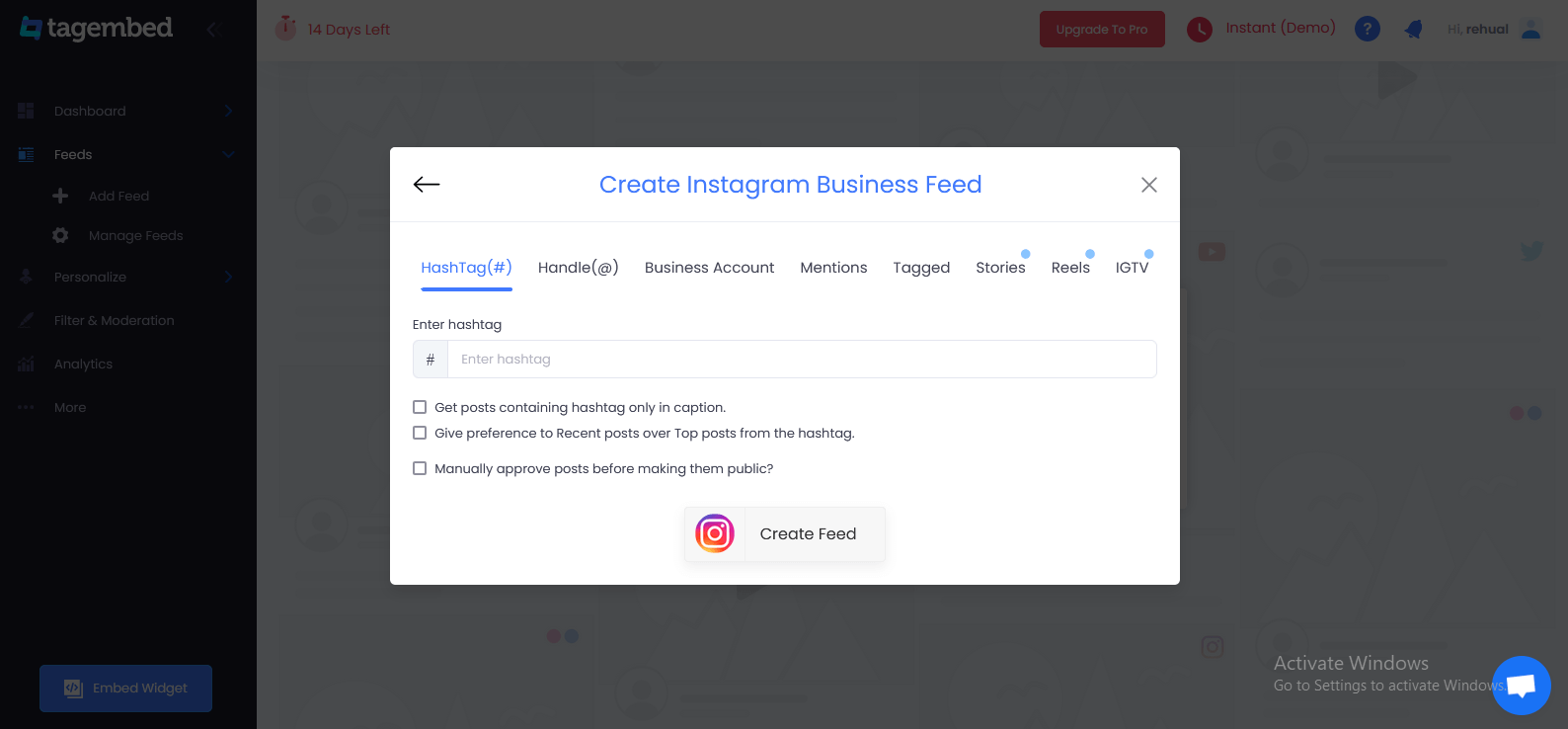
4. A pop-up window titled Create Instagram Business Feed will open, with six choices for fetching Instagram Feed to Elementor website’s Instagram Widget.

create instagram business feed
  • Hashtag (#): Use hashtags (#) to get Instagram feeds.
  • Handle (@): This is used to get feeds from a profile account.
  • Stories & Reels: To get your Instagram Stories and Reels from your profile.
  • Mentions: Get a list of Instagram posts that reference your account.
  • Tagged: See a list of Instagram posts where your profile has been tagged.
  • Videos (IGTV): Use Instagram TV to gather videos.

Select your feed aggregation connection and fill in the required fields. And Complete the needed credentials to fetch the feeds. 

5. Finally, click Create Feed to begin the process of integrating Instagram feeds based on your preferences.

B. Generate & Copy The Embed Code 

The specific steps for generating Instagram feeds embedding code for your Elementor website are given below.

1. Click the Embed Widget button in the bottom-left corner of the screen. You can also view a preview of how your feeds will appear on different devices by clicking the Embed Widget button.

display instagram feed

2. Select Other in the new Choose Your Platform dialogue box to produce code for the Other option.

Choose Your Platform

3. A new dialogue box will display. Set the widget’s width and height, then click Get Code and copy the code that appears.

elementor - height weight

C. Embed Instagram Feed On Elementor Website For Free

1. Select the pages to which you wish to embed your Instagram feed by logging into your WordPress Admin account.

Elementor 

2. Select Edit with Elementor,  then drag and drop the HTML element to the chosen portion of your website page where you want to embed Instagram feed, paste the code, and click Update to finish the process! 

Voila! You will have added the Instagram feed on the Elementor website. 

Why Should Add Instagram Feed to Elementor Website?

Elementor is a most popular website builder plugin for WordPress that comes with an easy-to-use drag and drop editor. With its simple editor, you can create a website to engage your audience even if you’re an Elementor WordPress site.

And you can also quickly add Instagram feeds to the Elementor site to improve them. You can get more Instagram followers, conversions, and boost the sales for your business that way.

Here are a few easy reasons you should add an Instagram feed to the Elementor website:

  1. You can display Instagram posts and videos on your website. When people see others enjoying your products, it works as social proof and makes them more likely to purchase from you.
  2. By adding an Instagram feed, you can display Instagram photos and videos on your website. So, you can make your web pages more engaging even without uploading these images and videos to your website.
  3. Embedding Instagram feeds on site means more people can see them and that can get you more Instagram followers.
  4. Instagram feeds can also give your customers an amazing online shopping experience. You can add shoppable Instagram feeds to your personal website and directly sell out your products.

Now, let’s see Elementor Instagram feeds can help you promote your product/business and get more sales in lots of ways.

Over To You

Elementor is an amazing website platform to add an Instagram feed and efficiently boost your user engagement, brand awareness, and visibility, and eventually increase your sales and conversions.

Display Instagram feed on the Elementor website helps build social proof for your brand, making the Elementor website’s overall look more attractive and appealing.

Apart from this, it helps a great deal in improving your relationship with your customers. If you are a business or a brand and not using the power of social media by embedding Instagram feed on the Elementor website, then you are surely missing out on a lot.

Website

How To Embed LinkedIn Feed On Weebly Website?

Want to add a dose of professionalism to your Weebly website? LinkedIn is by far the most popular social media platform for professionals. So if your website is focused on business or other topics professionals concern themselves with, then it’s a good idea to take amazing benefits of this fact and add some of the social media network’s elements to Weebly.

But how can be possible? That’s the issue, and I’ve got the best solution…

In this post, I’ll go over the easy method to Embed LinkedIn feed on Weebly website. Then, I’ll give you the best and most free social media tools to accomplish each method.

Let’s get into it…

Embed LinkedIn Feed on Weebly Website

Wondering! How to Add LinkedIn feed on Weebly? Let us walk you through an easy step guide with Tagembed LinkedIn Widget. Follow the below mentions instructions to embed LinkedIn feed On Weebly Website.

Step A – Add LinkedIn Feeds By Tagembed Widget 

Step B – Generate Embed Code for the Weebly Website

Step C – Embed LinkedIn Feed on the Weebly Website

Step A – Add LinkedIn Feeds By Tagembed Widget 

1. Create a Free Tagembed account or Login if you already have an account.

signup

2. You’ll be redirected towards the Tagembed dashboard.

Embed LinkedIn Feeds on Weebly Website

3. Your First Widget will be already created, just click on the Open button to proceed.

Embed LinkedIn Feeds on Weebly Website

4. A screen “Pick a source” will appear, here select LinkedIn from the list of networks.

social media networks

5. Now you can collect Linkedin Feeds using two simple ways:

  • Company Page URL (Auto) – To collect all Linkedin feeds automatically in a single click.
  • Post URL (Manual) – Copy and paste the post URL one by one to collect feeds in Linkedin Widget.
embed linkedin feed Automatically on site

However, for auto-update of your Linkedin Posts choose Company URL and paste the URL of your company page. Finally, click on the “Create Feed” button to collect feeds.

Linkedin Feed on website

Kudos! Your LinkedIn feeds are now collected on the Tagembed editor. Now you can proceed to customize and embed your Linkedin Widget on the Weebly website.

Read More – Embed Twitter Feed On Weebly Website

Step B – Generate Embed Code for the Weebly Website

1. Click on the Embed Widget button at the bottom-left of the menu panel.

Embed LinkedIn Feeds

2. A new screen “Choose Your Platform” will appear with the list of different website CMS. So you can choose Weebly as your website CMS and then adjust the height and width of your widget.

Embed LinkedIn Feeds

3. Now click on the Copy Code button and copy the embed code.

Embed LinkedIn Feeds on weebly

Read More – Embed Facebook Feed On Weebly Website

Step C – Embed LinkedIn Feed on the Weebly Website

After copying the embed code follow a few more easy steps to complete the embedding process:

1. Now Login to the admin account of your Weebly website and navigate to the page where you want to add LinkedIn Feeds. And scroll the elements on the left-hand screen to find the Embed Code option. Drag and drop the option on the page where you want to embed LinkedIn Feed on the Weebly website.

add LinkedIn Feeds on Weebly

2. A pop-up will appear Edit Custom Weebly click on it and Paste the embed code into it.

add LinkedIn Feeds on Weebly

3. Finally, click on the Publish button at the top-right corner to make the changes effective.

Read More – Embed Google Reviews on Weebly Website

Conclusions

In a nutshell, we have explained to you the best way and using the free of cost tool to embed LinkedIn feed on Weebly Website. And it increases your brand’s visibility and makes your Weebly website more attractive, embedding LinkedIn posts on it. The unbelievable benefits of the visitors spending more time on your Weebly website, and will indirectly help you to improve your SERP.

Digital Marketing, Website

How to Embed Medium Articles On Website?

Medium is a wonderful blogging platform for sharing articles, it provides a great platform for users to reach more audiences. Many brands maintain an account on Medium.com to market their products and brands.

businesses often showcase Medium blogs on their website, by involving some good level coding or time-consuming process. by opting to embed Medium articles on your website you can exhibit Medium articles without any hassle.

Here, you will learn how to embed Medium Article on the website with ease and without any coding.

How to Embed Medium Articles/Blogs on Any Website?

Many social media aggregator tools available on the internet make it easy to embed Medium articles on the website.

Right now so many tools to do it but the Tagembed tool stands as the best. Simply because it helps to aggregate all Medium articles with ease and gives you an unlimited flow of user-generated content on your website. Also, it is a lifetime free tool which means you don’t have to pay anything.

You can quickly add Medium posts on the website using Tagembed, you just need to follow these simple steps:

Step-1. Sign up to create a free Tagembed account or log in to your account if you are an existing user.

signup

Step-2. You’ll be redirected to the Tagembed dashboard. The First Widget will be already created for new users, just click on the Open button to proceed

dashboard

(Note: If you are an existing user, then click on the Create Widget button that appears on the top right corner of the screen. Next, provide the desired name of the widget on the pop-up dialog box and click on Create Widget)

Step-3. Pick a source window will appear on your screen. Select the RSS widget as your source from the grid of platforms.

social media

Step-4. Create Feed dialog box will appear on your screen with 2 input boxes:

  • Display Name – Provide the desired name for your post feeds
  • Feed URL – Enter the URL of your targeted Medium article feeds
Add RSS Feeds

Step-5. Now change the Medium URL into RSS feed URL, you must follow the RSS feed URL scheme mentioned below in this image.

RSS feed examples

Step-6. Click on the Create Feed button to start aggregation. And within a few seconds, your screen will be loaded with all Medium Blog feeds.

medium blogs

(Tip: You can customize the feed according to your preference by clicking on the Personalize option on the left side of your screen. It allows you to change the Theme, Banners, CTA, Moderation Filter, Background, Font style, Font size of the widget and offers more options. Customization helps you to add charm to your widget and makes it appealing.)

Step-7. Click on the Embed Widget button that appears on the bottom-left side of the screen.

Medium Blog feed

Step-8. Choose Your Platform dialog box will appear on the screen with the list of different website CMS. Select HTML from the given options.

Add Feeds On HTML Websites

Step-9. Adjust the height & width of the widget and click on the Copy Code button. Paste this code on the website where you want to embed Medium articles on the website.

adjust height and width

Great! You have successfully embedded Medium posts on your website.

Final Words

The steps mentioned above are the simplest way to embed Medium articles on your website. The method is time-saving, budget-friendly, and hassle-free.

So the ball is on your court now, hurry up use Tagembed now and embed the medium article on the website without breaking any sweat. Enjoy the free forever plan and various features along with it.

Website

How To Embed Twitter Feed On Weebly Website?

About The Twitter:

The most followed and best source for up-to-date happenings around the world. From celebrities and influencers to brands and everyday people, approximately 6.5k tweets are tweeted every 60 seconds. Woah.

Twitter is where you connect, network, and keep people in the know about your business or blog. For many companies, Twitter is their go-to social media platform for news, announcements, and public communication. Heck, even the President of the United States is all over Twitter!

Nowadays Twitter is one of the most popular social media platforms with millions of active users. There are several ways to display a Twitter feed on the Weebly website, but here I will tell you the easiest way to embed Twitter feeds on a Weebly website.

How To Embed Twitter Feed on Weebly Website With Tagembed Widget

Using Tagembed a social media aggregator tool you can easily embed Twitter feeds on the Weebly website without any hassle. So here are some easy steps to embed the Twitter feed on the Weebly website using By Tagembed

Try now these free social media aggregator tools like the Tagembed widget. Follow these easy step-by-step guide to adding Twitter Feed on the Weebly website successfully:

A: Signup/Login to the Tagembed account.

B: Create a widget and rename it.

C: Select Twitter as a source.

D: Now enter the connection types and fetch the Twitter feeds.

E: Tagembed display fetches feeds from the Twitter account.

F: Click on the “Embed” button.

G: Now display the different website platforms Like HTML, WordPress, Shopify, Wix, Squarespace, Weebly, PageCloud, etc. So choose Weebly.

H: Click on the “Get code” button and copy the unique code.

I: Paste this unique code on the backend page of your website.

So all are finished and all Twitter Feeds will be on your Weebly website screen. Now you can customize, moderate, and embed Twitter Widget on the Weebly website.

Tagembed’s Additional Benefits

Right here are some key benefits of adding a Twitter Feed on your Weebly website – Try Now

  • Twitter hashtag feed + easily gather your social media content by @username or #hashtag and etc.
  • Set up rules & filters to automatically eliminate unwanted content + duplicate posts.
  • Permalinks to each of your social media posts, optimized for SEO.
  • Responsive grid for dynamic layouts and customization.
  • Auto-approve all your user-generated content, or set up auto-moderation filters.
  • Custom CSS + Style it to fit your brand or website.
  • It gives you access to more than 20 more sources.
  • Easily Integrates with the following social media platforms + Always free plan available.

Final Thoughts

As you can see, using a Tagembed widget to embed Twitter feed on your Weebly website doesn’t have to be complicated or expensive. By following our step-by-step instructions, you can have a beautiful Twitter feed displayed on your Weebly website within minutes. Ok, that’s enough out of us, what are you waiting for? Embed your Twitter widget today!

Digital Marketing, Website

How To Add Testimonial Slider Widget On Website?

Getting new customers to trust you enough to spend money on your services is one of the toughest parts of running a website. Therefore, it’s crucial to find easy yet effective ways to prove your brand’s reliability. Fortunately, you can make strides in this area by simply adding a testimonial slider widget to your website.

Testimonials slider widget is the best way to encourage customer trust (as long as they’re positive) since they show potential users that you have a track record for doing good work. Plus, securing a testimonial won’t cost you anything.

Why Should You Add Testimonials Slider Widget To Your Website?

Research shows that 88% of customers read reviews to determine the quality of someone’s business.

Posting customer Google reviews on your website is a perfect way to build trust and credibility. It works not only as strong proof of your product quality or service expertise but also, introduces visitors to the clients (companies) you had a chance to collaborate with.

In this blog, we will learn to add a testimonial slider widget to the website. Here we will be using the social media aggregator tool – Tagembed widget. It is an amazing tool and gives you an unlimited flow of user-generated content on your website. One of the mind-blowing things is that it is a lifetime free tool to add a Testimonial widget on the website and that means you don’t have to pay anything.

Read further and you’ll learn how to add a testimonials slider widget to the website using the Tagembed, So follow these simple steps are:

#Step1 – Create A Testimonial Slider Widget With Tagembed
#Step2 – Add Testimonial Reviews Slider On Website

#Step1 – Create A Testimonial Slider Widget With Tagembed

a). Firstly create a Free Tagembed account or log in if you already have an account.

signup

b). And now you’ll be redirected towards the Tagembed dashboard.

tagembed dashboard

c). Your First Widget will be already created, just click on the Edit button to proceed.

create widget

d). A dialogue box will open to “pick a source”, Choose Google Review now

Google Review

e). So after that, a new dialogue box will open to create a reviews feed. You can choose any type of connection and aggregate all reviews from using the places and my places to fetch all the amazing review feed on the website.

create review feed

f). Now click on the “Personalize & Layouts” button from the dashboard menu.

Personalize & Layouts

g). Click on the “ Classic Carousel (Testimonial Slider) ” theme and click apply theme. You will see a bunch of different review widget examples.

Slider Widget

#Step2 – Add Testimonial Reviews Slider On Website

a). Once you have selected the testimonial widget and click on the Embed Widget button displayed below the Google review widget feeds.

Embed Widget

b). Dialogue box will appear with “Choose Any Website Platform” Now choose the WordPress

website platform

c). Now a new Dialogue box will appear, now adjust the height and widget accordingly to you and click on the get code button & copy this code

adjust-the-width-and-height

d). So now copy the embed code and paste it where you want to display the Testimonial slider widget on the website.

Final Thoughts:

Add a testimonial slider widget to your website to increases your conversion rates, whether you’re selling goods, or providing the best services. Fortunately, anyone can create a testimonial slider section on their websites using by Tagembed – Social Media Aggregator tool. So what are you waiting for? Follow the steps now, and prove your credibility to the world.

Digital Marketing, Website

Best Examples To Embed Google Reviews On Website By Widget Tool

Around 93% of potential customers go through online reviews while making their buying decision. This is mainly because one customer tends to trust another customer much more than the brand’s promotional content. Hence, by embedding Google reviews, you shall easily be able to gain your potential customers’ trust and be able to convince them to purchase your products.

Google review widget when embedded on a website can add a massive amount of value to your website in the form of traffic, sales, and brand trust.

It’s an easy and quick process. There are many Google reviews widget tools that can serve this purpose. But not many of them are worth your hard-earned money. The one that comes with additional features is ideal for any business.

The Tagembed widget is one of the best Google reviews widget tools. It gives real-time updates of live reviews and analytics features as well as measures the performance of your widget. One of the amazing things is this is a lifetime free tool.

Embed Google Reviews On Website – Best Examples That You Must Try

1. Display Google Reviews On Website Homepage

Your website’s homepage is the first place where your potential customers reach as they click the link. It is after going through the homepage, the customers decide whether they wish to explore the website further or not.

Adding Google reviews examples to the homepage would instantly catch the attention of your website visitors and urge them to go on and have a thorough look at your website and what your business has to offer.

2. Incorporate Google Reviews In The Website Header

Choose the best reviews from the lot and embed them into the header section of your website. Make sure you display it in an attractive way to attract the attention of the audience. If you feel that doing so would be a little over the top, think again! Your customers’ words about your brand and its products need to be flaunted since it can help your potential customers decide on their purchases.

Read More – Benefits of Google Review Widget

3. Display Google Reviews In The Slider Widget

If you are looking for a way to set Google reviews into your website in a visually appealing way, then you can do it by embedding it in a slider form. You can place the content strategically in a section of your websites like the product page or the ‘Our Story’ page for tapping into impulsive buying.

Think about it. Your users are already interested in your products and are surfing through your product pages. Reading Google reviews would give them that extra push to purchase the product right away!

Raed More – Embed Google Reviews on Weebly

4. Display Google Reviews In The Sidebar Widget

Beautifully integrating the voice of your customers in the form of a sidebar widget is an ideal way to motivate them to purchase your products. For example, you can do so by embedding the content on a page dedicated to special discounts or promotions. Doing so would make your customers keen on your products. Ultimately, all customers love good product deals, and leveraging this strategy would further aggravate their need to buy the product immediately.

5. Embed Google Reviews Location Wise

This example is great, especially if you have various business branches across multiple cities, within a particular city, across states, or even countries! Often, users are hesitant to visit another branch of the same business since they are thoroughly convinced with the services of a particular one. Embedding Google reviews location-wise can instill faith and confidence in your potential customers, and they will be confident to visit the brand anywhere!

Read More – Google Reviews Plugin for WordPress

Conclusion

We have reached the conclusion section of the article. We’d like to emphasize that the more trust your customers have, the more sales and conversions you get! More than 90% of customers are not confident to make purchases from a website if they do not see customer reviews, and this is itself a revelation big enough for you to leverage your customer’s reviews, isn’t it? Get going now, choose the tool that works best for you, and set the Google reviews widget for your website.

Digital Marketing, Website

Complete Guide to Embed Twitter Widget on Website for 2022

Twitter has no more restricted its wings only till making communication among people all over the world feasible and interesting. It has become the hatchery for numerous businesses and brands that are animatedly working to make themselves noticeable.

Twitter as a social media platform has always been the best source of crisp and unique information from all over the world.

Marketers are making great advantages with Twitter Widget to aggregate, curate & embed Twitter feed on the website and have made it the centre for doing all the endorsement for their brand. This has also been possible due to the massive number of Twitter users that scroll through Twitter feeds all the time.

Embed Twitter widget on your website is a fantastic idea to make your website stand out from the crowd of other similar and bland-looking websites. Thus, this gives your website the golden opportunity to bring a great number of visitors to it, thereby making your brand triumphant.

How to Display Twitter Widget using by Tagembed?

While in the process of embedding a Twitter widget to your website, you are first needed to create a Twitter widget for it. Here Tagembed comes into action, it serves as the best tool for creating an amazing Twitter widget to be embedded on your website.

Here are the steps that you can follow to create a beautiful Twitter widget for your website

  1. Create a Tagembed account for yourself, else log in to it if it already exists.
  2. From the dashboard that appears on your screen, choose “Add Social Feeds”, to give a functional command for the widget.
  3. Opt for “Twitter” as the source of information to create the widget.
  4. Tagemebd will now efficiently collect all the Twitter feeds for the widget through page URLs, posts, mentions, tags, etc.
  5. Finally, give the Facebook credentials to create the widget.
  6. Yay!!! You have now successfully created the Twitter Widget for your website using Tagembed.

Simple ways to Embed Twitter Widget to your website

  1. Creating the widget was not all, now you will have to embed that widget on your website at a required location. This allows your visitors to find all your Twitter feed widgets at a single place on your website.
  2. Below given are the steps that you can follow to Embed a Twitter widget on your website!
  3. Begin with clicking on the “Embed Widget Button”
  4. Choose the CMS platform for your website, which may be WordPress, Wix, Shopify, etc.
  5. Adjust the height and width of the widget according to the requirements of your website.
  6. Select “Get Code” to generate the code and then “COPY” it.
  7. Now, “PASTE” the code that you have copied, is on the backend of your website.

Embed Twitter Widget on Distinct Website-Building Platforms

There are several website-building platforms available that you can use for embedding your Twitter widgets to your website. Learn the methods involved in different website-building platforms to embed Twitter widget for WordPress websites!

1. Add Twitter Widget On WordPress Website

WORDPRESS

WordPress is the most popular platform building website, it provides plugins for your website that add various new functions to it. If you want to use Plugin, Tagembed has invented a WordPress Plugin named a social media feed plugin for WordPress users. WordPress controls both the backend as well as the front end of the website.

1.a) WordPress Classic Editor

This is for the ones who choose the older version of the WordPress website, these are the steps that you can follow!

  • Choose the most suitable WordPress plugin for your website.
  • Generate the embed code of the website and then copy the code on the clipboard.
  • Now, see the backend of the WordPress website and find the visual and text options, further click on “Text Mode”.
  • Paste the code that has been generated, in the backend part of the website where you wish to place the widget.
  • Tap on “Update/Publish”, to save the changes that you have applied.

1.b) WordPress 5.0

Here we come to the steps for the ones who have chosen the upgraded version of the WordPress website.

  • Start with choosing WordPress as the CMS for your website.
  • Generate the embed code using Tagembed and copy the code in the clipboard.
  • Now, go to the WordPress backend page.
  • Choose “(+)Add/ Block” from the WordPress Editor, and click on the formatting
  • Select “Custom HTML” and then page the code in the widget editor.
  • Finally, “ click on “Publish/ Update post”.

2. Twitter Widget for Shopify Website

Shopify

Shopify allows you to extend the functionality of your website by adding many features to it. The main focus of Shopify is to grow sales on your e-commerce website. On the high demand of e-commerce users, Tagmebed launched its Shopify plugin as well which reduces all your efforts and gives an amazing social wall on your e-commerce website. Below mentioned are the steps that you can follow to embed Twitter widget on the Shopify website.

  • Choose Shopify as your website-building platform.
  • Proceed by generating the Twitter embed code using Tagembed and then copy the code on the clipboard.
  • Log in to your Shopify account and explore the online stores.
  • Go to the themes menu present on the sidebar.
  • Select HTML/CSS option.
  • Choose layouts/ templates/sections of your choice, for the website.
  • End by pasting the code and clicking on Save.

3. Embed Twitter Widget on Squarespace Website

Squarespace

Squarespace is a Saas-based website building platform. It also offers numerous features and customization options for your website. Here are the steps listed that you can follow to embed Twitter widget on your Squarespace website.

  • Choose Squarespace as the website building platform for your website.
  • Generate the embed code using Tagembed and copy the code in the clipboard.
  • Choose the location to place your Twitter widget.
  • Tap on “+Add/ Edit Block” and choose code from the menu.
  • From the URL field, click on < / > icon.
  • Finally, save the applied changes.

4. Add Twitter Widget on Wix Website

Wix

Wix provides various customization options for your website, thereby making it visually appealing and interesting for visitors. Follow these steps to embed Twitter widget on your Wix website and make it super amazing!

  • Again, start by selecting Wix as your website building platform.
  • Now generate embed code for it using Tagembed and copy it on the clipboard.
  • Got to the Wix Editor.
  • Explore the page and choose the best location to embed the Twitter widget.
  • Now, click on the “+Add” button followed by clicking on “More”.
  • Now, choose HTML iframe and paste the HTML code.
  • Lastly, tap on Apply to save the changes.

Conclusion

It was wonderful to learn about embedding Twitter widget to your website and making your business grow splendidly. The Twitter widget has the ability to make your website more visible by showcasing colorful and impressive Twitter widget on your website.
Waiting? Why?
Hurry up! Make your website extraordinarily amazing and excel in the market field.

Website

How To Embed Facebook Feed On Weebly Website

Starting in 2004, Facebook has become the most popular social media channel worldwide with the largest number of customers compared to other social media networks. Moreover, with more than 2.8 billion social media users, it has become the largest community with diverse demographics.

Now Facebook is limited to social media sharing and networking, but it has also become a prominent channel for marketers to grow their businesses. By promoting your business, Facebook is proving to increase sales and revenue for the growing competitive edge.

As a marketer, you must make the most out of the resources to achieve the goal and profits for the business. A trending and effective way to use Facebook for marketing purposes in the recent competitive era is to embed Facebook feed on Weebly website.

Do you want to know how to embed Facebook Widget on your website? If yes, then continue reading this blog to easily and step-by-step embed Facebook feed on Weebly website.

Facebook feed

Heads Up: You require a social media aggregator to collect, curate, and add Facebook feed on Weebly website. There are so many social media aggregators available on the internet, but here we will talk about adding Facebook posts with Tagembed Widget on your Weebly website. About the Tagembed Widget is one of the popular and brand-trusted social media aggregators with an intelligible interface that allows anyone to easily curate, customize, and add Facebook widget on Weebly website. So without further ado, let’s get started!

Add Facebook Feed On Weebly Website In 5 Simple Steps

Step-1: Create Your Account on Tagembed

  • Create a free account with the Tagembed Widget.
  • Login with your company or personal email, enter all the required information.
  • Once you are done with these mandatory details, you will direct them to your Tagembed Widget dashboard.

Step-2: Create Facebook Feed

  • Now you are on board with Tagembed Widget. Go to the My Widgets section on the screen and create your widget.
  • Open the widget, and a screen will pop up with the multiple social media platforms on your website.
  • Select Facebook as the source to create social media feeds on Tagembed Widget.
  • Next, you have to enter the connection from which you want to collect Facebook Feeds for your widget, like mentions, URL, profile, album, Page, etc. Type the connect and click on the Create Feed button.
  • Now the next screen will appear that asks you to connect with the Facebook account information. Enter the right credentials of your Facebook account from where you want to collect the Facebook posts.

Step-3: Customize and Moderate Facebook Feed

  • As you connect with your Facebook account, Tagembed Widget will automatically fetch all the Facebook Feeds related to your created connection type.
  • You will get all the Facebook Feeds on your screen. Suppose you want to make your Facebook Feed more attractive, interesting, and engaging for your website visitors or users, than with the customization option available. In that case, you can enhance the look and feel of your collected Facebook Posts.
  • It provides you with several alluring themes, background styles, layout designs, customized colors, fonts, size, etc.
  • You can also add banners to your curated Facebook post.
  • Moreover, if you find any image or post that you don’t like to add to your Facebook post, then with the moderation feature at Tagembed Widget, you can easily deselect the feeds.

Step-4: Generate Embed Code For Weeble Website

  • Now you are ready with your Facebook Widget with full customization and moderation, it’s time to generate the embed code for your Weebly website.
  • For this, click on the Embed button, you can find it on the bottom left corner, click on the button, and a screen will pop up with the various CMS platform options.
  • From here, select Weebly as the website building platform. It will take you to the next screen, which will contain the Facebook feed embed code to place on the Weebly website.

Step-5: Past Embed Code in Your Weebly Website

  • Login to the Weebly Admin account and select your project to embed Facebook Feed on the Weebly webpage.
  • On the left-hand side menu, click on “Add Elements,” then drag and drop the “Embed” Element on the webpage where you want to embed Facebook Feed on website.
  • A Pop-up of HTML Edit Custom Weebly click on it too.
  • Paste the copied code in it and click on Save & Close button.
  • Finally, click on the Publish button to make the Facebook Feed Widget effective for your website.

Wrap Up

Tada! In just 5 simple steps, you will be able to collect, curate, customize Facebook feeds for your Weebly website.

So what are you waiting for?

Start embedding your Facebook posts and drive enormous traffic to your Weebly website.

Website

Most Fruitful Ways To Embed Twitter Widget On Website 2022

Twitter is a leading social networking platform that has established itself globally as a platform where people express their views on world affairs, industries, and topics of all kinds. It has outgrown itself from just being a social media platform.

Today, brands are consciously using it for marketing purposes, whether it is an MSME or a well-established firms. If you, as a brand are maintaining an active presence on Twitter, then users will probably be talking about you, tweeting their reviews, commenting on your posts and sharing their experiences using your brand-related photos and videos.

Imagine if you could collect and embed these useful user-generated content on your brand’s official website to display social evidence. Wouldn’t it be amazing? Well, what if we tell you, it is possible would it interest you? Well, that is possible and that is with the help of Twitter Widget.

There are various tools that provides you with that widget but in this blog we will be discussing about the tools that efficiently help you to embed Twitter widget.

Easy-To-Use Tools That Helps To Embed Twitter Widget On Website

1. Tagembed Twitter Widget

tagembed widget

Tagembed is a wonderful social media aggregator that helps you to embed Twitter Widget on the website and display Twitter contents. It puts together real-time feeds and keeps your website up to date. It collects the post Via profile posts and pages and more, and displays them on your website without any hassle.

The irrelevant content can be filtered out either manually or automatically, using the powerful moderation function. Moreover, you can also customize the Twitter feeds according to the look and feel of your brand/website. Twitter Widget comes with fabulous themes, background choices, banners, and advanced custom CSS option settings. The robust analytics helps you monitor the output of your Twitter feeds in terms of user engagement, interaction and Twitter feed contribution.

2. Everwall

everwall

Like any other social media aggregator tool, Everwall supports Twitter for displaying event posts and tweets in the form of a visual gallery. The content filtration can be used to curate posts according to the keyword, hashtag, or phrase and helps you restrict the irrelevant trolls, posts, or tweets from showing up on the screen.

Everwall Twitter Widget fits in any screen resolution, be it a laptop, tablet, or iPad. It also allows customization that makes your feeds attractive and appealing, that encourages users to be a part of the campaign.

3. HootFeed

Hootfeed

The customizable HootFeed from Hootsuite is a live Twitter stream that can be presented on the big screens around your events. The HootFeed is an easy-to-customize tool, and also allows your website visitors to engage with the feed.

Along with that, HootFeed uses Twitter Widget to embed tweets containing your default hashtag(s) that can then be seen at your event screen(s). By encouraging people to engage with the show, it proves to be the perfect way to promote audience participation. Without making an account, you can use HootFeed, or you can choose to sign up for a free account or one of the four subscription plans.

4. TwitterFall

twitterfall

TwitterFall allows you to curate Tweets based on several keywords and hashtags. This Twitter Widget is highly customizable. You can change the text size of your tweet, determine whether to include retweets, set the display speed, set exclusions and geolocations, and more.

It takes advantage of the search patterns of Twitter which are listed on the search page of Twitter and show the most common and most discussed subjects of the time. You can even fetch content based on a particular hashtag relevant to your event and display them live on screens.

5. TweetWally

tweetwally

Tweetwally is another Twitter Widget that allows you to search Twitter for posts and tweets based on the hashtag, username, account mention, or keywords to create your own customized live feeds for events. The curated content is then displayed on big screens at events, parties, conferences, and more.

In addition, live streaming, social networking, and virtual reality have started to blur the distinction between being in the event and being digitally present there. Tweetwally Twitter Widget offers an excellent way to offer a seat at the table to your virtual friends as well.

Conclusion

Embedded twitter widget on the website delivers something new and easier to connect with your audience. It gives them real-time insightful and engaging content. It also saves your time and effort to create content when you primarily harness user-generated content.

The future of content marketing is UGC and you need to have a solution to aggregate and incorporate such fruitful content into your business website. Now that you are aware of the simplest tools to embed twitter feed on website that enriches your events and web platforms with engaging content. It is time for you to take steps to see how Twitter Widget operates in real life