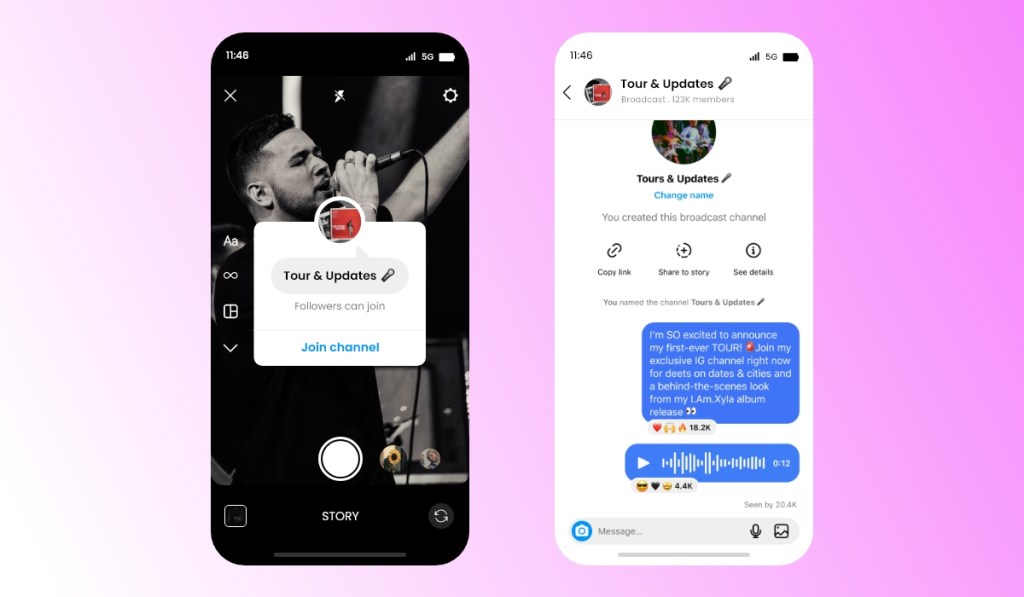
As the world is shifting their businesses online due to large audience cater and possibilities. Businesses are prioritising to have social media presence. Instagram is one of the prominent social media platforms that is known for evolving. It keeps on rolling out new features that helps creators, businesses and others to engage with their audience in deeper level. Instagram is rolling out a new Instagram Feature that will help creators share information with their audiences termed as Instagram Broadcast Channel. It is currently limited to US creators only but will be soon rolled to other users.
Instagram Statistics describes the possibilities it has for the existing users and with new features rolling out, Meta is letting their creators to grow and engage rapidly with their users. In this blog, we will be discussing about Instagram Broadcast Channel feature and how to use it. In other words, this is – the Instagram Broadcast Channel – Explained!
What is Instagram Broadcast Channel?
Creators are getting their well-deserved praise and reach. And as the platform witnessed the number of creators and their fans getting more, it made their connection more difficult and complex, and hence the need for an Instagram Broadcast Channel feature emerged.
The feature allows creators to communicate with the audience closely and understand the need of the market. Being a creator, it is important to have a deeper connection with the audience, and even while running a business page on the gram, it is essential to stay in touch with the consumers and keep them updated.
Instagram Broadcast Channel will enable businesses and creators to have one-to-many interactions providing the followers with exclusivity and building a stronger bond. Only the creator can send a message on the broadcast channel. Hence, making it a very close and exclusive connection and being you be the only account to post a message reduces the chances of the channel getting unwanted or irrelevant messages.
Once you have created the channel, you can invite followers to join the channel by sharing the link. You can share the join link via Instagram stories and messages or even share the link on different platforms. Sharing the channel link on different platforms also helps you promote your Instagram page, building a robust presence there.
Another smart way to promote your channel broadcast is by sharing the link in the bio. While vital point to keep in mind is that only your followers of your Instagram page can join your channel. That means to join your channel, one has to follow your Instagram page. So you can imagine how beneficial it is for your growth on Instagram.
Now let’s understand how to create Instagram Broadcast Channel using the desktop and smartphones. We have also covered a Instagram Reels Guide blog with some helpful tips and tricks that you can also read.
How To Create Instagram Broadcast Channel
To create an Instagram Broadcast Channel, just follow the steps mentioned below. In this segment, you will learn how to create a channel through desktop and mobile devices.
Create Instagram Broadcast Channel Using desktop
To start a broadcast channel:
Tap send or messenger in the top right of the Instagram feed.
Tap create a button in the top right.
Tap Create broadcast channel.
Give your broadcast channel a name.
Tap Create broadcast channel.
You can find your broadcast channels in the Instagram app by tapping send or messenger in the top right and then clicking Channels. When you send the first message to your broadcast channel, all your followers will receive a notification inviting them to join the channel.
And as mentioned above, you can also invite people to join by using an invite link. You can share the channel with different platforms. The limit number of people upto 1 million people can join a broadcast channel.
Create Instagram Broadcast Channel Using Android & iPhone devices
Instagram app for Android and iPhone
Tap the message button in the top right of the feed.
Tap Create in the top right.
Tap Create broadcast channel.
Give your broadcast channel a name.
Tap Create broadcast channel.
Key Takeaways
It was all about the Instagram Broadcast Channel feature! You can promote your channel with your users using different Instagram marketing trends. The feature allows you to bond stronger with your consumers and build a robust relationship with them. So what are you waiting for? Try it now, and take advantage of your competitors.
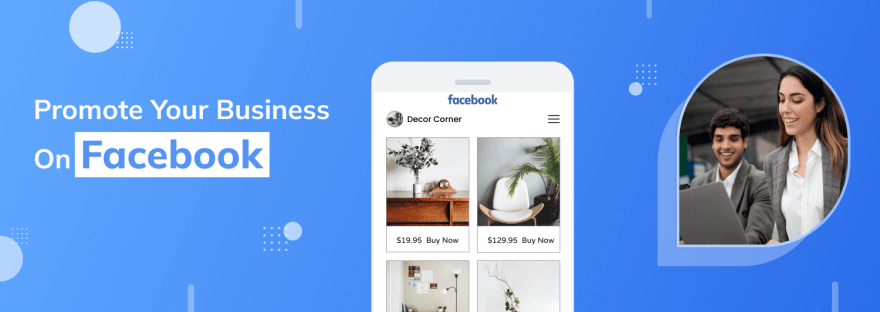
Facebook is a giant in social media platforms with a user base of 3.5 billion active monthly users and every business should be on this platform. For small businesses, enterprises, and startups this is the perfect social media platform.
For your business, Facebook can be an easy way to reach many people. If you want to promote business on Facebook, it will require some effort due to the competition out there on this platform.
You can legitimize your business with a Facebook Page and make it look more credible. Your business can get a large Facebook following with these proven effective strategies. Interestingly, you don’t have to spend a ton of money on Facebook to promote your business. Let’s take a look at these effective strategies in this blog!
9 Effective Tips To Promote Your Business On Facebook
By using Facebook to promote business, to help you here are some effective tips mentioned below. It’s easy to get started with these tips because they are free. You can grow your small business by including these tips in your marketing strategy.
1. Embed Facebook Feed On Your Website
To display that your business has an active community that your website visitors can follow, you can use a Facebook feed. This Facebook feed will help you make your website look more engaging and interesting at the same time. You can display relevant Facebook posts, photos, Facebook videos, reels, etc.
You can easily embed Facebook feed on website with the help of the Tagembed WordPress feed plugin and Facebook widget in no time and code-free.
From your Business’s Facebook Page, you can also embed content and display your Facebook profile photo at the top. Customize your Facebook feeds to match the design of your website with the help of additional features provided by the widget or plugin. This will help you turn your website visitors into Facebook followers.
2. Crafting Compelling Content For Facebook Regularly
One of the best ways to promote business on Facebook for free is by posting content regularly that is relevant to your website visitors. If you want to effectively promote your business, posting at least once a day is necessary according to research.
You’ll have a much easier time getting noticed when you’re constantly posting content. So, whenever you post content on Facebook, always think of these points first if your content is:
Entertaining
Engaging
Informative
Helpful
You’ll be able reach to more people easily, all you have to do is adjust your content posting habits.
3. Use Live Stream To Show Your Products Or Services To Customers
By using your phone or desktop (if it has a camera), you can go live on Facebook anytime. There are several types of live video forms you can try out for your Facebook followers such as hosting a live event, conversations, taking your followers behind the scenes of your business, or displaying your products.
By creating an event, you can then promote this live video stream on Facebook so that the audience knows what it is about. To make your audience excited, create posts about the live video stream in advance.
4. Run Facebook Ads
When you want Facebook to market your business, run Facebook ads. To reach your audience, the social media giant has created one of the most effective ways with its advanced targeting options.
Your prospective customers will take an interest in the kind of products and services that you offer but may have never heard of your brand. Additionally, connecting Salesforce to Facebook Ads can help streamline your marketing efforts by leveraging your CRM data for more precise targeting and improved campaign performance.
You can review the lesson from Facebook directly to get started with ads. To achieve success, make sure that you review the bidding strategies and the types of Facebook ads.
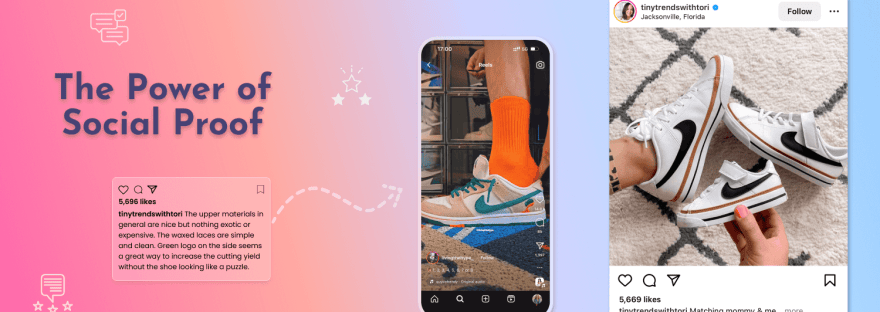
5. Utilize Social Proof
Online customer reviews are very important when you consider buying a product or service online. That’s how social proof works because people look for the opinions of other people before making purchasing decisions.
You can display positive Facebook reviews of your business page on your website with the help of Tagembed’s Facebook Review Widget which will show social proof and assist you in convincing visitors to follow your business on Facebook.
This widget will enable you to directly embed positive reviews of your Facebook business page on your website. These reviews will work as social proof and encourage users to follow you on Facebook.
6. Interacting With Facebook Followers
A great way to promote your business locally on Facebook is to just interact with your visitors. With your customers, it’s easy to talk and discuss on Facebook. This will help you in building an actual relationship and help you improve your brand image.
People are more likely to recommend your Facebook page and products when you develop better customer relationships. Interacting with your Facebook followers is the best hack to promote business without spending a single penny.
7. Build Community Through Groups
You can join Facebook groups through Business accounts also along with creating or joining Facebook groups from your account. When you connect to a group from your Facebook Page enables you to connect with customers and supporters in a more private forum.
To have a deeper connection with your business, this space can offer your community a strong connection. With the help of this kind of group, you can even get valuable insight into what your audience wants from your business.
To offer your expertise, join an existing group or also connect over shared interests. If you’re not ready to start your group you can join an existing one and get the insights from audience.
8. Post More Images & Videos
According to statistics, Facebook posts that contain images will get 120% more engagement compared to posts that have text in them. You can promote business on Facebook by posting more images.
To help promote your business, if you are looking for ideas for images here is the list below:
Infographics
Product Photos
BTS Photos
Pictures of people enjoying your products
On the other hand, videos can also do magic on website visitors when it comes to promoting your business on Facebook. To get the attention of visitors, half of the marketers use videos on the platform.
To engage your followers, you can also try live streams or Facebook Live. You can directly interact with audiences in real time in live streams.
9. Manage Contests And Giveaways
Managing contests and giveaways is the best way to promote my business on Facebook. You can host giveaways and contests that your audience and visitors will want to participate in. Among your followers, this will help increase brand awareness and encourage interactions.
This will make your Facebook posts go viral very quickly. People will be more likely to share your posts if you promise them a reward. This will help you in promoting your business on Facebook.
Importance Of Promoting Your Business On Facebook
When it comes to social media platforms, Facebook is paramount with a record 3.5 billion active monthly users. Here are some of the reasons why you need to promote your business on Facebook.
As a business, you’ll have access to a vast user base of prospective customers with so many people frequently using Facebook.
Take advantage of using Facebook to promote business since it is so popular and free. Your competitors are using it well and it might result in losing your potential customers.
On Facebook, you can interact with your customers easily. It is easy for you to build relationships with them and turn them into loyal customers.
Mistakes To Avoid When Promoting Business On Facebook
Here are some tips that you should avoid mistakes to avoid when promoting your business on Facebook.
1. Not Maintaining Brand Uniformity
The importance of aligning Facebook page messaging with their business goals and vision, most businesses can’t understand this. Remembering that your Facebook page is a part of your business is crucial and your customers interact with it daily. To maintain uniformity, on other social media platforms, your brand messaging has similar Facebook Page images and captions.
2. Making Too Generic Content
The goal of your business is to get more paying customers rather than getting more likes or followers. This is why it is important for you not to post too generic content which doesn’t help you reach your target audience despite giving higher engagement. Always respond to the comments of your customers on your Facebook page and make them feel that they are part of the community.
3. Don’t Neglect Facebook Algorithms
You need to understand how the algorithms of Facebook work to successfully develop a business page. To make the publications visible on the platform to a wider range of audiences, ensure that you follow the established rules. While reading the feed, Facebook algorithms affect the posts people see and in what order the messages appear. To the user’s interest, the algorithm evaluates each post and shows them in descending order but not by the time of their publication.
Over To You!
You don’t have to be confused about how to promote your business on Facebook after going through these aforementioned effective tips. Facebook is a vital part of your social media marketing no matter what type of business you’re running. To promote your business on Facebook, developing both organic and paid social media strategies is important. In no time, you can get more loyal customers and increase your sales. Let’s get started!
Have you ever found yourself scrolling through an online store, unsure whether to hit that “Buy Now” button?
It’s a common dilemma in the digital age, where choices abound, and trust is paramount. Fear not – we’re diving into the game-changing world of user reviews and the undeniable power of social proof.
Buckle up for a journey where your fellow shoppers become your guiding stars, and the path to informed decisions is paved with real experiences.
Social Proof: The Power of Customer Voices
Social proof has become the heartbeat of successful businesses. It’s the concept that people are more likely to make decisions based on the actions and experiences of others.
Regarding online presence, user-generated content (UGC) is pivotal in establishing social proof.
Imagine you’re looking for a new place to dine in. You stumble upon one with rave reviews and captivating user-generated photos on social media.
Suddenly, your decision is made. It is the magic of social proof in action.
User reviews, testimonials, and UGC are powerful endorsements that validate your business’s credibility. Positive experiences shared by real customers create a sense of trust and reliability.
They showcase your brand’s authenticity and build a community of advocates who vouch for the quality of your products or services.
Chapter 1: The Trust Quotient
Let’s start with a jaw-dropping stat: 93% of consumers say user reviews influence purchasing decisions. Yes, you read that right – 93%!
In a world where options are endless, trust becomes the golden ticket. User reviews are your digital compass, helping you confidently navigate the vast landscape of products and services.
Stats Alert: Products with positive reviews convert 270% more often than those without. Now, that’s a game-changer in the conversion arena!
Chapter 2: Real Voices, Real Experiences
Imagine strolling through a bustling marketplace and overhearing someone raving about a fantastic find. That excitement is contagious, right?
Online user reviews are the digital version of that infectious enthusiasm. They’re the stories of real people who’ve been there, tried that, and are eager to share their experiences.
Stats Alert: 85% of consumers trust online reviews as much as personal recommendations. That’s the virtual equivalent of a friend’s thumbs-up!
Chapter 3: The Social Proof Symphony
Enter the era of social proof, where the crowd’s collective voice sings in harmony. When you see a product backed by many positive reviews, it’s like a symphony of approval.
Social proof, my friends, is the symphony that transforms skepticism into confidence and hesitation into action.
Stats Alert: Businesses displaying reviews experience a128% higher conversion rate. It’s the undeniable influence of the crowd!
Chapter 4: The Impact on Brands
Now, let’s talk about the impact of user reviews on brands. In a landscape where authenticity is revered, brands that embrace and showcase user feedback create a genuine connection with their audience.
It’s not just about selling a product; it’s about building a community of satisfied customers who trust and advocate for the brand. In industries like healthcare, tools such as credentialing software for healthcare play a vital role in building trust alongside customer reviews and social proof.
Stats Alert: A one-star improvement in a Yelp rating can lead to a 5-9% increase in revenue. The power of perception is real, folks!
Chapter 5: Navigating the Review Landscape
How do you navigate the review landscape in this vast expanse of user-generated content? It’s not just about the star ratings; it’s about the details.
Dive into the written reviews, uncover the nuances of experiences, and find voices that resonate with your expectations.
It’s like crafting a personalized guidebook for your online shopping adventures.
Stats Alert: 68% of consumers form an opinion after reading between one and six online reviews. Quality over quantity, every time!
Chapter 6: Responding to the Voice of the People
For brands, engaging with user reviews is a two-way street. Responding to reviews, whether positive or constructive, adds a human touch to the digital realm.
It’s a conversation, a chance for brands to show they’re listening, evolving, and genuinely caring about their customers.
Stats Alert: 89%of consumers read businesses’ responses to reviews. It’s not just about what’s said; it’s about how brands respond!
Chapter 7: The Road to Conversion
As we journey through the landscape of user reviews and social proof, we arrive at the ultimate destination – conversion.
The decision to click “Add to Cart” is no longer a leap of faith; it’s a confident step fueled by the shared experiences of a community of users.
Stats Alert: Conversion rates can increase by 270% by displaying customer reviews. It’s an undeniable impact on the bottom line!
Amplifying User Reviews with Tagembed
1. The Power of Integration
Tagembed, a leading social media aggregator, empowers brands to seamlessly integrate user-generated content, including reviews, into their digital spaces.
The platform bridges brands and their customers, curating a visually appealing and authentic showcase of customer experiences.
2. Creating a Visual Testimonial Wall
With Tagembed’s intuitive features, users can effortlessly create a stunning visual testimonial wall that speaks volumes. This dynamic display captures the essence of customer satisfaction and adds a human touch to the brand’s digital presence.
3. Customization for Brand Consistency
Tagembed understands the importance of brand consistency. Users can customize the display of user reviews to align with their brand identity seamlessly. It ensures that the curated content not only reflects positive experiences but does so in a way that resonates with the brand’s visual language.
4. Real-time Updates for Fresh Experiences
In the fast-paced world of digital interaction, staying current is critical. Tagembed enables users to showcase the latest user reviews in real-time. Whether it’s a glowing testimonial or constructive feedback, the display always reflects the most recent customer experiences.
5. Enhanced Engagement with Multimedia Reviews
Understanding that a picture is worth a thousand words, Tagembed supports multimedia reviews. Users can showcase text-based reviews, images, and videos, adding a layer of authenticity beyond words.
6. Cross-Platform Integration for Maximum Visibility
Tagembed doesn’t limit the reach of user reviews to a single platform. Users can seamlessly integrate their curated content across various digital touchpoints, from websites and e-commerce platforms to social media channels.
this ensures that customers’ positive experiences are showcased where it matters most.
7. Analytics for Strategic Insights
Tagembed doesn’t stop at just displaying content. Users can explore analytics that provides insights into how customers interact with the showcased reviews. This data empowers brands to make informed decisions about their content strategy, ultimately enhancing the overall customer experience.
Conclusion: Join the Social Proof Revolution
And there you have it, fellow digital explorers – the undeniable power of user reviews and the social proof revolution.
As you embark on your next online adventure, let the voices of the people be your guiding stars.
Whether you’re a consumer seeking trust or a brand aiming to build it, the social proof symphony is playing, and you’re invited to join the chorus.
So, let’s celebrate the authenticity of real experiences, the wisdom of the crowd, and the transformative influence of social proof.
In the ever-evolving world of e-commerce, user reviews aren’t just comments; they’re the heartbeat of a thriving digital community.
For roughly two decades, Google Search Console was a webmaster’s tool and nothing else. You verified a domain you owned, you looked at how your pages performed, and everything happening on social platforms lived in a completely separate reporting universe.
That wall came down on July 7, 2026.
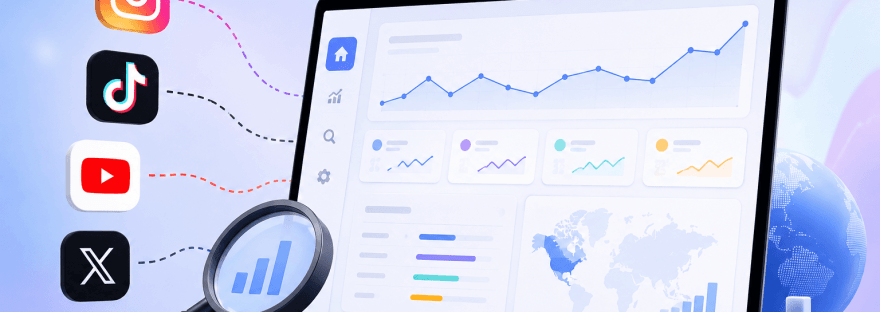
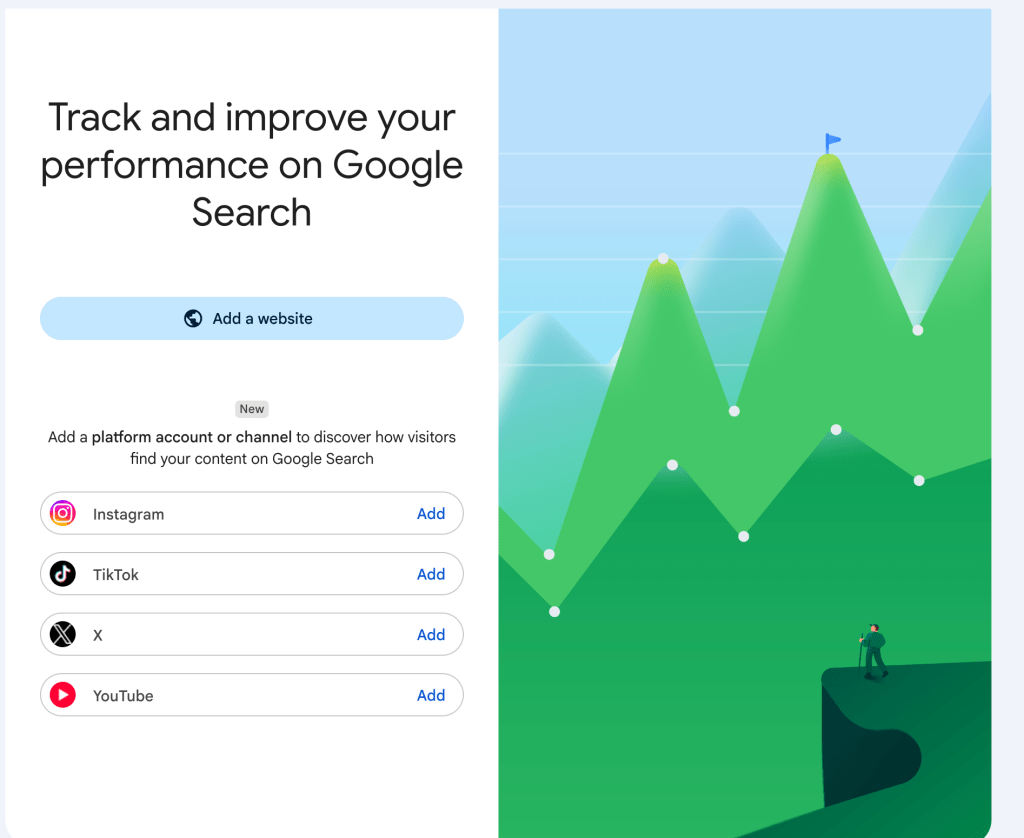
Google introduced a new property type called platform properties, and it does something Search Console has never done before: it lets you verify and track accounts you don’t own the domain for. Connect your Instagram, TikTok, X, or YouTube account, and Search Console will show you the actual search queries pulling people from Google to your social content — clicks, impressions, CTR, average position, top-performing posts, and country-level breakdowns.
The part that reframes the whole thing: you don’t need a website at all.
This guide walks through what platform properties are, how to set up Platform Properties, what each report actually tells you, the limitations worth knowing before you build reporting around it, and eight concrete ways to turn the data into decisions.
Quick Summary
Track Instagram, TikTok, YouTube, and X directly in Google Search Console.
No website is required.
View search clicks, impressions, CTR, average position, and search queries.
Discover which social posts receive traffic from Google Search.
Monitor audience location, devices, and top-performing content.
What Are Platform Properties in Google Search Console?
A Platform Property is a Search Console property that represents a supported social media or video account instead of a website.
Traditional Search Console properties require you to verify ownership of a domain using DNS records, HTML files, meta tags, or Google Analytics. Platform Properties simplify the process by allowing you to verify ownership through your social media account using Google’s authorization flow.
Once verified, the platform account behaves like any other Search Console property. It includes Performance reports, Insights, and Achievements that focus specifically on how your social content appears and performs in Google Search.
Platform Properties vs Website Properties
Feature
Website Property
Platform Property
Represents
Website or domain
Social media account
Verification
DNS, HTML, Meta Tag
Account authorization
Website Required
Yes
No
Supported Sources
Any verified website
Instagram, TikTok, X, YouTube
Reports
Full Search Console
Performance, Insights, Achievements
Which Platforms Are Supported?
At launch, Search Console supports exactly four:
Instagram
TikTok
X
YouTube
Notably absent:Facebook, LinkedIn, Pinterest, Threads, Reddit, and Snapchat. Google hasn’t published a roadmap for adding more, so treat the current four as the full scope rather than a starting lineup that’s guaranteed to expand.
Why This Matters More Than It Looks
It would be easy to file this under “minor analytics update.” That undersells it.
Search behavior has genuinely fragmented. People researching a product move between Google, TikTok, YouTube, marketplaces, creator content, and AI assistants — often within a single decision. Google responded to that years ago by filling results pages with creator content. If you search for a product, a place, or a how-to, you’ll frequently see:
Short video carousels pulling in TikToks, Instagram Reels, and YouTube Shorts
Latest posts carousels surfacing recent social posts from relevant accounts
“What people are saying” carousels aggregating firsthand perspectives
Your social content has been appearing in these surfaces and driving traffic for a long time. You just had no way to measure it. Platform-native analytics tell you how content performs inside TikTok or Instagram. They say nothing about the people who found that same post through Google.
Platform properties close that gap. And in doing so, they make an argument about strategy: if Google is putting social and website data side by side in the same tool, then social presence isn’t a channel adjacent to organic search, it’s part of it.
There’s also a timing argument. New data sources are most valuable before everyone has them. The rollout is gradual, meaning the accounts that get set up early get a window of insight that competitors don’t have yet. That window closes as the industry catches up.
Before You Start: Three Things to Know
1. The rollout is gradual.
Google confirmed the feature would arrive over the following weeks rather than all at once. If the platform options don’t appear when you go to add a property, nothing is broken , check back rather than troubleshooting a problem that doesn’t exist.
2. You need admin access to the social account
Verification runs through the platform’s own login and authorization flow. You’ll need credentials or admin rights for the account you’re connecting, not just an agency seat with limited permissions.
3. If you already claimed a Search profile, check first
Google’s documentation notes that if you’ve claimed a Search profile, your verified accounts are automatically added as Search Console properties. Some users have also reported accounts appearing without manual verification. Open the property selector and look before you set anything up.
How to Set Up a Platform Property: Step by Step
The process is identical for all four platforms.
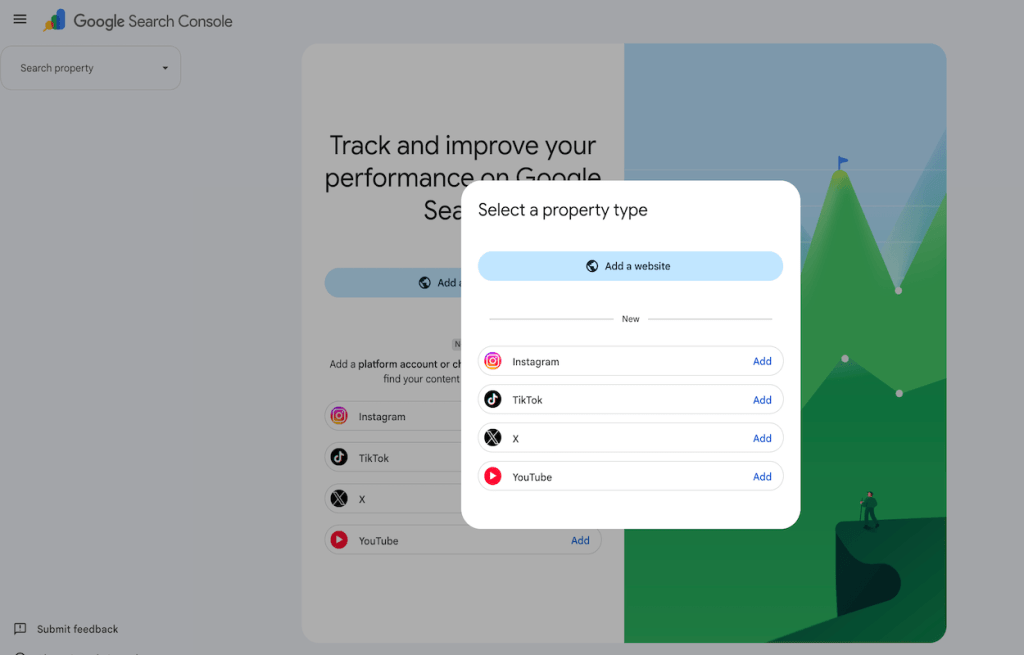
Step 1. – Open the property selector
Sign in to Google Search Console with the Google account you want to own this reporting. Open the property selector dropdown in the left sidebar and click Add property. You can also go straight to the Search Console welcome screen.
Your existing website properties are unaffected. Platform properties sit alongside them as separate entries.
Step 2. – Choose your platform
You’ll see the supported platforms listed. Click Add next to Instagram, TikTok, X, or YouTube.
If you manage multiple brands or clients, slow down here. It’s easy to authorize the wrong account when several are logged in across browser sessions.
Step 3. – Authorize the connection
Follow the on-screen prompts to sign in to the platform and authorize Google’s connection. This is the verification step — there’s no HTML file to upload, no DNS record to add, no meta tag to paste.
Step 4. – Confirm and enter the property
Once ownership is verified, you’ll get a confirmation message. Click Go to property.
Step 5. – Repeat for every account
This is the part people miss. Each account is its own property. An Instagram account and a TikTok account are two separate properties. Two Instagram accounts are two separate properties. There is no unified cross-platform view — if you want data for six accounts, you run this flow six times.
Step 6. – Wait a few days
New properties often show empty charts at first. Google needs a few days to collect and process performance data. If your property was created recently, charts will only cover the days since collection began. The default date range for both Insights and Performance is 28 days.
Google periodically verifies ownership of connected accounts. If authorization expires, reporting will pause until the account is verified again.
Fortunately, reconnecting the account restores access to the existing reports without restarting data collection.
Understanding Platform Property Reports
Platform Properties include three main reports.
Performance Report
The Performance Report provides detailed search metrics, including:
Total Clicks
Total Impressions
Average CTR
Average Position
You can filter results by:
Search Query
Individual Post
Country
Device
Date
Performance data can also be exported for additional analysis.
Insights Report
The Insights Report offers a simplified overview of your search performance.
It highlights:
Overall traffic trends
Top-performing posts
Search queries driving visitors
Audience locations
This report makes it easier to identify popular content without digging through detailed performance data.
Achievements Report
Achievements recognize milestones such as reaching new click thresholds over a 28-day period.
Although useful for creators, this report is generally less valuable than the Performance and Insights reports for business reporting.
What Platform Properties Don’t Track
Platform Properties only measure performance in Google Search.
They do not replace Instagram Insights, TikTok Analytics, YouTube Studio, or X Analytics.
Native platform analytics continue to provide information such as:
Likes
Shares
Comments
Followers
Watch Time
Engagement
Platform Properties only answer one question:
How did people discover my content through Google Search?
There is also no built-in dashboard for comparing multiple platforms. Cross-platform reporting requires exporting data manually.
How Google Counts Clicks and Impressions
Google has clarified how certain content types are measured.
Instagram Stories
If an Instagram Story appears in Google Search, it counts as an impression. If someone clicks it, it counts as a click.
Videos Inside Google Search
When videos play directly inside Google’s video viewer, impressions and clicks are still recorded even if users don’t visit your social profile.
8 Practical Ways to Use Platform Properties
1. Optimize Captions Using Real Search Queries
Use actual Google search terms from the Performance Report to improve captions, titles, and descriptions.
2. Identify Trending Topics
Review Query Groups to discover emerging topics and build future content around growing search demand.
3. Monitor New Content Quickly
Check the 24-hour Performance Report after publishing to see whether new posts begin receiving Google Search traffic.
4. Compare Different Content Formats
Compare Reels versus Posts, Shorts versus long-form videos, and identify which formats perform best in search.
5. Improve YouTube Playlists
Analyze playlist performance to understand which playlist titles and descriptions attract search traffic.
6. Compare Multiple Platforms
Export reports from each Platform Property and compare search performance across Instagram, TikTok, YouTube, and X.
7. Measure Optimization Changes
Add annotations after updating titles or captions to measure whether those changes improve search visibility.
8. Revive Older Content
Older posts can receive renewed search interest months after publication. When impressions begin increasing again, consider updating, promoting, or repurposing the content.
Platform Properties vs Search Profiles
Google recently launched several related products that can easily be confused.
Feature
Purpose
Social Channels Experiment
Early social reporting inside Search Console Insights
Search Profiles
Public creator profiles in Google Search
Platform Properties
Private analytics for social accounts
Generative AI Reports
Search Console reporting for AI Search experiences
Search Profiles are public-facing pages designed to help users discover creators. Platform Properties are private analytics dashboards designed to help account owners understand search performance.
Current Limitations
Platform Properties are still evolving.
Some important limitations include:
Only four supported platforms
No Facebook or LinkedIn integration
Every account requires separate verification
Expired connections pause reporting
No unified cross-platform dashboard
Google Search metrics only
Best Practices
To get the most value from Platform Properties:
Monitor reports every week.
Use search queries to improve captions and video titles.
Focus on topics that already attract Google Search traffic.
Compare content formats regularly.
Export data for long-term reporting.
Repurpose older content that starts gaining search visibility again.
Frequently Asked Questions
Do I need a website to use platform properties?
No. This is the headline change. Creators, influencers, and brands with no verified website can use Search Console for the first time.
Can I track Facebook or LinkedIn?
Not currently. Only Instagram, TikTok, X, and YouTube are supported.
Why don’t I see the option to add a platform property?
The rollout is gradual. If the platforms don’t appear, you’re likely not in the rollout yet. Wait and check again.
How long until data appears?
A few days after setup. Charts may be empty initially, and a new property only shows data from the point collection started.
Does this show how my content performs on TikTok or Instagram itself?
No. It measures Google Search performance only. Keep using native platform analytics for in-app performance.
Can I track multiple accounts on the same platform?
Yes, but each one must be added as its own separate property.
What happens if my connection expires?
Access pauses until you re-verify. Once you do, you regain the same reports immediately, no new waiting period.
Is this the same as a Search profile?
No. Search profiles are public pages that showcase content to an audience. Platform properties are private analytics for you.
Final Thoughts
Platform Properties represent one of the biggest updates to Google Search Console in recent years. They give creators, marketers, and businesses the ability to understand how their social content performs in Google Search without requiring a website.
Although the feature currently supports only four platforms and is still rolling out, it offers valuable insights into search visibility that were previously unavailable. By setting up Platform Properties early and monitoring the data consistently, you can uncover new content opportunities, improve your social SEO strategy, and better understand how users discover your content across Google Search.
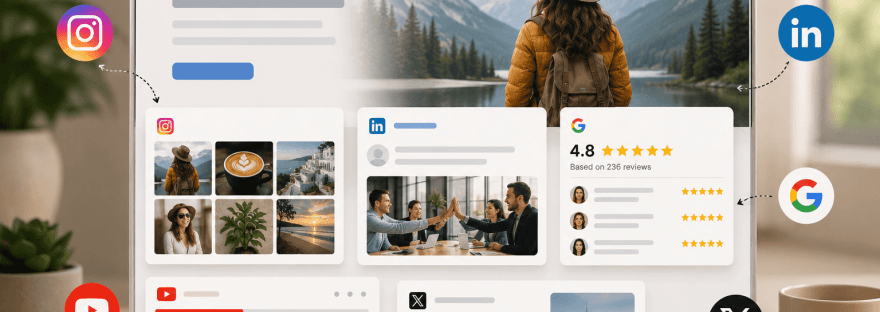
Social widgets help websites stay fresh, interactive and engaging. Whether you’re displaying an Instagram feed, customer reviews, LinkedIn posts, or a social wall, widgets encourage visitors to spend more time on your website and build trust in your brand.
Social widgets don’t always work as expected. A feed may stop updating, images might disappear or the widget could suddenly show a blank space. Most of these problems have simple solutions if you know where to look.
What is a Social Widget?
A social widget is an embedded component that displays content from social media platforms on your website. Instead of manually updating content, the widget automatically fetches posts, videos, reviews and feeds from connected accounts.
Businesses use social widgets to showcase their customer reviews, Instagram, Facebook or LinkedIn feeds; you can also display YouTube videos through a widget. It helps businesses increase website engagement.
Besides improving visual appeal, social widgets help keep pages updated with fresh content without requiring constant manual edits.
Why Social Widgets Stop Working
Most social media widget issues happen because websites rely on third-party platforms. Whenever a platform changes its API, security policies or authentication process, widgets may stop functioning properly.
Some of the most common causes for an issue include:
Expired access tokens
API updates
Plugin conflicts
Browser caching
Website theme incompatibility
JavaScript errors
Slow hosting
SSL configuration issues
Incorrect widget settings
Most of these errors can be fixed in no time.
12 Common Social Widget Errors and How to Fix Them
The widgets may face some issues; these can be due to several reasons. Let’s look at what the issues can be and how to fix those issues.
1. Social Feed Not Loading
This is one of the most common issues website owners face. Instead of showing posts, the widget displays a loading icon, a blank area or an error message.
This can be due to:
Issue in internet connectivity
Incorrect widget configuration
Expired authentication
API restrictions
Disabled JavaScript
How to Fix It
Start by refreshing your website in an incognito window. If the problem remains:
Connect your social account again.
Verify the widget settings.
Enable JavaScript, if not.
Clear website and browser cache.
Confirm your API is still valid.
If you’re using a CMS like WordPress, temporarily disable other plugins to identify any conflicts.
2. Access Token Expired
Social media widgets need an access token to communicate with platforms such as Instagram, Facebook and LinkedIn. These tokens eventually expire for security reasons.
When that happens, your widget may stop updating or disappear entirely.
Way to fix it:
In your widget provider’s dashboard, reconnect your social account. Platforms automatically create a new access token after successful authentication.
After connecting again:
Save the new settings.
Clear your cache.
Refresh your website.
Validate that recent posts appear.
Prevention Tips
Schedule regular token renewals.
Enable email notifications from your widget provider.
Social platforms limit how often applications can request data within a given period. If your widget exceeds this limit, new content may stop appearing until the limit resets.
Common Reasons
Refresh intervals set too frequently
Multiple widgets using the same account
Heavy website traffic
Repeated manual refresh requests
How to Fix It
Reduce the refresh frequency of your widget instead of checking for updates every few seconds.
You can also:
Enable caching.
Remove duplicate widgets.
Display fewer posts.
Upgrade to a provider that uses optimised API requests.
Most websites don’t need real-time updates every minute. Refreshing every 30–60 minutes is sufficient for many business websites.
A blank widget is frustrating as there is no visible error message, so it does not tell what exactly the issue is.
It may be caused by:
CSS conflicts
Missing JavaScript files
Issue in theme compatibility
Incorrect embed code
Browser cache
How to Fix It
Inspect the page using your browser’s developer tools to check for JavaScript errors.
Then:
Verify the embed code.
Clear cache files.
Test the widget on the default website theme.
Disable recently installed plugins.
Check whether CSS rules are hiding the widget.
Sometimes, a simple CSS property like display: none; or an incorrect container width can make this happen.
Tips for prevention:
Test new themes before publishing them.
Avoid editing widget code unless it’s necessary.
Back up your website before making major updates.
5. Missing Media Files
Sometimes the widget loads correctly, but the media files, such as videos or photos, don’t appear. At times, visitors may only see empty placeholders or captions.
Why It Happens
Media content depends on secure delivery through CDNs, platform permissions and browser compatibility. If any of these fail, images or videos may not load.
How to Fix It:
Refreshing the widget cache.
Confirm that the original posts are still public.
Check whether media permissions have changed.
Make sure your website uses HTTPS.
Update your widget plugin to the latest version.
If the content was deleted from the original social platform, the widget cannot display it.
6. Slow Loading Social Widget
A slow widget hurts both the user’s experience and website performance. Visitors may leave before the feed appears, which increases bounce rates.
Common Causes
So many posts are displayed
Large-sized image or video
Multiple widgets on a single page
Slow hosting server
Caching setup issue
How to Fix It
Improve loading speed by:
Displaying fewer posts at once.
Enabling lazy loading.
Compressing images where possible.
Removing unnecessary widgets.
Using browser caching.
Also, place widgets below the fold when they are not essential to the initial page view. This allows the main content to load first.
7. Social Widget Doesn’t Update Automatically
A widget that displays outdated posts does not serve its purpose. Automatic updates may stop because of cache settings, expired tokens or synchronisation delays.
How it can be fixed:
Check the refresh interval in your widget settings. If it’s too long, shorten it to match your preferred time.
You can:
Clear the cache.
Connect the social media account again.
Make sure that API permissions are active.
Refresh the widget manually to test the integration.
Avoid refreshing frequently; this triggers API rate limits.
8. Widget looks broken on mobile
A widget looking perfect on desktop may be broken on mobile devices. Since mobile devices account for a large share of traffic, widgets must be displayed properly. Images may get overflowed or maybe text gets cut. This can happen due to:
Fixed widget width
Custom CSS overriding responsive settings
Unsupported layout
How can you fix it:
Test your website and widgets on different screen sizes.
Remove conflicting CSS.
Your website theme may have got outdated; updating it may fix it.
Replace fixed-width with percentage-based width.
9. Social widget doesn’t match your website design
The social widget should feel like part of the website, not pasted from elsewhere. If the design does not match the website’s UI, it may disrupt the experience of the user.
Causes for this can be:
Default widget style
Theme conflict
Unsupported fonts
Custom CSS errors
How can we fix them:
Font style and size
Border radius
Feed layout
Background colors
10. Mixed Content or HTTPS Errors
Modern browsers automatically block insecure content, so keeping everything on HTTPS is essential. If your website has HTTPS but your widget is loading on HTTP, widgets may not function properly.
It can be fixed by:
Ensuring the website has a valid SSL certificate.
Replace outdated HTTP codes.
Remove third-party scripts that are not secure.
11. JavaScript Conflicts
Many social widgets rely on JavaScript to load content. If another script on your website interferes, the widget may stop working.
This can happen due to:
Multiple JavaScript libraries
Plugin conflicts
Improper script loading features
It can be fixed by:
Disable recently installed plugins, one at a time, to determine which plugin is causing this issue.
Update outdated plugins.
Load JavaScript files in the recommended order.
12. Social Widget Stops Working After Platform Updates
Social media platforms continuously update their tools and softwares. When an update happens, an older widget may stop functioning.
It may get fixed by:
Updating your widget plugin/ software.
Reconnecting your social accounts.
Review your provider’s documentation for recent changes.
Let’s quickly have a look at some of the most common issues faced by people. Check if you also have the same problem,
Check
Why It Matters
Internet Connection
Ensures your website can reach social platforms.
Access Token
Prevents authentication failures.
Widget Settings
Confirms the correct account and feed are connected.
Plugin Version
Fixes known bugs and compatibility issues.
Website cache
Forces the latest feed to appear.
API Permissions
Ensures the widget still has access to the connected account.
Getting your problem on the checklist will save you hours of time identifying it.
How to Prevent Social Widget Errors
Most widget problems can be fixed easily, but prevention is even better. Regular maintenance can help you keep your social feeds working reliably.
Preventions you can take are:
Keep plugins and Integrations updated
Developers constantly release updates to improve apps and widgets, making them more compatible and user-friendly. Ignoring these can lead to broken feed widgets.
Renew Access Tokens Before They Expire
Many times, authentication errors occur simply because access tokens have expired. Set reminders or enable notifications to avoid this issue.
Avoid Overloading Pages
Overloading a page puts weight on the website, increases loading time and may create unnecessary API requests. Display only the feeds that provide value to the viewers.
Test After Every Website Update
Whenever you update anything on the website, whether it’s the CMS, theme or plugin, always verify that your widgets are still working correctly. Updating a part of the website may affect other sections.
Best Practices for Reliable Social Widget Performance
Following best practices helps keep your widgets stable and provides a better user experience.
Choose a Reliable Widget Provider
Use a trusted platform that actively maintains integrations with major social networks and responds quickly to API changes. Tagembed and Tagbox are among good and reputable widget providers.
Display Only Relevant Content
Instead of embedding dozens of posts, highlight content that supports your goals, whether that’s customer reviews, product updates or user-generated content.
Optimize Loading Speed
Enable lazy loading, minimise unnecessary scripts, and compress media where possible. Faster widgets contribute to a better browsing experience.
Maintain Consistent Branding
Customise colours, fonts and layouts so your widget complements the rest of your website. Maintaining your brand consistency helps the audience to remember you.
Review Website Performance Regularly
Reviewing your website’s performance is crucial for maintaining your brand’s reputation. Check your widgets at regular intervals to make sure feeds update as planned and the website does not load slowly.
Test Across Browsers
Test your website across different browsers, such as Chrome, Safari, Edge and Firefox, to catch browser-specific issues before your visitors do.
A maintained social widget not only avoids technical problems but also improves engagement, builds trust and keeps your website looking active.
When Should You Contact Your Widget Provider?
Many social widget issues can be solved by correcting settings, refreshing across tokens and updating plugins. Some problems require help from your widget provider, especially when the issue is beyond your website’s control.
Connect with them in the following cases:
You can’t restore the feed even after reconnecting your social account.
The widget stops working after a social platform updates its API.
The dashboard shows authentication errors you can’t resolve.
Incorrect or incomplete content is displayed on your widget.
The feed remains broken after you’ve cleared the cache, updated plugins, and checked for JavaScript conflicts.
You need help customising the widget beyond the available settings.
Conclusion
Social widgets are an excellent way to keep your website dynamic, show fresh content and build credibility with visitors. Same as any third-party integration, they require occasional maintenance to perform reliably.
Most issues, whether it’s a feed that won’t load, an expired access token or a slow-loading widget, can be resolved with a few simple troubleshooting steps. Regularly updating your plugins, monitoring API changes, renewing authentication and testing your widgets after website updates can prevent many common problems before they affect your visitors.
As we understand common social widget errors and how to fix them, you’ll save time troubleshooting and deliver a seamless experience that keeps your audience engaged and happy.
Frequently Asked Questions
Why is the social widget not showing posts?
Your widget is not showing posts because of an expired access token, incorrect configuration, API restrictions, or caching issues. Connecting your account, clearing the cache, and checking the widget settings usually fix the problem.
How do I correct an expired access token?
Log in to your widget provider dashboard and connect your account again. It creates a new access token. After the changes have been saved, clear your website cache and refresh the page to confirm the latest posts appear.
Why is the social feed loading slowly?
It is loading slowly if you’ve displayed too many posts, large media files, multiple widgets on one page or if your hosting performance is poor. Showing fewer posts, enabling lazy loading and using cache can significantly improve speed.
4. Can cache prevent my social widget from updating?
Yes, either browser or website cache can prevent the social feed from updating and serve older versions of your social feed even after new posts are published. Clearing cache or adjusting the widget’s refresh interval usually fixes the issue.
5. Do social widgets affect website speed?
Yes, they do if they aren’t optimised. Loading multiple widgets, large images or videos may slow down your website. Using lightweight widgets, lazy loading and caching helps maintain good performance.
6. Why did my social widget stop working after a WordPress update?
A WordPress update may have compatibility issues with your theme or plugin. Update the plugin, check for conflicts and test the widget with a default theme to identify the cause.
7. How often should I update my social widget plugin?
If there is any update, install it. An updated plugin improves security, fixes bugs and ensures compatibility with the latest social media platform APIs and website technologies.
Your website is often the first place potential customers interact with your brand. While a clean design and compelling copy are important, visitors also want evidence that your business is active, trustworthy, and engaging. That’s where social media widgets make a real difference.
Instead of asking users to leave your website and visit your social media profiles, widgets bring your latest content directly onto your pages. Whether it’s an Instagram gallery showcasing customer photos, a LinkedIn feed highlighting company achievements, or a YouTube playlist demonstrating your products, social media widgets add freshness and credibility to your website without requiring constant manual updates.
However, simply embedding every social platform isn’t the best approach. Each platform serves a different purpose, and the effectiveness of a widget depends largely on where you place it. An Instagram feed that performs well on a fashion brand’s homepage may not deliver the same value on a B2B software company’s pricing page.
In this guide, we’ll explore practical social media widget examples, explain where each type of feed works best, and share tips to help you create a website that feels dynamic, trustworthy, and engaging.
Why Social Media Widgets Matter
Today’s customers rarely rely on a website alone before making a decision. They browse social media to see how active a brand is, read customer experiences, and evaluate whether a company feels authentic.
Embedding social media content into your website bridges this gap. Instead of sending visitors elsewhere, you bring that social proof directly to them.
There are several benefits to doing this:
Your website stays fresh with automatically updated content.
Visitors spend more time exploring interactive elements.
Customer-generated content builds trust more effectively than traditional marketing copy.
Recent posts demonstrate that your business is active and responsive.
Social feeds encourage visitors to follow your brand across multiple platforms.
Most importantly, social media widgets make your website feel alive. Static websites can quickly appear outdated, whereas live feeds create the impression of an active business that regularly interacts with its audience.
Choosing the Right Feed Starts with Your Goal
Before selecting a social media widget, ask yourself one simple question: What do I want visitors to do on this page?
Different pages have different objectives. A homepage is designed to make a strong first impression, while a careers page should showcase company culture. Product pages need to inspire confidence, whereas blogs aim to educate.
When the widget supports the purpose of the page, it feels natural rather than distracting.
Instead of treating social feeds as decorative elements, think of them as content that reinforces your marketing message.
Instagram Feed Widget: Perfect for Visual Storytelling
Instagram remains one of the most popular platforms for showcasing visual content. For brands that rely on aesthetics, creativity, or lifestyle marketing, an Instagram feed can instantly enhance the appearance of a website.
Fashion retailers often display customer photos wearing their products, restaurants highlight their latest dishes, travel companies feature destination photography, and beauty brands showcase tutorials and influencer collaborations.
For example, an online clothing store can display recent customer photos tagged with a branded hashtag. Visitors don’t just see professionally staged product images—they see real people using the products, which adds authenticity and encourages purchasing decisions.
The key is to feature high-quality, relevant posts rather than every image from your account.
LinkedIn Feed Widget: Building Professional Credibility
Not every website needs colourful visuals. For B2B companies, professional services, agencies, and technology firms, credibility matters more than aesthetics.
A LinkedIn feed allows businesses to showcase company announcements, employee achievements, hiring updates, industry insights, awards, and thought leadership.
Visitors researching your business can immediately see that your company is active within its industry.
LinkedIn widgets are particularly effective on:
About pages
Careers pages
Company overview pages
Investor relations sections
A software company, for instance, might display posts about product launches, conference participation, customer success stories, and employee recognition. This reinforces expertise without requiring visitors to leave the website.
Although many brands now focus heavily on Instagram or TikTok, Facebook continues to play an important role for local businesses, educational institutions, nonprofits, healthcare providers, and community organisations.
Facebook widgets are ideal for sharing:
Upcoming events
Community announcements
Reviews
Local updates
Business news
For businesses that regularly organise workshops, fundraisers, or local events, displaying these updates on the homepage or events page helps visitors stay informed without manually updating website content.
Rather than acting as a promotional tool, a Facebook feed often serves as an information hub for existing customers and community members.
YouTube Widget: Educating Visitors Through Video
Some products and services are easier to explain through video than text.
Embedding a YouTube feed gives visitors access to tutorials, demonstrations, webinars, interviews, customer stories, or educational content without interrupting their browsing experience.
Businesses commonly place YouTube widgets on:
Product pages
Resource centres
Help documentation
Blog articles
Learning hubs
Imagine a SaaS company introducing a new feature. Instead of writing lengthy instructions, it can display a short tutorial video directly beneath the feature description, allowing users to learn visually.
Video content also tends to increase time spent on a website, which can improve overall user engagement.
TikTok has changed how brands connect with audiences. Short-form videos often feel more genuine than polished advertisements, making them particularly effective for lifestyle brands and consumer products.
These widgets work best on campaign landing pages, ecommerce homepages, or promotional pages where creativity and entertainment play a larger role in influencing purchase decisions.
The emphasis should always remain on authentic content rather than purely promotional videos.
X (Twitter) Feed Widget: Delivering Real-Time Updates
Some industries rely on timely communication more than visual storytelling.
Technology companies, financial institutions, media organisations, sports brands, and event organisers often use X to share announcements as they happen.
For businesses where information changes rapidly, a live feed ensures visitors always see the latest updates without requiring constant edits to the website.
Where Should You Place Social Media Widgets?
Placement has a significant impact on performance. Even the best content loses value if it appears on the wrong page.
Homepage
The homepage is usually the first impression visitors have of your business.
A carefully selected social media widget can immediately communicate that your brand is active and trusted. An Instagram gallery, customer-generated content, or recent LinkedIn updates often work well here because they introduce visitors to your brand personality.
Avoid filling the homepage with multiple feeds. One well-designed widget is usually more effective than several competing for attention.
Product Pages
Visitors on product pages are closer to making a purchase.
This is the ideal place to display customer photos, product demonstrations, or short social videos that show products being used in real life.
Authentic customer content often answers questions that polished product photography cannot.
About Us Page
People visiting the About page want to understand who you are.
Instead of relying solely on company history, display content that reflects your workplace culture, community involvement, employee achievements, or company milestones.
LinkedIn updates and selected Instagram posts usually perform particularly well here.
Careers Page
Recruitment pages should help candidates imagine themselves working within your organisation.
Employee celebrations, office events, volunteering initiatives, and workplace culture videos provide valuable insight into daily life at your company.
LinkedIn remains the strongest platform for this purpose.
Blog Pages
Educational articles can become even more engaging when supported by relevant social content.
For example, an article discussing digital marketing trends could include a YouTube tutorial or an embedded LinkedIn post from an industry expert.
The embedded content should enhance the article rather than distract from it.
Footer
Many websites include simple social icons in the footer, but a compact widget can sometimes provide additional value.
A small Instagram strip or recent LinkedIn post can reinforce your social presence without overwhelming visitors.
Keep footer widgets lightweight to maintain page speed.
Best Practices for Using Social Media Widgets
Successful implementation is about balance.
Choose platforms your audience actively uses rather than embedding every available feed. A luxury hotel benefits far more from Instagram photography than from an X timeline, while a cybersecurity company is likely to gain more value from LinkedIn.
Consistency is equally important. Your widget should blend naturally with your website’s typography, colours, and layout rather than appearing like an unrelated element.
Website performance should also remain a priority. Too many embedded feeds can slow loading times, especially on mobile devices. Using responsive widgets and enabling lazy loading helps maintain a smooth user experience.
Finally, curate your content. Automatic doesn’t always mean appropriate. Regularly review which posts appear on your website to ensure they align with your current campaigns and brand messaging.
Common Mistakes to Avoid
One of the biggest mistakes businesses make is assuming more widgets equal greater engagement.
Displaying feeds from Instagram, Facebook, LinkedIn, TikTok, YouTube, Pinterest, Google reviews and X on a single page creates unnecessary distractions and often confuses visitors.
Another common issue is neglecting mobile optimisation. Since a significant percentage of users browse websites on smartphones, oversized widgets can negatively affect both SEO benefits and loading speed.
Businesses also forget that outdated content reflects poorly on their brand. If your most recent embedded post is several months old, visitors may assume your business is inactive.
Finally, avoid placing widgets where they interrupt the user’s journey. Every element on a page should support the visitor’s objective, not compete with it.
How to Decide Which Widget Is Right for You
There isn’t a single “best” social media widget. The right choice depends on your audience, industry, and business goals.
If your products rely on visual appeal, Instagram and TikTok are strong choices. If you’re focused on professional credibility, LinkedIn is more suitable. Educational businesses benefit from YouTube tutorials, while organisations that regularly communicate updates may find Facebook or X more valuable.
Instead of asking which platform is most popular, consider which one consistently produces the type of content your customers actually want to see.
When your website and social media work together strategically, visitors enjoy a smoother, more engaging experience that builds confidence in your brand.
Final Thoughts
Social media widgets are much more than decorative website elements. When used thoughtfully, they become an extension of your brand story, bringing fresh content, customer experiences, and real-time updates directly into your website.
The most effective websites don’t try to showcase every social platform. Instead, they select feeds that align with each page’s purpose and enhance the visitor’s journey. A well-placed Instagram gallery can inspire shoppers, a LinkedIn feed can strengthen credibility, and a YouTube playlist can simplify complex products or services.
As you evaluate your own website, focus on quality over quantity. Choose widgets that provide genuine value, keep them visually consistent with your design, and place them where they naturally support user intent. Done well, social media widgets can increase engagement, reinforce trust, and help turn casual visitors into loyal customers.
Instagram automation has become one of the most debated topics in social media marketing.
On one side, marketers and businesses use automation to save time, schedule content, manage messages, and streamline repetitive tasks. On the other, Instagram has a long history of cracking down on spammy automation practices that manipulate engagement and violate platform policies.
This leaves many creators and businesses asking the same question:
Is Instagram automation actually safe?
The short answer is yes—but only when used correctly.
Not all automation tools are created equal. Some operate within Instagram’s guidelines and use Meta-approved APIs. Others rely on risky methods that can lead to action blocks, account restrictions, reduced reach, or even permanent bans.
In this guide, we’ll explore Instagram’s automation rules, the risks involved, what activities are considered safe, and the best practices you should follow in 2026.
What Is Instagram Automation?
Instagram automation refers to using software or tools to perform repetitive actions without manual effort.
Common automation use cases include:
Scheduling posts and Reels
Publishing content automatically
Managing direct messages
Auto-responding to comments
Tracking analytics
Social listening
Hashtag research
Lead generation workflows
The goal is simple: save time while maintaining a consistent presence on Instagram.
However, there’s a major difference between productive automation and spam automation.
Instagram welcomes certain types of automation while aggressively restricting others.
Why Instagram Is Strict About Automation
Instagram’s priority is maintaining authentic interactions between users.
Over the years, marketers abused automation through:
Follow/unfollow bots
Mass liking tools
Auto-comment spam
Fake engagement services
Bulk DM campaigns
These tactics created poor user experiences and manipulated platform metrics.
As a result, Instagram invested heavily in detecting artificial behavior patterns and unauthorized automation. Today, the platform can identify suspicious activity based on action frequency, timing patterns, device behavior, and engagement signals.
This is why understanding what is allowed—and what is not—is crucial.
Uses Meta-approved APIs and follows Instagram’s guidelines.
Examples include:
Content scheduling
Analytics reporting
Auto-replies to customer messages
Comment moderation
Inbox management
Team collaboration workflows
These activities are generally permitted because they improve efficiency without manipulating engagement.
Unsafe Automation
Attempts to imitate human behavior at scale or artificially boost growth.
Examples include:
Auto-following users
Auto-unfollowing accounts
Mass liking posts
Automated generic comments
Sending unsolicited DMs
Scraping user data
Password-sharing bots
These activities violate Instagram’s policies and significantly increase the risk of account restrictions.
Instagram Automation Rules You Need to Know
Before using any automation tool, it’s important to understand Instagram’s new rules and restrictions to ensure your account remains safe, compliant, and protected from action limits, reduced reach, or potential penalties.
1. Use Official API-Based Tools
Meta allows automation through approved integrations and APIs.
When a tool uses the official Instagram Graph API, it operates within Instagram’s ecosystem and follows platform restrictions automatically.
One of the easiest ways to identify a safe tool is by checking how it connects to your account.
If it uses OAuth login through Meta and never asks for your Instagram password, it’s generally much safer.
2. Avoid Password-Sharing Tools
This is one of the biggest red flags.
If a tool asks for:
Your Instagram password
Direct account credentials
Browser automation access
You should proceed cautiously.
Many account bans and security incidents originate from tools that bypass official APIs. Community discussions consistently highlight password-sharing automation as one of the biggest risks associated with Instagram growth tools.
3. Respect User Consent
Instagram increasingly focuses on consent-based interactions.
Safe automation is generally triggered by actions users take themselves, such as:
Commenting on a post
Replying to a Story
Sending a DM
Clicking an ad
Mass outreach to users who have never interacted with your account is far more likely to violate platform guidelines.
4. Stay Within Activity Limits
Instagram monitors behavior patterns closely.
Accounts that perform actions too quickly or too frequently may receive:
Temporary action blocks
Reduced visibility
Feature restrictions
Excessive automation remains one of the most common triggers for account reviews.
Even legitimate automation comes with certain risks.
Account Restrictions
Instagram may temporarily restrict actions if your account appears suspicious.
Common restrictions include:
Unable to like posts
Unable to comment
DM limitations
Temporary feature removal
These restrictions often occur when automation is too aggressive.
Reduced Reach
Poor-quality automation can negatively affect engagement quality.
For example:
Generic comments
Repetitive interactions
Spam-like messaging
These behaviors can send negative signals to Instagram’s algorithm and reduce content visibility over time.
Security Risks
Some automation providers prioritize growth over security.
Recent incidents involving automated systems across Meta platforms demonstrate why businesses should be careful about granting access to third-party tools.
Before connecting any automation tool, verify:
Security standards
API compliance
Data protection practices
Access permissions
Account Suspension
Severe policy violations can result in:
Disabled features
Suspended accounts
Permanent bans
This risk is especially common with tools promising unrealistic growth results such as:
Thousands of followers overnight
Unlimited DMs
Automated engagement farms
If it sounds too good to be true, it usually is.
What You Should Automate (Safely)
If your goal is sustainable growth, focus on automating repetitive tasks rather than engagement manipulation.
Good candidates include:
Content Scheduling
Planning content in advance ensures consistency without requiring daily manual posting.
Analytics Reporting
Automation tools can collect and organize performance data, helping marketers make faster decisions.
Comment Moderation
Filtering spam comments improves user experience and saves moderation time.
Customer Support
Automated replies can answer common questions while directing users to human support when necessary.
Lead Capture
Businesses often automate responses to users who request information through comments or direct messages.
These activities align with Instagram’s goals and generally carry minimal risk when implemented correctly.
What You Should Never Automate
To protect your account, avoid:
Auto-follow/unfollow campaigns
Mass liking
Mass commenting
Scraping competitors’ audiences
Purchasing fake engagement
Sending bulk unsolicited DMs
Password-sharing growth bots
These tactics may produce short-term spikes but often create long-term account problems.
Automation should support relationships, not replace them.
The most successful brands use automation for efficiency while maintaining genuine conversations with their audience.
Monitor Account Health
Keep an eye on:
Reach
Engagement
Account notifications
Security alerts
Sudden drops may indicate automation issues.
Enable Two-Factor Authentication
Protect your account from unauthorized access.
This simple step significantly improves account security.
Start Slowly
Avoid sudden spikes in activity.
Gradually introduce automation workflows and monitor results before scaling.
Where Social Proof Fits Into Instagram Marketing
Many brands invest heavily in Instagram content but fail to maximize its value.
A single Instagram post may generate engagement for a few days before disappearing into the feed.
That’s why businesses increasingly display Instagram content on their websites.
Instead of relying solely on social algorithms, brands can showcase their Instagram content as social proof, helping build trust and increase engagement with website visitors.
If you’re exploring Instagram automation strategies, it’s also worth understanding the tools available to streamline content management and maximize the value of your Instagram presence.
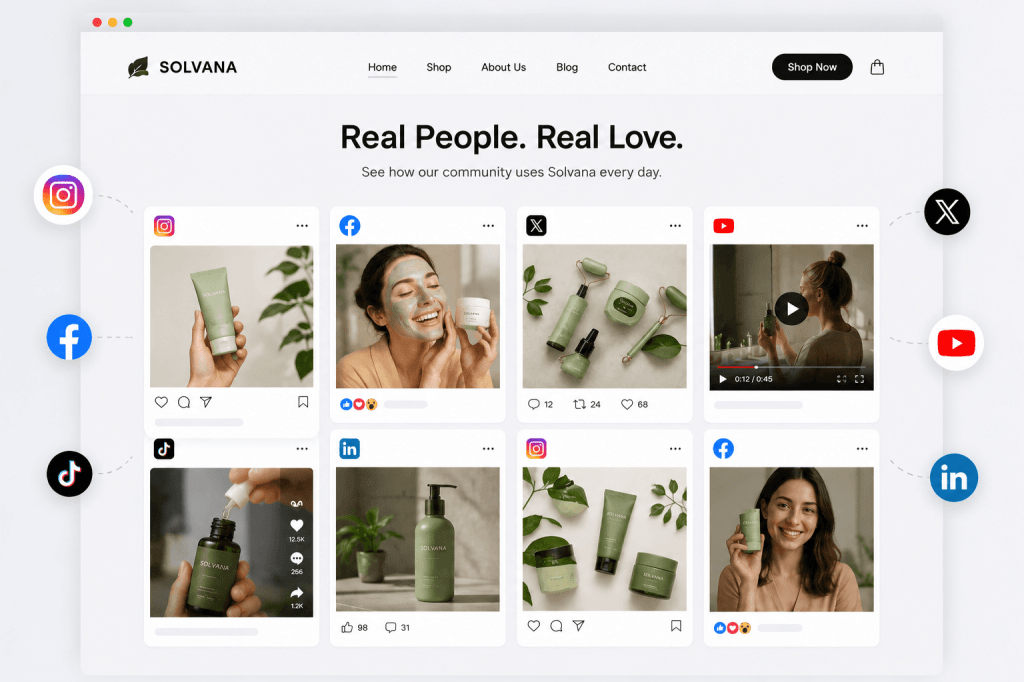
Additionally, many businesses use Instagram feed widgets to automatically display their latest posts, Reels, and user-generated content on their websites, turning social activity into a powerful trust-building asset.
Final Thoughts
Instagram automation is not inherently dangerous.
In fact, when used correctly, it can save countless hours, improve efficiency, and help businesses maintain a consistent presence on the platform.
The key is understanding the difference between safe automation and risky automation.
Use official tools. Respect Instagram’s guidelines. Focus on enhancing user experiences rather than manipulating engagement.
Automation should help you work smarter, not shortcut authentic growth.
As Instagram continues evolving in 2026, the safest long-term strategy remains the same: combine smart automation with genuine human interaction.
FAQs
Can Instagram ban me for using automation tools?
Yes, if the tool violates Instagram’s policies. Safe, API-based automation tools generally carry much lower risk than password-sharing bots or engagement manipulation software.
Is Instagram post scheduling safe?
Yes. Scheduling posts through approved tools or Meta’s native scheduling features is considered safe and widely used by businesses.
Are auto DMs allowed on Instagram?
Auto DMs can be safe when triggered by user actions such as comments, Story replies, or messages. Unsolicited mass messaging is much riskier.
How can I tell if an automation tool is safe?
Look for tools that use Meta’s official API, OAuth authentication, and never ask for your Instagram password directly.
What is the biggest Instagram automation mistake?
Using tools that promise rapid follower growth through auto-following, mass liking, or spammy engagement tactics. These methods carry the highest risk of restrictions and account penalties.