
Website

Embed RSS Feeds On Websites In Just A Few Simple Clicks

Want to make your website informative and engaging for the website? – Here is a straightforward hack – Embed RSS feeds on website. Many people still consider RSS outdated, but RSS still has its relevance even in this modern digital world.

RSS feeds help you to combine all the needed information from different sources in one place. Therefore it saves time, as you don’t have to visit different websites to collect information. Moreover, it is a more organized way to assemble information in one place. You can even categorize or subcategorize feeds under different headings. In simple words, RSS feeds are still worthy and provide tremendous help. Furthermore, you can enhance the advantage of the RSS feeds by embedding RSS feeds on your website.

You can use tools like social media feed aggregators that help you in the embedding process and provide various other features that add more relevance to the strategy and beautify the website.

But before learning about the embedding process, let’s start with generating RSS feed URLs from different websites.

How to find an RSS feed on different websites?

Most of the websites use CMs platforms to build their website. Therefore, here, we will be mentioning 4 of the powerful RSS platforms. These platforms are WordPress, Tumblr, Blogger, and Wix. Each has different ways to extract RSS feeds, and here is how you can do it.

  • WordPress: It is really simple to find an RSS feed from websites powered by WordPress. Just add /feed to the end of the URL—
  • For example – https: //example.wordpress.com/feed
  • Tumblr: Tumblr is another popular CMS platform that assists people in website building. Add/RSS at the end of the homepage URL to find RSS feeds for the websites using Tumblr.
  • For example – http: //example.tumblr.com/rss
  • Blogger: Blogger, another popular CMS. It is one of the most used platforms by bloggers and content writers. It powers 617,000 blogs globally. To find an RSS feed for the websites using Blogger, add feeds/posts/default to the end URL.
  • For example – http: //blogname.blogspot.com/feeds/posts/default
  • Wix: Wix is another well-established CMs platform that has over 120 million users (source). To find an RSS feed for the websites using Wix, add /blog-feed.xml to the end of the URL.
  • For example – https: //www.wix.com/blog/blog-feed.xml.

So, now you are aware of the technique to extract RSS feeds from different websites, here is how you can embed RSS Feeds on your website. We will be using a well-known social media aggregator for this process – Tagembed. It is known for its budget-friendly prices and user-friendly interface.

It is really simple to use Tagembed, and with just a few simple clicks, you can easily embed RSS feeds on your website. Here is how you can do it.

Also Read – 4 Best Social Media Auto Post Apps for Shopify Merchants

How to embed RSS feeds on the website

Step 1: Sign Up and make your free Tagembed OR if you already have a Tagembed account, fill in your credentials to log in to your account.

Step2: Tagembed dashboard will appear on your screen. If you are a new user, your widget will be ready and present on your screen. Just click on Open to proceed.

-OR-

If you are a new user – Click on the Create Widget button on the top right corner of your screen. Next, provide an appropriate name for your widget on the pop-up dialog box, and then click on the Create Widget button.

Step 3: From Pick, a source window, choose RSS from provided options.

Step 4: Paste the URL of your desired RSS feed and click on Create Feed.

Step 5: Your RSS feed will be ready.

You can even customize your feed as per your requirements by clicking on the Personalize option on the left-hand side of your screen. Here, you can choose an appropriate theme, font size, font style, background, and more. It helps you to provide a graceful and professional look to your website.

Step 6: Click on the Embed Widget button on the bottom left corner of your screen.

Step 7: From Choose Your Platform, select your appropriate platform.

Step 8: Here, you can adjust the width and height of your widget, copy the embedding code on your clipboard and paste it on the backend of your website.

And that is it, a few simple steps, and your website is ready to display RSS feeds.

Also, Read – Embed RSS Feeds On WordPress Website

Final Words

RSS feeds have significant benefits, as it saves time, reduces your email junk and keeps your information organized. You can extract more benefits from the website by embedding RSS feeds on your website. Follow the steps shown above, and within minutes your website will be ready to showcase RSS feeds on your website.

Originally Published at: https://bit.ly/3lav5l7

Digital Marketing, Website

Complete Guide to Embed Twitter Widget on Website for 2022

Twitter has no more restricted its wings only till making communication among people all over the world feasible and interesting. It has become the hatchery for numerous businesses and brands that are animatedly working to make themselves noticeable.

Twitter as a social media platform has always been the best source of crisp and unique information from all over the world.

Marketers are making great advantages with Twitter Widget to aggregate, curate & embed Twitter feed on the website and have made it the centre for doing all the endorsement for their brand. This has also been possible due to the massive number of Twitter users that scroll through Twitter feeds all the time.

Embed Twitter widget on your website is a fantastic idea to make your website stand out from the crowd of other similar and bland-looking websites. Thus, this gives your website the golden opportunity to bring a great number of visitors to it, thereby making your brand triumphant.

How to Display Twitter Widget using by Tagembed?

While in the process of embedding a Twitter widget to your website, you are first needed to create a Twitter widget for it. Here Tagembed comes into action, it serves as the best tool for creating an amazing Twitter widget to be embedded on your website.

Here are the steps that you can follow to create a beautiful Twitter widget for your website

  1. Create a Tagembed account for yourself, else log in to it if it already exists.
  2. From the dashboard that appears on your screen, choose “Add Social Feeds”, to give a functional command for the widget.
  3. Opt for “Twitter” as the source of information to create the widget.
  4. Tagemebd will now efficiently collect all the Twitter feeds for the widget through page URLs, posts, mentions, tags, etc.
  5. Finally, give the Facebook credentials to create the widget.
  6. Yay!!! You have now successfully created the Twitter Widget for your website using Tagembed.

Simple ways to Embed Twitter Widget to your website

  1. Creating the widget was not all, now you will have to embed that widget on your website at a required location. This allows your visitors to find all your Twitter feed widgets at a single place on your website.
  2. Below given are the steps that you can follow to Embed a Twitter widget on your website!
  3. Begin with clicking on the “Embed Widget Button”
  4. Choose the CMS platform for your website, which may be WordPress, Wix, Shopify, etc.
  5. Adjust the height and width of the widget according to the requirements of your website.
  6. Select “Get Code” to generate the code and then “COPY” it.
  7. Now, “PASTE” the code that you have copied, is on the backend of your website.

Embed Twitter Widget on Distinct Website-Building Platforms

There are several website-building platforms available that you can use for embedding your Twitter widgets to your website. Learn the methods involved in different website-building platforms to embed Twitter widget for WordPress websites!

1. Add Twitter Widget On WordPress Website

WORDPRESS

WordPress is the most popular platform building website, it provides plugins for your website that add various new functions to it. If you want to use Plugin, Tagembed has invented a WordPress Plugin named a social media feed plugin for WordPress users. WordPress controls both the backend as well as the front end of the website.

1.a) WordPress Classic Editor

This is for the ones who choose the older version of the WordPress website, these are the steps that you can follow!

  • Choose the most suitable WordPress plugin for your website.
  • Generate the embed code of the website and then copy the code on the clipboard.
  • Now, see the backend of the WordPress website and find the visual and text options, further click on “Text Mode”.
  • Paste the code that has been generated, in the backend part of the website where you wish to place the widget.
  • Tap on “Update/Publish”, to save the changes that you have applied.

1.b) WordPress 5.0

Here we come to the steps for the ones who have chosen the upgraded version of the WordPress website.

  • Start with choosing WordPress as the CMS for your website.
  • Generate the embed code using Tagembed and copy the code in the clipboard.
  • Now, go to the WordPress backend page.
  • Choose “(+)Add/ Block” from the WordPress Editor, and click on the formatting
  • Select “Custom HTML” and then page the code in the widget editor.
  • Finally, “ click on “Publish/ Update post”.

2. Twitter Widget for Shopify Website

Shopify

Shopify allows you to extend the functionality of your website by adding many features to it. The main focus of Shopify is to grow sales on your e-commerce website. On the high demand of e-commerce users, Tagmebed launched its Shopify plugin as well which reduces all your efforts and gives an amazing social wall on your e-commerce website. Below mentioned are the steps that you can follow to embed Twitter widget on the Shopify website.

  • Choose Shopify as your website-building platform.
  • Proceed by generating the Twitter embed code using Tagembed and then copy the code on the clipboard.
  • Log in to your Shopify account and explore the online stores.
  • Go to the themes menu present on the sidebar.
  • Select HTML/CSS option.
  • Choose layouts/ templates/sections of your choice, for the website.
  • End by pasting the code and clicking on Save.

3. Embed Twitter Widget on Squarespace Website

Squarespace

Squarespace is a Saas-based website building platform. It also offers numerous features and customization options for your website. Here are the steps listed that you can follow to embed Twitter widget on your Squarespace website.

  • Choose Squarespace as the website building platform for your website.
  • Generate the embed code using Tagembed and copy the code in the clipboard.
  • Choose the location to place your Twitter widget.
  • Tap on “+Add/ Edit Block” and choose code from the menu.
  • From the URL field, click on < / > icon.
  • Finally, save the applied changes.

4. Add Twitter Widget on Wix Website

Wix

Wix provides various customization options for your website, thereby making it visually appealing and interesting for visitors. Follow these steps to embed Twitter widget on your Wix website and make it super amazing!

  • Again, start by selecting Wix as your website building platform.
  • Now generate embed code for it using Tagembed and copy it on the clipboard.
  • Got to the Wix Editor.
  • Explore the page and choose the best location to embed the Twitter widget.
  • Now, click on the “+Add” button followed by clicking on “More”.
  • Now, choose HTML iframe and paste the HTML code.
  • Lastly, tap on Apply to save the changes.

Conclusion

It was wonderful to learn about embedding Twitter widget to your website and making your business grow splendidly. The Twitter widget has the ability to make your website more visible by showcasing colorful and impressive Twitter widget on your website.
Waiting? Why?
Hurry up! Make your website extraordinarily amazing and excel in the market field.

Website

How To Embed Facebook Feed On Weebly Website

Starting in 2004, Facebook has become the most popular social media channel worldwide with the largest number of customers compared to other social media networks. Moreover, with more than 2.8 billion social media users, it has become the largest community with diverse demographics.

Now Facebook is limited to social media sharing and networking, but it has also become a prominent channel for marketers to grow their businesses. By promoting your business, Facebook is proving to increase sales and revenue for the growing competitive edge.

As a marketer, you must make the most out of the resources to achieve the goal and profits for the business. A trending and effective way to use Facebook for marketing purposes in the recent competitive era is to embed Facebook feed on Weebly website.

Do you want to know how to embed Facebook Widget on your website? If yes, then continue reading this blog to easily and step-by-step embed Facebook feed on Weebly website.

Facebook feed

Heads Up: You require a social media aggregator to collect, curate, and add Facebook feed on Weebly website. There are so many social media aggregators available on the internet, but here we will talk about adding Facebook posts with Tagembed Widget on your Weebly website. About the Tagembed Widget is one of the popular and brand-trusted social media aggregators with an intelligible interface that allows anyone to easily curate, customize, and add Facebook widget on Weebly website. So without further ado, let’s get started!

Add Facebook Feed On Weebly Website In 5 Simple Steps

Step-1: Create Your Account on Tagembed

  • Create a free account with the Tagembed Widget.
  • Login with your company or personal email, enter all the required information.
  • Once you are done with these mandatory details, you will direct them to your Tagembed Widget dashboard.

Step-2: Create Facebook Feed

  • Now you are on board with Tagembed Widget. Go to the My Widgets section on the screen and create your widget.
  • Open the widget, and a screen will pop up with the multiple social media platforms on your website.
  • Select Facebook as the source to create social media feeds on Tagembed Widget.
  • Next, you have to enter the connection from which you want to collect Facebook Feeds for your widget, like mentions, URL, profile, album, Page, etc. Type the connect and click on the Create Feed button.
  • Now the next screen will appear that asks you to connect with the Facebook account information. Enter the right credentials of your Facebook account from where you want to collect the Facebook posts.

Step-3: Customize and Moderate Facebook Feed

  • As you connect with your Facebook account, Tagembed Widget will automatically fetch all the Facebook Feeds related to your created connection type.
  • You will get all the Facebook Feeds on your screen. Suppose you want to make your Facebook Feed more attractive, interesting, and engaging for your website visitors or users, than with the customization option available. In that case, you can enhance the look and feel of your collected Facebook Posts.
  • It provides you with several alluring themes, background styles, layout designs, customized colors, fonts, size, etc.
  • You can also add banners to your curated Facebook post.
  • Moreover, if you find any image or post that you don’t like to add to your Facebook post, then with the moderation feature at Tagembed Widget, you can easily deselect the feeds.

Step-4: Generate Embed Code For Weeble Website

  • Now you are ready with your Facebook Widget with full customization and moderation, it’s time to generate the embed code for your Weebly website.
  • For this, click on the Embed button, you can find it on the bottom left corner, click on the button, and a screen will pop up with the various CMS platform options.
  • From here, select Weebly as the website building platform. It will take you to the next screen, which will contain the Facebook feed embed code to place on the Weebly website.

Step-5: Past Embed Code in Your Weebly Website

  • Login to the Weebly Admin account and select your project to embed Facebook Feed on the Weebly webpage.
  • On the left-hand side menu, click on “Add Elements,” then drag and drop the “Embed” Element on the webpage where you want to embed Facebook Feed on website.
  • A Pop-up of HTML Edit Custom Weebly click on it too.
  • Paste the copied code in it and click on Save & Close button.
  • Finally, click on the Publish button to make the Facebook Feed Widget effective for your website.

Wrap Up

Tada! In just 5 simple steps, you will be able to collect, curate, customize Facebook feeds for your Weebly website.

So what are you waiting for?

Start embedding your Facebook posts and drive enormous traffic to your Weebly website.

Website

Most Fruitful Ways To Embed Twitter Widget On Website 2022

Twitter is a leading social networking platform that has established itself globally as a platform where people express their views on world affairs, industries, and topics of all kinds. It has outgrown itself from just being a social media platform.

Today, brands are consciously using it for marketing purposes, whether it is an MSME or a well-established firms. If you, as a brand are maintaining an active presence on Twitter, then users will probably be talking about you, tweeting their reviews, commenting on your posts and sharing their experiences using your brand-related photos and videos.

Imagine if you could collect and embed these useful user-generated content on your brand’s official website to display social evidence. Wouldn’t it be amazing? Well, what if we tell you, it is possible would it interest you? Well, that is possible and that is with the help of Twitter Widget.

There are various tools that provides you with that widget but in this blog we will be discussing about the tools that efficiently help you to embed Twitter widget.

Easy-To-Use Tools That Helps To Embed Twitter Widget On Website

1. Tagembed Twitter Widget

tagembed widget

Tagembed is a wonderful social media aggregator that helps you to embed Twitter Widget on the website and display Twitter contents. It puts together real-time feeds and keeps your website up to date. It collects the post Via profile posts and pages and more, and displays them on your website without any hassle.

The irrelevant content can be filtered out either manually or automatically, using the powerful moderation function. Moreover, you can also customize the Twitter feeds according to the look and feel of your brand/website. Twitter Widget comes with fabulous themes, background choices, banners, and advanced custom CSS option settings. The robust analytics helps you monitor the output of your Twitter feeds in terms of user engagement, interaction and Twitter feed contribution.

2. Everwall

everwall

Like any other social media aggregator tool, Everwall supports Twitter for displaying event posts and tweets in the form of a visual gallery. The content filtration can be used to curate posts according to the keyword, hashtag, or phrase and helps you restrict the irrelevant trolls, posts, or tweets from showing up on the screen.

Everwall Twitter Widget fits in any screen resolution, be it a laptop, tablet, or iPad. It also allows customization that makes your feeds attractive and appealing, that encourages users to be a part of the campaign.

3. HootFeed

Hootfeed

The customizable HootFeed from Hootsuite is a live Twitter stream that can be presented on the big screens around your events. The HootFeed is an easy-to-customize tool, and also allows your website visitors to engage with the feed.

Along with that, HootFeed uses Twitter Widget to embed tweets containing your default hashtag(s) that can then be seen at your event screen(s). By encouraging people to engage with the show, it proves to be the perfect way to promote audience participation. Without making an account, you can use HootFeed, or you can choose to sign up for a free account or one of the four subscription plans.

4. TwitterFall

twitterfall

TwitterFall allows you to curate Tweets based on several keywords and hashtags. This Twitter Widget is highly customizable. You can change the text size of your tweet, determine whether to include retweets, set the display speed, set exclusions and geolocations, and more.

It takes advantage of the search patterns of Twitter which are listed on the search page of Twitter and show the most common and most discussed subjects of the time. You can even fetch content based on a particular hashtag relevant to your event and display them live on screens.

5. TweetWally

tweetwally

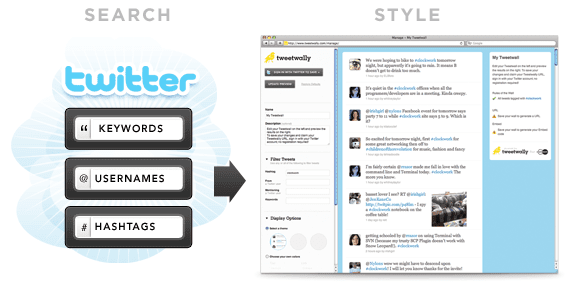
Tweetwally is another Twitter Widget that allows you to search Twitter for posts and tweets based on the hashtag, username, account mention, or keywords to create your own customized live feeds for events. The curated content is then displayed on big screens at events, parties, conferences, and more.

In addition, live streaming, social networking, and virtual reality have started to blur the distinction between being in the event and being digitally present there. Tweetwally Twitter Widget offers an excellent way to offer a seat at the table to your virtual friends as well.

Conclusion

Embedded twitter widget on the website delivers something new and easier to connect with your audience. It gives them real-time insightful and engaging content. It also saves your time and effort to create content when you primarily harness user-generated content.

The future of content marketing is UGC and you need to have a solution to aggregate and incorporate such fruitful content into your business website. Now that you are aware of the simplest tools to embed twitter feed on website that enriches your events and web platforms with engaging content. It is time for you to take steps to see how Twitter Widget operates in real life

facebook widget
Website

What is Facebook Widget And Importance For Business Website

Marketers are always on the lookout for new strategies and ideas to generate more revenues for their businesses. One of the smartest ways to achieve growth is to apply strategies that are economical and keep them ahead in the competition. In this blog, we will be talking about one such strategy which has turned out to be a game-changer for marketers. The strategy integrates social media giant, Facebook, with your website and that is to use – Facebook Widget.

Facebook has been a revolution in the social media network; the platform has seen tremendous growth since its inception and still holds the prime position in generating the most number of users. Even with such competition in the network, it is a leading platform with a reach of 59.0% social media users.

These numbers attract marketers to build their business strategy around this great platform. Marketers always look to add Facebook as part of their marketing plan, and in recent times Facebook ads have surfaced as the best choice for them.

Businesses often find Facebook ads a little burden on their pockets, and hence, to fill this void, the Facebook widget has emerged as the best alternative to this strategy. Facebook Widget is a tool that presents all the Facebook feeds related to a particular business in one single presentation and showcases them on the website.

This blog will provide you a brief understanding of the Facebook Widget, its importance, and steps to embed it to your website using the most popular social media aggregator tool, Tagembed.

so let’s begin.

What is Facebook Widget?

Facebook Widget is a phenomenal tool that fetches, curates, and presents the feeds from your Facebook page, album, reviews, in one single presentation on your website. It makes your website more interactive and user-friendly while providing social proof to your users.

It allows a sneak into your Facebook account without closing the window of your website. Making your website more engaging for the users.

Facebook Widget aggregates all the content from Facebook relevant to your business and presents it in a well-curated and beautiful manner on the website. In other words, a Facebook feed Widget can only be the difference in converting your potential customer to a loyal customer.

Now, as you know the basics about Facebook feed Widget, let’s dive further into their significance.

Importance of Facebook Widget For Business Website

  • It makes your website interactive.
  • It gives a vibrant and eye-catching look to your business website.
  • The widget increases the traffic of your business website.
  • Boosts users to create more user-generated content related to your business.
  • Develops social proof of your business
  • Boosts sales.
  • It Increases the customer base.
  • Economical at cost

Facebook Feed Widget is currently ‘The Most Talked-about’ Tool In The Market. And here are simple steps to Embed Facebook Feed On Website Using The Social Media Aggregator Tool, Tagembed.

Simple Steps To Embed Facebook Feed Widget On Your Website:

Step 1: Sign up to Tagembed for free or log in if you already have an account.

Step 2: Click in Create Widget button on the left corner of your screen.

Step 3: Create a Widget dialog box will appear on your screen. Name your wall according to your preference and click on Create Widget.

Step 4: Select Facebook from Choose your platform pop-up window.

Step 5: Choose a Facebook connection suitable for you from the given options.

Step 6: Click on Continue with Facebook button and provide your Facebook credentials, so aggregator tool and aggregate Facebook feeds.

Step 7: Click on the Embed Widget button on the bottom left side of your screen.

Step 8: Choose your platform pop-up window will appear on your screen, select your particular platform from the given options.

Step 9: You can even adjust the height and width of your widget, then click on Generate Code button.

Step 10: Copy the code and paste it to your website editor.

Congratulations. Now you have an interactive, eye catchy, and vibrant-looking website in just a few easy steps. Enjoy the heavy traffic on your website and convert your leads into successful business transactions.

Website

Why It Is Important To Embed Twitter Feed On Website In 2022?

Why should you embed Twitter feed on your business website? How can you add Twitter feed on your website? You will get all the answers of your concerns in this article.

Twitter is among the most popular social media platform all around the world. Most of the people on social media are associated with Twitter; that is why Twitter accounts for 250 million active monthly users.

That is a prominent figure. It means you can reach more people with help of this social media platform. So using Twitter for your business website will be a profitable marketing purpose. Therefore we suggest you to, embed Twitter Feed on your website.

About Twitter Feed

In simple terms, Twitter Feed is a representation of Twitter posts in a collective manner. You can showcase the feed with the help of attractive and lively Twitter post widget.

You can create a Twitter Widget with a related Twitter feed or blend of Twitter feeds, like different hashtags, handles, images, videos, etc. You can easily creative attractive, and high-end Twitter feed Widget for your business website with the helps of various tools like social media aggregators.

You can simply integrate Twitter feed Widget on website main pages, landing pages, blogs, or create a separate section on the website where you can allow your visitors to glance over your Twitter posts.

Here are few reasons that might convince you to embed Twitter feed on website.

Twitter feed

Powerful Reason to Brands Embed Twitter Feed On Website:

1. Twitter Feed + Boost User Engagement

Twitter Feed comprises of dynamic and diverse user-generated content (UGC). People love to watch something new and relatable. We all know very well user generated content can be both very lively and vibrant. As a result, integrating it into your website will make it more charming and engaging for the users. The Twitter feed provides variety and new content and operates in real-time, giving website visitors more content to explore.

Alongside this, UGC helps in humanizing a brand. With more UGC, you can intrigue users with result-driven questions, such as, what is unique about your brand products, that makes customers feel happy?

2. Twitter Feed + Build Social Proof

Twitter is mostly dominated by User-Generated content (UGC) that makes the content 100% unique and informative as your customers create it.

When added on the website, the content helps to instill faith and confidence in your customers to go ahead and buy a product since they would trust another customer more than your content.

Read More – Embed Twitter Feed On WordPress Website

3. Twitter Feed + Helps Build User Trust

Trust is the major role of any relationship; may it be personal or professional. You will not invest in something that is not trustable. So gaining trust is essential for a brand/product to incur a large user base. Twitter Feeds can help you with that. If anyone views many happy customers of a brand, they will not hesitate to trust it. After all, it is all about trust and satisfaction.

As discussed in the previous point, social proof can work wonders, and Twitter Feed is a post full of social proofs and evidences that displays happy and satisfied existing users.

4. Twitter Feed + Business Website Drive Conversions

When you are engaging your users and building confidence for your brand/product among them, they will not think again before buying from it. It will give you higher conversion rates and encourage people in buying from your brand like never before.

It can help you attract new users and interact with them, forming a brand-user relationship. The great bonds, and the more loyal the customer base you create, better reputation you achieve in the market.

Read More – Benefits of Google Review Widget

5. Twitter Feed + Cost-Effective

Budget can be quite a concern, but adding UGC saves a lot of cost since users created the content. The cost you incur is only on the tool that helps you with aggregating and displaying the feed and content.

Talking about the best social media aggregator tool, they are quite affordable and cost-effective. The ROI is quite high, which covers all the cost you spend on it.

Wrapping Up

Embed Twitter Feed on your website can be quite helpful in elevating your business. We have already mentioned the powerful reasons of embedding Twitter Feed on your website that can be quite essential for a brand and product.

Not all marketing methods give you so many profits, and not employing it will be no less than a sin. We suggest you to go for it. What other tips and insights can you include in this post that will add value to our readers? Please, tell us!