

People don’t buy from a store they don’t trust, no matter how good the product photos look. And on Shopify, where thousands of stores sell nearly identical products, trust is often the only thing separating a sale from a bounced tab.
One of the simplest ways to earn that trust is by showing shoppers what real customers are already saying and posting on Instagram. Integrate Instagram feed to Shopify puts that proof right on your storefront instead of leaving it buried in a hashtag somewhere. Here’s how it actually helps, and how to set one up.
Key Takeaways
- Shoppers trust other customers more than they trust brand copy, and an Instagram feed showsS in action, right on your store.
- Around 93 percent of shoppers read reviews before buying, and a live feed of tagged photos works the same way.
- Shopify doesn’t include a native Instagram feed, so you’ll need an app like Tagembed to pull one in.
- A feed built from real customer photos and mentions builds more trust than your own product shots ever will.
- Where you place the feed matters almost as much as having one. Product pages and checkout areas are where trust gets tested most.
What Does Adding an Instagram Feed to Shopify Actually Mean?
An Instagram feed on Shopify is a widget that pulls posts, Reels, or Stories from Instagram and displays them somewhere on your store, usually the homepage or a product page. Some stores show their own brand posts. Others go a step further and pull in customer photos, tagged posts, and mentions, so visitors see real people using the product instead of just staged marketing shots.
Shopify doesn’t build this in natively. You’ll need an app for it, which is where a tool like Tagembed comes in.
Why Customer Trust Is Such a Big Deal for Shopify Stores
Anyone can set up a Shopify store in an afternoon. That’s great for entrepreneurs, but it also means shoppers have gotten more careful about who they hand their card details to. A clean design and a few product photos aren’t enough anymore. People want proof that other people have bought the thing and been happy with it.
That’s exactly the gap an Instagram feed fills.
How an Instagram Feed on Shopify Builds Trust
It Shows Real Customers, Not Just Brand Photography
Product photos taken by a brand always look a little too perfect. A photo someone posted of themselves actually wearing or using the product feels honest by comparison, and honesty is what builds trust. Around 93 percent of shoppers say they read reviews before buying something, and an Instagram feed of tagged posts works on the same psychology, just in photo form instead of text.
It Turns Social Proof Into Something Visitors Actually See
A five-star rating is easy to skim past. A grid of real customers tagging your brand is harder to ignore, because it’s visual and it’s happening in real time.
It Keeps the Store Looking Alive
A live feed updates on its own every time someone new tags you. That means your store never looks like it’s been sitting untouched since launch, which itself is a quiet trust signal. Shoppers notice when a store looks abandoned.
It Shortens the Distance Between Browsing and Buying
When an Instagram feed links straight to a product page, someone who was just scrolling for inspiration can go from “that looks nice” to “add to cart” in one click, without ever having to second-guess whether the product looks as good in real life as it does in the listing photos.
Instagram Feed vs. Reviews Widgets and Trust Badges
Trust badges and reviews widgets aren’t going away, but they don’t do the same job as an Instagram feed.
| Trust Element | What It Shows | Where It Falls Short |
| Instagram Feed | Real photos and mentions from actual customers | Needs moderation, relies on people tagging you |
| Reviews Widget | Star ratings and written feedback | Text only, easy for visitors to skim past |
| Trust Badges | Security seals, payment icons | Confirms safety, doesn’t show product in use |
| Testimonials Section | Hand-picked customer quotes | Feels curated, can read as less authentic |
The strongest stores usually combine all four, but an Instagram feed is the one that shows rather than tells, which is why it tends to carry more weight.
How to Add an Instagram Feed to Shopify With the Tagembed App
The easiest way to do this is with the Tagembed Instagram Feed app, right from the Shopify App Store. No embed codes, no theme editing, everything happens inside your Shopify admin.
Step 1: Install the Tagembed App From the Shopify App Store
Go to the Shopify App Store from your admin panel and search for Tagembed. Open the listing and click Add App to install it for free
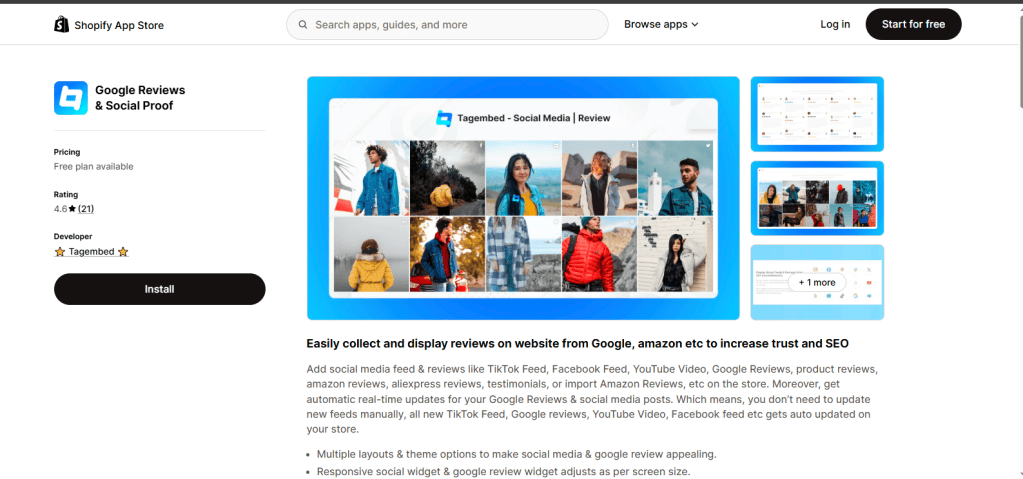
Step 2: Create a Widget From the App Dashboard
Once installed, you’ll land on the Tagembed app dashboard inside Shopify. Click Create Widget, give it a name so you can find it later, and hit Create.
Step 3: Choose Instagram and Pick a Feed Type
Select Instagram as your source, then pick the connection type. For trust-building specifically, Instagram Mentions or Tagged posts work best since they pull in what customers are already posting about you, though Hashtag and Handle are also available.
Step 4: Connect Your Account and Collect the Feed
Authorize your Instagram account through the app. Tagembed handles the connection for you, so there’s no manual API setup involved. Your posts get pulled into the editor within seconds.
Step 5: Customize the Feed to Match Your Store
Head to the Customize tab and adjust the theme, layout, card style, banners, and CTA buttons so the feed looks like a natural part of your store rather than something bolted on.
Step 6: Moderate the Feed
Use the Filter or Moderation option to review posts and mark them Public or Private. You can moderate manually, post by post, or set up automatic filtering rules.
Step 7: Add the Feed to Your Store
Once you’re happy with how it looks, add the widget to your storefront directly from the app, in a single click. Since it’s installed as a Shopify app rather than pasted-in code, it stays connected to your theme and keeps updating automatically as new posts come in.
Best Practices for Building Trust With Your Shopify Instagram Feed
- Moderate everything before it goes live. One irrelevant or low-quality post undoes the credibility the rest of the feed is building.
- Prioritize mentions and tagged posts over your own content. Trust comes from other people’s posts, not your own marketing.
- Keep the design consistent with your store. A feed that looks out of place reads as an ad, not proof.
- Check load speed. A feed that slows the page down works against the trust it’s supposed to build.
- Revisit moderation regularly. New tags come in all the time, so don’t approve posts once and forget about it.
Where to Place the Feed for Maximum Trust
- Homepage, so it’s the first thing visitors see after landing
- Product pages, close to the price or Add to Cart button, where doubt is highest
- Checkout or cart page, as a last reassurance before someone completes a purchase
- Landing pages, especially for paid traffic, where trust needs to be earned fast
Mistakes That Hurt Trust Instead of Building It
- Showing only brand-published content and calling it social proof
- Skipping moderation and letting spammy or off-brand tags slip through
- Placing the feed somewhere visitors rarely scroll to
- Letting the feed go stale by not reconnecting or refreshing the account
Final Thoughts
Trust on Shopify isn’t built by a logo or a clean layout. It’s built by proof that real people bought the product and were happy enough to post about it. Adding an Instagram feed to Shopify takes that proof, which would otherwise sit scattered across Instagram, and puts it right where shoppers are deciding whether to buy. Set up moderation once, place it where doubt runs highest, and let every new tag keep making the case for you.
Frequently Asked Questions
1. Does Shopify have a built-in Instagram feed feature?
No. Shopify doesn’t include a native Instagram feed, so stores need an app like Tagembed, installed straight from the Shopify App Store, to pull one in and display it on the theme.
2. Which type of Instagram feed builds the most trust?
Mentions and tagged posts tend to work best for trust, since they’re made up of content real customers created, not the brand itself.
3. Will adding an Instagram feed slow down my Shopify store?
It shouldn’t. Tagembed’s Shopify app is built to be lightweight so it doesn’t affect page speed or loading time.
4. Can I control which Instagram posts show up on my store?
Yes. The app’s Filter and Moderation tools let you mark posts Public or Private, either manually or with automatic rules, before they show up on your storefront.
5. Is the Tagembed Shopify app free to use?
Yes. Tagembed offers a free-forever plan for Shopify stores, with the ability to collect, moderate, customize, and add an Instagram feed without paying anything upfront.


