
YouTube Shorts on a WordPress Website
WordPress, youtube

Best Ways to Showcase YouTube Shorts on a WordPress Website

Short-form videos have become an important part of online content. YouTube Shorts, in particular, give businesses and creators a simple way to share quick tutorials, product demonstrations, customer stories, tips, and behind-the-scenes content.

But there is no reason to keep that content only on YouTube.

If you have a WordPress website, you can bring your YouTube Shorts directly to your pages and give visitors another way to discover your content. Whether you want to feature a single Short inside a blog post or create an automatically updated Shorts feed, WordPress offers several options.

In this guide, we’ll explore the best ways to showcase YouTube Shorts on a WordPress website, including using the native WordPress editor, HTML, and a WordPress plugin.

Why Embed YouTube Shorts on Your WordPress Website?

Your website and YouTube channel can work together instead of being treated as separate marketing channels.

Adding Shorts to your website can help you:

  • Make pages more engaging
  • Give visitors quick access to video content
  • Showcase products and services visually
  • Introduce visitors to your YouTube channel
  • Add fresh content to your website
  • Display tutorials and quick tips
  • Build a stronger connection with your audience

For example, an online store could display YouTube Shorts on its product pages to increase views and engagement, while a SaaS company could use Shorts to explain features or answer common questions, helping increase views of shorts, audience interaction, and website engagement.

The goal isn’t to place videos everywhere. It’s to put the right videos where they are useful to the visitor.

Best Ways to Showcase YouTube Shorts on WordPress

There isn’t one perfect method for every website. The best option depends on how many Shorts you want to display and how frequently your YouTube content changes.

Here are the most practical approaches.

1. Embed an Individual YouTube Short

If you only want to display one Short, a simple embed can be enough.

WordPress supports YouTube embedding through its editor. You can add a YouTube block and paste a supported YouTube URL. WordPress then displays the video directly within the page rather than requiring you to upload the video file to your own media library.

How to do it

  1. Open YouTube and find the Short you want to display.
  2. Copy the video’s URL.
  3. Open the WordPress post or page where you want the video.
  4. Add a YouTube or Embed block.
  5. Paste the URL.
  6. Preview the page and check the video display.

This approach is useful for blog posts where a specific Short supports the information you’re discussing.

When should you use this method?

Use individual embeds when:

  • You only have a few Shorts.
  • Each video is connected to specific written content.
  • You don’t need an automatically updating feed.
  • You want maximum control over where individual videos appear.

2. Use the WordPress YouTube Block

WordPress includes a dedicated YouTube block that makes basic video embedding straightforward.

According to WordPress documentation, you can copy a YouTube URL and add it through the YouTube block. The block also includes media settings designed to help the embedded content adapt to smaller screens.

This is a good choice for beginners who don’t want to work with HTML or additional plugins.

However, there is a limitation: the native approach is primarily designed for individual embeds. If you regularly publish YouTube Shorts and want to display an entire collection, you’ll probably want a more automated solution.

3. Add YouTube Shorts Using HTML

Developers and WordPress users who want more control can also use the Custom HTML block.

YouTube provides an embed option for supported videos, where you can copy the generated HTML and add it to your website.

This approach can be useful when you need to control the placement or surrounding HTML structure.

However, manually working with embed code becomes inconvenient if you have dozens of Shorts. Every time you publish a new Short, you may need to update the page manually.

For a regularly updated website, automation is usually a better option.

4. Use a WordPress Plugin to Display YouTube Shorts

A WordPress plugin is one of the easiest options when you want to showcase multiple YouTube Shorts.

Instead of manually adding videos one by one, a plugin can help you create a feed or gallery and display your YouTube content in a more organized format.

There are several YouTube-focused plugins available in the WordPress ecosystem, including solutions designed to display channels, playlists, galleries, feeds, and Shorts.

A plugin-based approach can be particularly useful for:

  • Businesses
  • Content creators
  • Online stores
  • Agencies
  • Educational websites
  • SaaS companies
  • News and media websites

5. Display YouTube Shorts With the Tagembed WordPress Plugin

If you want to bring social media content into WordPress, Tagembed provides a WordPress plugin that supports YouTube content, including Shorts, playlists, and videos.

Instead of treating every Short as an individual piece of content, you can create a YouTube feed and display it as part of your website.

This can be useful when your YouTube channel widget that regularly updated because your website can showcase your latest content without requiring you to manually add every new video.

How to Use the Tagembed WordPress Plugin

The basic process is straightforward:

Step 1: Install the Plugin

Go to your WordPress dashboard and open:

Plugins → Add New Plugin

Search for Tagembed, then install and activate the plugin.

You can also find the plugin in the WordPress plugin directory.

Step 2: Connect Your YouTube Content

After activating the plugin, connect your YouTube source and select the content you want to display.

Depending on your setup, you can showcase YouTube videos, Shorts, playlists, or channel content.

Step 3: Customize the Feed

Choose a layout that fits your website.

For example, you might use:

  • Grid
  • Carousel
  • Gallery
  • Responsive feed

Keep the design consistent with your website’s overall appearance.

Step 4: Add the Feed to WordPress

Once your YouTube feed is ready, add it to the desired page or section of your WordPress website using the available plugin integration.

You can place your Shorts feed on your homepage, blog, landing page, product page, or another relevant section.

6. Create a YouTube Shorts Gallery

If you have a large collection of Shorts, a gallery can be more useful than displaying one video at a time.

A gallery lets visitors browse several pieces of content from one location.

For example, a business could create a gallery containing:

  • Product demonstrations
  • How-to videos
  • Customer stories
  • Quick tips
  • Company updates
  • Event highlights

This gives visitors a reason to explore more of your video content.

7. Add a YouTube Shorts Carousel

A carousel is useful when you want to showcase several Shorts without taking up too much vertical space.

For example, you could add a section titled:

Watch Our Latest Shorts

Then display several videos horizontally.

Carousels work particularly well on:

  • Homepage sections
  • Product pages
  • Landing pages
  • Blog posts
  • Resource pages

Just make sure the controls are easy to use on mobile devices.

8. Showcase Shorts on Your Homepage

Your homepage is often the first page visitors see, so it can be a good place to highlight your best Shorts.

You don’t necessarily need to display your entire YouTube channel.

Instead, feature a small selection of videos that introduce your brand or explain your products.

For example:

Learn More in 60 Seconds

Follow this heading with several Shorts explaining your main products or services.

This approach gives visitors useful information without forcing them to read a long explanation.

9. Add YouTube Shorts to Product Pages

Short-form videos can be particularly useful for e-commerce websites.

Instead of relying only on product images, you can show customers how a product looks or works.

You could use Shorts for:

  • Product demonstrations
  • Setup instructions
  • Styling ideas
  • Before-and-after examples
  • Feature explanations
  • Customer experiences

A visitor who is unsure about a product may understand it more quickly after watching a short demonstration.

10. Use Shorts in Blog Posts

You don’t have to create a separate video page.

You can also use Shorts to support your existing blog content.

For example, if your article explains how to use a particular software feature, you could add a Short showing the process.

This creates a combination of written and visual content.

It also makes long-form articles easier to scan because readers can choose whether they want to read the explanation, watch the video, or use both.

11. Create a Video Resource Section

If your website has a large amount of video content, consider creating a dedicated video resource page.

You could organize your Shorts into categories such as:

  • Tutorials
  • Tips
  • Product Updates
  • FAQs
  • Industry Insights
  • Customer Stories

A structured resource section makes it easier for visitors to find relevant videos.

YouTube Shorts vs Individual Video Embeds

Choosing between individual embeds and a Shorts feed depends on your publishing habits.

MethodBest ForMaintenance
Individual embedOne or two relevant ShortsManual
WordPress YouTube blockSimple video placementManual
HTML embedDevelopers needing controlManual
Shorts galleryMultiple videosModerate
Shorts carouselCompact video sectionsModerate
WordPress pluginRegularly updated feedsLower

If you publish Shorts occasionally, individual embedding may be enough.

If you publish new Shorts frequently, an automated feed can save considerable time.

Best Practices for Embedding YouTube Shorts on WordPress

Adding videos is only part of the job. You also need to make sure they fit naturally into your website.

Keep the Videos Relevant

Don’t add Shorts simply because you have them.

Choose videos that support the page’s purpose.

A product page should feature product-related videos, while an educational article should showcase educational content.

Make the Feed Responsive

Your website needs to work across desktop, tablet, and mobile devices.

Since Shorts are vertical videos, check how they appear on smaller screens before publishing.

WordPress’s YouTube block includes responsive media settings to help embedded content adapt to smaller screens.

Don’t Overload the Page

A page containing too many videos can become distracting and may affect the overall browsing experience.

Start with a small selection of your most useful Shorts.

Place Videos Where They Add Value

Think about the visitor’s journey.

A Short can work particularly well:

  • After an introduction
  • Beside a product explanation
  • Within a tutorial
  • Near a call to action
  • In a dedicated video section

Use Clear Section Headings

Don’t make visitors guess what the videos are about.

Use headings such as:

  • Latest YouTube Shorts
  • Quick Product Tips
  • Watch Our Latest Videos
  • Short Tutorials
  • Customer Stories

Clear headings make the section easier to understand and scan.

Does Embedding YouTube Shorts Help SEO?

Embedding a YouTube Short doesn’t automatically guarantee higher search rankings.

SEO depends on many factors, including content quality, relevance, technical performance, search intent, and the overall value of the page.

However, video can make a page more useful when it genuinely supports the topic.

The better approach is to use Shorts as part of a useful page rather than adding videos simply for SEO.

For example, an article explaining a complicated process can become more helpful when it includes a short video demonstration.

Common Mistakes to Avoid

Adding Irrelevant Shorts

A video unrelated to the page can distract visitors instead of helping them.

Embedding Too Many Videos

More videos don’t automatically mean more engagement. Keep the layout focused.

Ignoring Mobile Design

Always test your Shorts feed on smartphones and tablets.

Manually Updating Large Feeds

If you publish frequently, manually replacing old videos can become time-consuming. An automated feed can make content management easier.

Forgetting Website Performance

Embedded third-party content can add resources to a page. Keep an eye on page speed and avoid placing unnecessary feeds on every page.

Which Method Should You Choose?

The answer depends on your needs.

Choose the WordPress YouTube block if you want to add an occasional Short to a blog post or page.

Choose HTML embedding if you’re comfortable working with code and need specific control over the implementation.

Choose a WordPress plugin if you want to display multiple Shorts, create a gallery or feed, and reduce manual maintenance.

For businesses that regularly publish social media content, a plugin such as Tagembed can also be useful when you want to manage YouTube content alongside other social feeds from one WordPress integration. The Tagembed WordPress plugin currently supports YouTube feeds including Shorts, playlists, and videos.

Final Thoughts

YouTube Shorts can be more than social media content. When used thoughtfully, they can become a useful part of your WordPress website.

You can start with a single Short in a blog post, build a gallery for your video library, add a carousel to your homepage, or use a WordPress plugin to create an automatically updated feed.

The most important thing is to match the display method with your content strategy.

If you publish Shorts regularly, a WordPress plugin and feed-based approach can make the process much easier. If you only need an occasional video, WordPress’s built-in YouTube tools may be all you need.

Whichever method you choose, focus on relevance, mobile responsiveness, clean design, and a useful visitor experience. That’s what turns an embedded video from simple decoration into valuable website content.

FAQs

1. Can I embed YouTube Shorts on WordPress?

Yes. WordPress supports YouTube embeds, and you can also use plugins designed to display YouTube content and Shorts.

2. Do I need a WordPress plugin to embed a YouTube Short?

No. For individual videos, WordPress’s built-in YouTube or Embed block can be sufficient. A plugin becomes more useful when you want feeds, galleries, multiple videos, or automated updates.

3. Can I display multiple YouTube Shorts on WordPress?

Yes. You can create galleries, carousels, or feeds using compatible WordPress plugins. The WordPress plugin directory includes several tools that support YouTube Shorts and gallery-style displays.

4. Can YouTube Shorts automatically update on my website?

Yes, some YouTube feed plugins can automatically display new content from a YouTube channel or Shorts feed, reducing the need to update the website manually.

5. Is Tagembed available for WordPress?

Yes. Tagembed has a WordPress plugin for displaying social media feeds and customer reviews, and its YouTube integration supports Shorts, playlists, and videos.

6. What is the best way to showcase YouTube Shorts on WordPress?

For one or two videos, the native WordPress YouTube block is a simple option. For businesses or creators with regularly updated Shorts, a dedicated WordPress plugin and feed can provide a more manageable solution.

WordPress

Top 3 Customer Reviews Plugin For WordPress Website

Are you searching for the best customer reviews plugins for WordPress Websites?

Customer reviews can help you build social proof and boost the trust of your customers, which means more sales for your online business.

In this blog, we’ll share the best customer reviews plugins to help you easily add online customer reviews to your WordPress website.

Why use a customer reviews plugin for WordPress Websites?

customer reviews plugin

A customer reviews plugin makes it easy to add different types of online reviews to WordPress sites. For example, you can add online reviews from social media, let customers submit their own reviews, add engaging product or service reviews, and more.

Best Customer Reviews Plugins for WordPress in 2022

That being said, let’s take a look at some of the best customer reviews plugins for WordPress you can try in 2022

1. Tagembed Reviews Plugin

Tagembed Reviews Plugin

Try this Tagembed Reviews Plugin and collecting online reviews can be made easy as this plugin is very easy to use and provides a hassle-free experience. It provides a dedicated reviews widget that displays the customer reviews, which the tool collects from your account. Also, the plugin is compatible with 20+ social media platforms, so if you are looking to collect reviews from other platforms, the tool helps in that.

You can even personalize the widget according to your preference by using the customization option. It allows you to change the font size, font style, background, themes, and more. Thus, it increases the grace of your website and makes it more professional and pleasing to the eyes.

The plugin is coding-free, and with three simple steps, you can easily display customer reviews on the WordPress website. Moreover, the widget is responsive, which means it adjusts itself according to the size of the screen.

2. Easy Testimonials

Easy Testimonials

Easy Testimonial is a free plugin from WordPress that lets you display online reviews and testimonials across your WordPress website.

Once you’ve collected testimonials and customer reviews with a WP plugin, you’ll want an easy way to add them to WordPress. This user-friendly plugin lets you do just that. You can add customer reviews to your sidebar, widget section, or use the shortcode to embed your online reviews into posts and web pages.

3. Rich Reviews

Rich Reviews

The Rich Review plugin for WordPress lets users display online user reviews anywhere on the website. This WP plugin is specifically designed to boost your sales and SERP rankings in search engines. This WP plugin is built around shortcodes and is fully customizable, and mobile responsive.

This WP plugin features the ability to manage and fully customize three types of reviews: per-page or per-post, category, or global reviews. Another great feature is that the plugin is compatible with translation and has excellent support. It has also integrated with Shopper Approval which is a Google Affiliate, which can expand the reach of the reviews.

Why are customer reviews important for any business?

  • Customer reviews act as free advertising for your products + services
  • Can enhance your website’s appearance in the Google Search Engine Results Pages (SERPS)
  • Allows you to gather feedback to improve your products + services
  • Can highlight features or benefits you missed in your product copy
  • Positive customer reviews act as social proof

Also, Read – Google Reviews Plugin for WordPress Website

Conclusion

This list of top customer reviews WordPress plugins includes good options for both small and large businesses. All of these WP plugins allow users to add online reviews to a specific part of their website and fully moderate each individual post or review.

I wish you find the right fit!

Technology, WordPress

What Is RSS & How To Display RSS Feed On WordPress?

As a blogger, you have likely had come across an orange icon labeled RSS. If you have ever wondered what is RSS and how you can use RSS feed to grow your WordPress website, then you are in the right place.

In this blog, we will describe what is RSS, what are the benefits of RSS, and how to display it to grow your WordPress blog website.

What is RSS?

rss

RSS stands for Really Simple Syndication or Rich Site Summary. RSS is an amazing type of web post that allows users and applications to receive regular updates from any website or blog of their choice. It is an online file containing information on any piece of material published by a website. RSS allows bloggers, publishers, or writers to automatically syndicate their content so that people can read it in their email, feed readers, and other devices.

You can accumulate these materials and showcase them to your audience by opting to display RSS feed on the website. You can even add RSS feed on WordPress and allow your visitors to keep track of their favorite websites without having to manually visit the website each time.

How To Display RSS Feed on WordPress Website?

In this blog, I’ll go over the easy methods of adding RSS feed on WordPress websites. Then, I will suggest the best RSS feed WordPress plugins and social media aggregator tools to accomplish each way.

Let’s get start

First Way – With Tagembed RSS Feed WordPress Plugin
Second Way – With Tagembed RSS Widget Tool

First Way – With Tagembed RSS Feed WordPress Plugin

rss feed wo plugin

If you don’t want to deal with embed codes, you can also turn to an RSS feed WordPress plugin to help you include your RSS widget on WordPress. Tagembed RSS Feeds Plugin provides simple shortcodes to display your RSS Feed on the WordPress website.

Here are a few easy steps to add an RSS feed to WordPress Website using the Tagembed RSS Feeds WordPress Plugin:

  1. Go to the plugin section on your WordPress dashboard and click on Add New.
  2. Search Tagembed RSS feed plugin and install or Upload Tagembed WP Plugin Zip Folder.
  3. Activate the Tagembed Widget.
  4. Register or Sign Up with the Tagembed WordPress plugin.
  5. Click on Add Feed to collect social media feeds from your desired networks like RSS.
  6. Now fetch the RSS as per your preference.
  7. Select from 10+ Layouts, Personalize feed style, and set up moderation.
  8. Click on the display section to preview and copy the shortcode.
  9. Now you can go to the blog and webpage where you can embed code.
  10. To add a new block, search “Tagembed”, select the block and a dialog box appears.
  11. Paste the shortcode and click on “Embed”.
  12. Update the website to see the published content. And congratulations you have successfully displayed an RSS feed on the WordPress website.

Second Way – With Tagembed RSS Widget Tool

tagembed

Right here are a few simple steps to display an RSS feed on the WordPress website by using the Tagembed RSS Widget Tool:

  1. Sign Up for a free Tagembed account or log in if you already have an account
  2. Now open the Tagembed dashboard
  3. Create the first widget that will be already created, just click on the open button to proceed
  4. A new pop-up opens and “Pick a source” will appear, here Select RSS from the list of networks
  5. Paste the copied RSS feed URL in the box and type the “Display Name” in the input bar. Click on the “Create Feed” button, and all the latest posts will be displayed on the editor screen.
  6. Now, click on the Create feed button to start aggregation. Now display the RSS feed on the website
  7. So, click on the embed widget button at the bottom-left of the menu panel
  8. Now a popup open or choose WordPress
  9. From the WordPress popup screen or adjust the pixel as per your needs.
  10. Now copy the shortcode to embed and visit the admin page of your WordPress website
  11. Congratulations! You have successfully embedded the RSS feed on the WordPress website.

Amazing Advantages of Using The RSS Feeds

  • Readers/subscribers stay informed automatically via feed readers or WP plugins
  • Customers receive news about articles in online stores
  • Links in the RSS feed take readers to the original website
  • RSS feed does not require permanent editing
  • RSS feed software is usually free for any users

Also Read – Add Elementor RSS Feed On the Website

Final Words

RSS is one of the oldest technology. However, the RSS feed is still a valuable, reliable source that can add extra functionality to your WordPress website. So, use it to bring content from any website onto your own, without needing to manually update. And you might just see an increase in engagement and conversions as a result.

So, I hope this blog explained what is RSS and how to display RSS feed on the WordPress website to grow your website’s traffic.

WordPress

Most Fruitful Ways To Embed TikTok Widget On WordPress Website

Within the global of social media marketing, there is perpetual talk of new social media platforms to conquer and find potential users on. As such, this has to leads many website owners to learn how to embed the TikTok widgets on WordPress.

A Brief Introduction About TikTok

TIKTOK WIDGET

TikTok itself is only six years old, although the platform has a long history. It’s known as Douyin in China (TikTok’s ‘home’ country), and although both apps share the same functionality and features, they’re separate from one another platform.

When Douyin’s owners sought to go globally, they acquired the popular Musical.ly service. and it may go shortly popular. This gained popularity through short-form lip-synced videos that are most popular in the world. Once the merger took place, TikTok was born and exploded onto the global stage.

How To Embed TikTok Widget on WordPress Website?

In this article, I’ll go over the different ways of embedding the TikTok Widget on WordPress Websites. Then, I’ll provide you with the best WordPress plugins and social media aggregator tools to accomplish each method.

Let’s get start

FirstWay – Without WordPress Plugin

tagembed

Right here are the few easy steps to embed the TikTok widget on the WordPress website by using the Tagembed Widget:

  • Create Tagembed account or log in if you already have an account
  • Now open the Tagembed dashboard
  • Create the first widget that will be already created, just click on the open button to proceed
  • A new pop-up open and “Pick a source” will appear, here select TikTok from the list of networks
  • Choose the connection type with the hashtag and handle and now Click on the “Create Feed” button
  • Now, click on the create feed button to start aggregation. Now display the TikTok feed on the WordPress website
  • So, click on the embed widget button at the bottom-left of the menu panel
  • Now a popup open or choose WordPress
  • From the WordPress popup screen or adjust the pixel as per your needs.
  • Now copy the shortcode to embed and visit the admin page of your WordPress website

Congratulations! You have successfully embed TikTok videos on the WordPress website.

#SecondWay– Using By WordPress Plugin

tagembed plugin

If you don’t want to deal with embed codes, you can also turn to a WordPress plugin to help you include your TikTok widget on WordPress. So, Social Media Feeds Plugin provides simple shortcodes to display your TikTok videos on the WordPress website.

Here are some easy steps to add TikTok widget to WordPress Website using the Social Media Feeds WordPress Plugin:

  • Go to the plugin section on your WordPress dashboard and click on Add New.
  • Search Tagembed & Install or Upload Tagembed Plugin Zip Folder.
  • Activate the Tagembed Widget.
  • Register or Sign Up with the Tagembed WordPress plugin.
  • Click on Add Feed to collect social media feeds from your desired networks like TikTok.
  • So now fetch the TikTok as per your preference.
  • Select from 10+ Layouts, Personalize feed style, and set up moderation.
  • Click on the display section to preview and copy the shortcode.
  • Now you can go to the blog and webpage where you can embed code.
  • To add a new block, search “Tagembed”, select the block and a dialog box appears.
  • Paste the shortcode and click on “Embed”.
  • Update the website to see the published content.

Voila! You have successfully copied the embed code for the Tiktok widget for your WordPress website.

Why are you waiting for? So Hurry up use now this plugin.

Digital Marketing, Technology, WordPress

How To Add Linkedin Widget On WordPress Website?

Do you want to add your LinkedIn Widget on the WordPress website? LinkedIn is a social network of professionals which helps you connect with other professionals and influencers in your business. In this article, we will show you how to simply add LinkedIn widget for WordPress website.

How To Add LinkedIn Widget on WordPress Website

In this complete guide, I’ll go over the different methods of embedding LinkedIn widget on WordPress Websites. Then, I’ll provide you with the best LinkedIn WordPress plugins and social media aggregator tools to accomplish each method.

Method 1: Adding LinkedIn Widget Using By WordPress Plugin

Social Media Feeds WordPress Plugin

Here are the easy steps to add LinkedIn widget to WordPress Website using the Social Media Feeds WordPress Plugin:

Step1 – Go to the plugin section on your WordPress dashboard and click on Add New.
Step2 – Search Tagembed & Install or Upload Tagembed Plugin Zip Folder.
Step3 – Activate the Tagembed Widget.
Step4 – Register or Sign Up with the Tagembed WordPress plugin.
Step5 – Click on Add Feed to collect social media feeds from your desired networks like LinkedIn.
Step6 – So now fetch the LinkedIn feed as per your preference.
Step7 – Select from 10+ Layouts, Personalize feed style, and set up moderation.
Step8 – Click on the display section to preview and copy the shortcode.
Step9 – Now you can go to the blog and webpage where you can embed code.
Step10 – To add a new block, search “Tagembed”, select the block and a dialog box appears.
Step11 – Paste the shortcode and click on “Embed”. And update the website to see the published content.

Method 2 – Adding LinkedIn Widget Using By Social Media Aggregator Tool

tagembed

Right here are the easy steps of adding LinkedIn widget on WordPress website by the Tagembed Widget:

Step1 – Sign Up to a Tagembed account or log in if you already have an account
Step2 – Now open the Tagembed dashboard
Step3 – Create the first widget that will be already created, just click on the open button to proceed
Step4 – A new pop-up open and “Pick a source” will appear, here select LinkedIn from the list of networks
Step5 – Now, go to the LinkedIn post that you want to collect on the widget and copy the LinkedIn post link and paste the post URL into the input box post URL tab
Step6 – Now, click on the create feed button to start aggregation. Now display the LinkedIn post on WordPress website
Step7 – So, click on the embed widget button at the bottom-left of the menu panel
Step8 – Now a popup open or choose WordPress
Step9 – From the WordPress popup screen or adjust the pixel as per your needs.
Step10 – Now copy the shortcode to embed and visit the admin page of your WordPress website
Congratulations! You have successfully embedded LinkedIn posts on the WordPress website.

Final Words

Adding a LinkedIn widget with your company’s WordPress website can bring your business operations to the next level. These two different methods boost operations – both your business’s and website’s – is with the help of Tagembed Widget. We hope this guide helped you learn how to easily add your LinkedIn feed on WordPress website.

Technology, WordPress

Top 5 Social Media Feed Plugins for WordPress Website

Social media platforms provide a great stage for businesses to promote their brand and products as they consist of huge crowds. Moreover, social media channels enhance the reach of a brand beyond local boundaries. And in this era of the internet, where cross-promotion is a smart way to increase brand recognition, embedding social media feed on WordPress websites has emerged as a wonderful strategy.

Having a social media feed integrated directly into your WordPress website and will increase user engagement, drive conversions rate, and grow your follower count while saving you time uploading and updating feed content in multiple places. Check out our top recommended Social media feeds plugin.

With most of these social media feed plugins, you will be able to easily add social feeds anywhere on your website – from your sidebar to your website footer and an entire landing page. While the free versions will work for most users, upgrading to premium versions will give you many more options when displaying your social feeds.

Top 5 Social Media Feed Plugins To Boost Your Business:

Right here 2022-best Social Media Widget Plugins for WordPress Website

1. Social Media Feeds Plugin By Tagembed

Social Media Feed Plugins

Tagembed’s Social Media Feeds is the best plugin in the market that helps you to embed social media feeds on your website. It is compatible with 18+ social media platforms and showcases social feeds without any hassle. Moreover, the tool helps you collect, curate, and customize social media feeds from different social media platforms and display them beautifully on your website.

Feature of Tagembed Plugin

  • A wide array of customization options to choose from. Select from a variety of themes, layouts, templates, fonts, colors, etc.
  • Select dynamic content from over 15+ social media platforms including all the leading ones
  • Enjoy instant updates without having to manually update the content
  • In-built analytics feature to get updated information around details like active users, clicks, engagement, click-through rates, total impressions, etc.
  • Budget-friendly offers like a ‘Free Forever Plan’ to convert your boring websites into customized ones
  • Advanced content moderation panel to maintain the topmost quality of content before publishing it
  • Create a fast and super responsive widget with unlimited social media feeds without affecting the speed of your website
  • 27×7 back support team for anytime assistance to the users

2. Social Feed By Arrow Plugins

Social Feed By Arrow Plugins

It allows you to display your feeds from your Facebook, Instagram, Twitter, and Pinterest accounts. Let’s create one feed from one of your social accounts or create custom social feeds taking information from the accounts. For example, you can select to show your pictures from Twitter, Instagram, Facebook, or Pinterest which means that you can use it as a gallery.

One of the interesting features of Social Feed is that It’s the only plugin that lets you remove the social icons from your feed if you want a clean social feed design.

3. Easy Social Feed By Easy Social Feed

Easy Social Feed

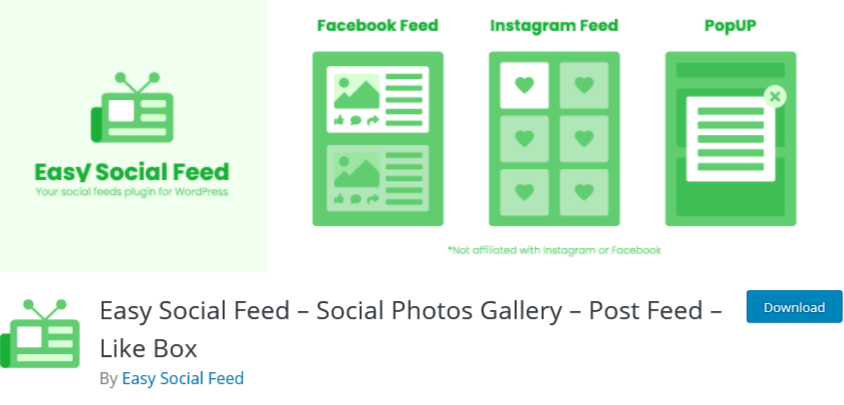
One of the easiest and user-friendly plugins to display the Facebook feed on the WordPress website is Easy Social Feed. It offers a fully customizable Facebook feed that you can personalize according to your style and showcase your artistic side.

The feeds are responsive, which means your visitor can view it on any screen and watch all the content without any trouble.

Many people post images, videos, etc with the product on their social media, which act as social proof. A potential customer always looks for social proof before making a purchase, and therefore it is important that he views the feed without any trouble.

It also allows you to put a limit on the words to display on the website. With this feature, the customer can view more feeds at a time. Moreover, this feature makes the site interactive, as visitors even have the option to view full captions.

4. Flow-Flow Social Stream By Looks Awesome

Flow-Flow Social Streams

Flow-Flow Social Stream is simply add social feeds to WordPress websites with a one-click API authentication. This plugin is a highly customizable and Amazing drag and drops builder grid that allows you to display your posts from different social media channels on the same page. Additionally, Flow-Flow Social Stream shows social media indicators like comments, likes, views, and more to engage your audience.

5. 10Web Social Post Feed By 10 Web

10Web Social Post Feed

If you are looking for an easy way to integrate your WordPress website with Facebook, then 10Web Social Post Feed is an ideal solution. The plugin provides features to display a wide and varied range of content from any page with full control over the feed. That means you can change the content, length, and styling. In addition, the plugin is compatible with visual content, hence it can display images and videos without affecting the website’s speed.

Conclusion

Finally, take benefit of these plugins and your social platform to optimize your digital marketing strategy. This way you can adjust the content you show to get more interactions and improve your audience. Adding social media feeds to your WordPress website will increase the interactions and user engagement with your audience and help you grow your business.

These are just some of the best social media feed WordPress plugins that you can add to your WordPress website but there are many more. Do you have any favorite plugins?
Let us know in the comment section below!

Technology, WordPress

How To Embed Twitter Feed On WordPress Website?

With over 330 million active monthly users, Twitter is one of the world’s leading social networks. Displaying your Twitter feed on your website can help you connect with your audience and grow your business.

so if you are looking for an easy way to display your Twitter feed on your WordPress, then this blog is just for you.

Here you can find how to embed Twitter feed on WordPress website without any hassle. Displaying your Twitter feed on your website is a cool way to cross-promote your content on various platforms.

There are various articles that teaches different methods, but in this article you will find the easiest way to embed Twitter Feed on WordPress website. You can use this process with ease – even if you’re not an IT mastermind.

add twitter feed

Read More – 3 Best Facebook Plugins to Grow Your Business on WordPress

Why Should Add Twitter Feed on WordPress Website (Without Any Coding)

Adding a Twitter feed on the website can enhance your brand’s marketing efforts by ensuring better user engagement and boost sales.

  • It can attract website’s users by highlighting your interaction with the target audience
  • Creates a convincing first impression by increasing your visual appeal
  • Twitter generated UGC content will help in decreasing the bounce rate of your WordPress website
  • Gives a push to user engagement and interaction with your audience
  • Works as social proof and generates social trust

Social media channels are proving to be a boon for businesses as they boost a huge following and have the power to influence and turn the targeted sales of brand/business into reality!

Read More – Add Instagram Widget on a Website

How Can You Embed Twitter Feed On WordPress Website?

Tagembed Widget is an effective social media aggregator tool that can help you embed Twitter feed without any limitations and with attractive features that will enhance the look of your website by showing amazing content that is most relevant to your brand/product.

To embed Twitter feed on the WordPress website, you need not be a tech-geek. Just follow these easy steps to add Twitter widget for WordPress website:

  1. Create a Twitter Widget
  2. Generate Twitter Feed Embed Code
  3. Embed Twitter Feed on WordPress

1. Create a Twitter Widget

  • Log in to your Tagembed account, and if you are a new user, sign up to Tagembed.
  • Click on Create Widget button present on the top right corner of your screen.
  • Provide the desired name to your Twitter widget on the pop-up window and click on Create widget button.
  • Select Twitter from the Select your source popup window.
  • Select your connection type; you can choose from HashTag, Handle, Mention, List, Favorites, Advanced. If you want, you can provide added instruction from tick boxes.
  • Click on Create Feed button and provide your Twitter credentials.

2. Generate Twitter Feed Embed Code

  • Click on the Embed Widget button, present on the bottom left side of the screen.
  • Click on WordPress from your pop up.
  • Adjust the width and height of the feed according to your preference and click on Get Code button.
  • Copy the code and paste it on the backend of your website.

Great, you have successfully generated the embedding code from Tagembed; you are only one step away from add Twitter feed on wordpress website.

3. Embed Twitter Feed on WordPress

  • Log in to your WordPress account.
  • Open the website page where you want to display the live twitter feed.
  • Choose Text Mode, from the visual and text options on the page editor.
  • Paste the generated code on the text mode 
  • Apply the changes and Save.

Read More – Embed Google Reviews on Weebly Website

Over To You

Create interactive Twitter widget on WordPress website really helps you a long way in establishing your brand and product dominion, increasing user engagement, and building impression in the minds of your users. So try the best Twitter embedding tool for your websites today and display amazing and beautiful user-generated content to your target audience.

What are you waiting for? Use the tool right now  

WordPress

3 Best Facebook Plugins to Grow Your Business on WordPress

Do you want to know the best Facebook plugins to help you market your business on your website? With 78% of businesses promoting their brands on Facebook, you can get ahead of the game by integrating your Facebook feed into your WordPress.

As Facebook is now a hub for a huge target audience, marketers look towards this social media giant as an opportunity to market their products and brands. And rightly so, because Facebook provides them a platform to capture a huge target audience and helps businesses with various helpful features.

After all, cross-promoting your Facebook content boosts user engagement, increases your audience reach, and Boosts your sales. There are lots of available Facebook widget plugins on the market, though, so it can be confusing which to choose.

That’s why in this post, we’ll share the best Facebook widget plugins in WordPress that will help you grow your business and your social media followers in no time.

Let’s begin, shall we?

3 of The Best Facebook Feed Plugins For WordPress (2021)

1. Facebook Feed Plugin By Tagembed

facebook feed WordPress plugin

Tagembed’s Facebook Feed plugin is the best WP plugin in the market. It helps you to collect all Facebook feeds from your given source and then allows you to curate and customize them before displaying them on the website.

Moreover, the plugin is free forever, and hence perfectly fits anyone’s budget.

An attractive-looking website is most important for the business; therefore, the plugin provides a customization feature where users can personalize their interactive Facebook widget according to their needs and add grace to their websites.

It also provides moderation features that help its users to hide and block all irrelevant and spam posts from their embedded Facebook feed, which eventually maintains the quality of the website.

An amazing part of this plugin is that it is easy to install and run, it is a coding-free tool, hence even if you don’t have any coding skills, you can still operate this plugin.

2. 10Web Social Post Feed By 1OWeb

10Web Social Post Feed

10 Web Social Post Feed is a nice WordPress plugin that provides you to integrate your Facebook account to your website. These WP plugins help you to keep the visitor engaged as it provides an unlimited number of posts on every account and page. It provides full control over the feed, as users can hide and block unwanted posts. Also, users can personalize theme their widgets with the customization feature.

3. Smash Balloon Social Post Feed By Smash Balloon

Smash Balloon Social Post Feed

Best Facebook plugin for WordPress, Smash Balloon Social Post Feed helps you create, customize and display Facebook feeds on your website and no coding is needed. Since Facebook feeds automatically copy your website’s existing theme and style, it looks great right out of the dashboard box. And if you want to customize your feed’s design, you can do so with just a few clicks. It is very simple to set up and does not require any coding knowledge or specific developer to operate.

How To Embed Facebook Feed on WordPress Website?

Right Here are the easy steps to do it using one of the best plugins in the market – Facebook feed by Tagembed (Try Now)

a). Create Widget with Tagembed 

  1. Sign up to create your Tagembed account, or if you are an existing user and already have an account, then provide your credentials to log in to your account.
  2. Tagembed dashboard screen will appear in front of you, click on the Create Widget button, that appears on the top right corner of your window.
  3. The Create Widget window will pop up on your screen, provide the desired name to your widget and click on the Create Widget button.
  4. Pick a source window that will appear in front of you, which provides your 15+ choices as your source. Then, from all of these options, click on Facebook.
  5. Choose Facebook connection type; you can choose from PageMy Profile PostsAlbums, Page Reviews and Page Mentions. You can even add further instructions from tick boxes and then click on the Continue with Facebook button. 
  6. Finally, provide all credentials of your Facebook account. Your Facebook social wall will appear on your screen.

b). Embed Facebook Feed on WordPress Website

  1. Click on the Embed Widget button that is present on the bottom left corner of your screen.
  2. Choose Your Platform dialog box will appear on your screen. Click on WordPress from given options.
  3. Here you can even adjust the height and width of your Facebook widget as per your need. Next, click on the Get Code button to get your embedding code.
  4. Copy the code on your clipboard and paste it on your website backend.

c). Embedding Facebook Feed using by WordPress Plugin

  1. Sign in to your WordPress account.
  2. Select Text mode, from the Visual and Text option, that will appear on the right side of your window.
  3. Paste the generated code in the body section where you want to display Facebook feed
  4. Click on Update.

Wrapping Up

Facebook might be a very useful platform for promoting your brand and create a loyal follower. Its help in making content marketing easier and opportunity to reach out to web visitors. One of the most important plugins which help your content, brand, business, and blogs to be discovered via social media marketing.

Embed Facebook feed on your WordPress website is absolutely a good idea as it helps you in drawing the attention of the visitors and enhance the social reach. Are you still thinking to integrate the Facebook Plugin, go ahead and add Facebook feeds to your website now! If you have it already, share your experiences below in the comments!