add google reviews on wix
Reviews

How to Add Google Reviews on Your Wix Website (Complete Guide)

If you run a business online or through a physical store, you already know how powerful Google Reviews can be. They influence customer trust, improve your brand reputation, and even help with SEO.

If your website is built on Wix, you can easily display your best Google Reviews to attract more visitors and convert them into loyal customers. In this blog, we’ll explain how to add Google reviews on your Wix website step by step using tools like a Google Reviews widget, code, or third-party integrations.

Let’s dive in!


Why Add Google Reviews to Your Wix Website?

Before learning the “how,” it’s important to understand the “why.”

Adidng Google Reviews on your Wix site gives visitors real proof of your service quality. Here are the top benefits:

  1. Builds Trust Instantly
    When new visitors see positive customer feedback, it builds credibility and encourages them to take action.
  2. Boosts Local SEO
    Google Reviews are a ranking factor for local search results. Embedding them signals authenticity and improves visibility.
  3. Increases Conversions
    People trust other customers more than ads. Real testimonials can drive more bookings, sales, or inquiries.
  4. Enhances Website Design
    A Google Reviews widget adds dynamic, engaging content that keeps your homepage fresh and interactive.
  5. Saves Time and Effort
    Instead of manually adding reviews, a widget automatically syncs your latest Google Reviews, so your website is always up-to-date.

Methods to Add Google Reviews on Wix

There are a few ways to display Google Reviews on your Wix website. Let’s go through each option.


1. Use a Google Reviews Widget (Easiest Method)

The simplest and most efficient way to display your Google Reviews on Wix is by using a Google Reviews widget.

These widgets automatically pull reviews from your Google Business Profile and display them beautifully on your website. You don’t need to code, just copy and paste the embed code.

Here’s how you can do it using a tool like Tagembed (a popular social media and review aggregator):

Steps to Add Google Reviews Using Tagembed:

  1. Go to Tagembed’s Website.
    Visit Tagembed.com and sign up for free.
  2. Create a New Widget.
    After signing in, click “Add Social Feeds” and select Google Reviews as your source.
  3. Connect Your Google My Business Account.
    Authorize Tagembed to fetch your reviews automatically from your business listing.
  4. Customize Your Widget.
    Choose a layout, color scheme, and font style that match your Wix website design.
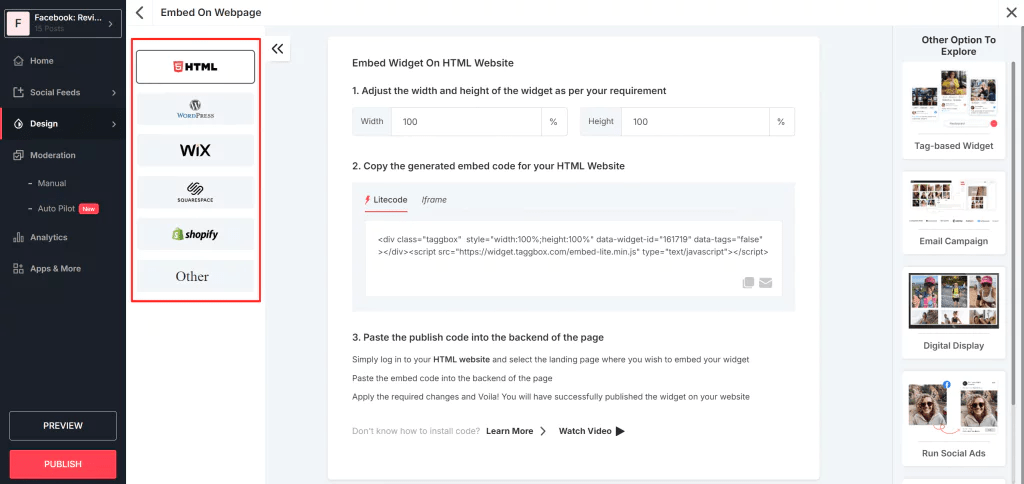
  5. Generate the Embed Code.
    Click “Publish,” then copy the HTML embed code Tagembed provides.
  6. Add It to Wix.
    • Open your Wix Editor.
    • Go to the page where you want to show reviews.
    • Click the “+ Add” button → “Embed Code” → “Embed HTML.”
    • Paste the code and hit “Apply.”

And you’re done! Your live Google Reviews widget will now appear on your Wix website.


2. Use Wix’s Built-In Embed Code Feature

If you don’t want to use a third-party tool, you can manually embed a Google Reviews snippet using HTML. However, this method has limitations — reviews won’t auto-update, and it requires some manual work.

Steps:

  1. Open your Google Business Profile and copy a few positive reviews.
  2. In your Wix Editor, choose the section where you want to display them.
  3. Click Add → Text → Paragraph or Embed Code → Custom HTML.
  4. Paste your copied reviews with design formatting (like stars, names, and comments).

This gives you control over which reviews appear, but they won’t update automatically like a Google Reviews widget.


3. Use the Wix App Market

The Wix App Market also has third-party review plugins that help you show Google Reviews easily.

Here’s how:

  1. Go to Wix App Market from your website editor.
  2. Search for “Google Reviews.”
  3. Choose an app that supports syncing your Google Business Profile.
  4. Install it and customize the look and placement of your reviews.

While this option is simple, free versions of these apps often have limited features or branding. That’s why tools like Tagembed are often preferred for flexibility and affordability.


4. Embed Google Reviews with API (Advanced Method)

If you’re tech-savvy, you can use the Google Places API to fetch and display reviews dynamically.

However, this method requires coding knowledge and API keys. You’ll need to:

  • Enable the Google Places API in your Google Cloud Console.
  • Generate an API key.
  • Use JavaScript or PHP code to display the reviews.

This approach works well for developers but can be time-consuming for small business owners.


Best Practices for Displaying Google Reviews

Simply embedding reviews isn’t enough. How and where you show them also affects engagement and trust.

Here are some best practices:

  1. Place Reviews Strategically
    Show them on high-conversion pages like your homepage, product pages, or contact page.
  2. Highlight Positive Feedback
    Display 4-star and 5-star reviews to make a strong first impression.
  3. Use a Clean Design
    A Google Reviews widget with a minimalist layout looks professional and loads faster.
  4. Include Reviewer Details
    Showing names and profile images makes the reviews appear more genuine.
  5. Regularly Update Your Widget
    Choose a widget like Tagembed that auto-syncs new reviews — no manual refresh needed.

Why Use Tagembed for Google Reviews on Wix?

Tagembed is one of the best tools for embedding social feeds and customer reviews on websites. It’s trusted by thousands of businesses for its simplicity, customization options, and smooth performance.

Here’s why many Wix users prefer it:

  • Free to start — no need for a paid plan to add Google Reviews.
  • Automatic syncing — new reviews appear instantly.
  • Customizable designs — choose layouts, fonts, and colors.
  • Fast and responsive — optimized for mobile and desktop.
  • Supports multiple platforms — like Facebook, Instagram, Yelp, and TripAdvisor too.

Using the Google Reviews widget from Tagembed gives your website an interactive and authentic touch — boosting customer trust effortlessly.


SEO Benefits of Adding Google Reviews

Adding reviews isn’t just for aesthetics — it also helps with SEO.

Here’s how:

  • Improves dwell time: Visitors spend more time reading reviews.
  • Enhances keyword relevance: Reviews often include natural keywords about your business.
  • Boosts local rankings: Google favors businesses that actively use and display customer feedback.
  • Encourages conversions: Trustworthy reviews drive more clicks and purchases.

When combined with other on-page SEO elements like meta descriptions and schema markup, your Google Reviews widget can make a real impact on your website’s visibility.


Final Thoughts

Adding Google Reviews to your Wix website is one of the easiest ways to build credibility and improve conversions. Whether you’re a restaurant, salon, agency, or online store, showcasing customer feedback shows transparency and trustworthiness.

The best and simplest method? Use a Google Reviews widget from Tagembed. It’s free, customizable, and automatically updates with your latest reviews — no coding or maintenance required.

Start today and turn your visitors into customers by letting your satisfied clients do the talking!


Conclusion

Facebook scheduling tools make social media management simpler and more consistent. They help you plan, organize, and publish posts automatically, keeping your page active without daily effort. Whether you’re a brand, creator, or business owner, these tools save time while improving engagement and reach.

Each platform offers unique features from analytics and content calendars to collaboration options, so the best choice depends on your goals and workflow.

Beyond automation, scheduling tools give you space to focus on creativity and genuine connection. When posting becomes effortless, you can spend more time crafting meaningful content that resonates with your audience and strengthens your online presence, even when you’re away from the screen.


do's and dont's of adding google reviews
Reviews

The Do’s and Don’ts of Showcasing Google Reviews on Your Website

Today, customer reviews are one of the most effective ways to build trust, credibility, and social proof for your business. Google Reviews, in particular, influence potential customers before they buy a product, visit a store, or use a service.

When displayed correctly on your website, Google Reviews can boost engagement, improve your reputation, and increase conversions. However, mistakes in presenting them can make your site look unprofessional or spammy.

In this guide, we’ll cover the key do’s and don’ts for showcasing Google Reviews, along with practical tips to make your review section trustworthy and attractive.

Why Google Reviews Matter for Your Website?

Google Reviews are more than just star ratings—they are social proof that helps your visitors trust your business. Here’s why they matter:

  • Build Trust and Credibility: Genuine customer experiences give your business authenticity.
  • Improve Conversions: Displaying positive feedback can encourage potential customers to take action.
  • Boost SEO: Fresh user-generated content, like reviews, can help with search rankings, especially for local SEO.
  • Enhance Customer Engagement: Reviews can spark interest and interaction when highlighted creatively.

With the right approach, Google Reviews can act as both a marketing tool and a proof of quality for your products or services.


The Do’s of Showcasing Google Reviews

1. Do Display Recent Reviews

Highlighting the latest reviews ensures your site looks active and up-to-date. Visitors are more likely to trust recent feedback than reviews from years ago.

2. Do Use Widgets or Plugins

Use a Google Reviews widget or plugin to display reviews automatically. Tools like Taggbox, Elfsight, or Tagembed allow you to showcase reviews in attractive layouts without manually updating them.

3. Do Feature Reviews Strategically

Place reviews on pages where they matter most:

  • Homepage
  • Product or service pages
  • Pricing pages
  • Contact page or landing pages

Strategic placement ensures maximum visibility and impact.

4. Do Include Reviewer Details

Include the reviewer’s name, profile picture, rating, and date. It makes the reviews look authentic and builds trust with your audience.

5. Do Highlight Different Types of Reviews

Show a mix of reviews that cover different aspects: product quality, customer service, delivery speed, or overall experience. This gives a comprehensive view of your business.

6. Do Respond to Reviews Publicly

Responding to reviews shows that you care about customer feedback. A polite acknowledgment or solution increases credibility and encourages more reviews.

7. Do Keep the Design Clean and Consistent

Ensure the review section matches your website’s overall design. Avoid clutter or using too many different fonts and colors. A clean, consistent layout improves readability.


The Don’ts of Showcasing Google Reviews

1. Don’t Fake Reviews

Never create fake reviews to boost ratings. Google has strict policies against fake reviews, and visitors can usually tell when reviews aren’t genuine. This can damage your reputation and even lead to penalties.

2. Don’t Display Only 5-Star Reviews

Showing only perfect reviews may appear suspicious. A few balanced reviews, including constructive criticism, make your feedback section authentic and believable.

3. Don’t Overload the Page with Reviews

While it’s good to show multiple reviews, too many reviews can overwhelm visitors. Use a carousel, slider, or limit the number of reviews displayed per page for a cleaner look.

4. Don’t Ignore Negative Reviews

Negative reviews provide an opportunity to demonstrate professionalism. Ignoring them or deleting them can hurt your credibility. Respond politely and offer solutions instead.

5. Don’t Use Reviews Without Permission

If you’re quoting reviews from sources outside of Google, make sure you have permission or that it complies with copyright rules. Always credit the reviewer.

6. Don’t Forget Mobile Optimization

Many visitors will view your site on mobile devices. If your review section isn’t mobile-friendly, it may break the layout or be hard to read. Always test reviews on different screen sizes.

7. Don’t Place Reviews in Hard-to-Find Areas

Reviews should be visible and easy to find. Placing them at the bottom of the site without any prominence may reduce their impact. Use clear headings or sections like “What Our Customers Say.”


Tips for Effective Google Reviews Integration

To make your Google Reviews section more effective:

  1. Use Interactive Widgets – Carousels, sliders, or grids make reviews engaging.
  2. Filter High-Impact Reviews – Highlight reviews that cover key selling points or reflect your strengths.
  3. Combine with Other Social Proof – Include testimonials, case studies, or user-generated content alongside Google Reviews.
  4. Encourage New Reviews – Make it easy for customers to leave reviews on Google. You can provide links in emails or thank-you pages.
  5. Monitor Review Metrics – Track engagement with your reviews section: clicks, scrolls, and impressions to optimize layout and content.

Tools to Display Google Reviews

Some reliable tools to help showcase Google Reviews on your website include:

  • Taggbox – Collects reviews and allows customizable widgets.
  • Elfsight – Offers responsive and visually appealing review display options.
  • Tagembed – Integrates Google Reviews with website and social feeds.
  • WidgetPack – Simple solution to display reviews with minimal setup.

These tools save time, ensure automatic updates, and give your site a professional look.


Final Thoughts

Google Reviews are more than just ratings—they’re a powerful marketing tool. When showcased properly, they can improve trust, boost conversions, and enhance your online reputation.

Remember the do’s: use widgets, display recent reviews, respond publicly, keep the design clean, and highlight reviewer details.

Avoid the don’ts: don’t fake reviews, ignore negative feedback, overload the page, or neglect mobile optimization.

By following these best practices, your website can leverage Google Reviews as authentic social proof that drives engagement, builds trust, and grows your business.

Start today, and turn your customer feedback into a powerful marketing asset!

Digital Marketing, Reviews, Social Media Marketing, Technology

5 Strategies to Get More Google Reviews Fast

Google reviews have become a cornerstone of digital marketing and brand reputation. They provide social proof, improve SEO, and help attract more customers to your business. However, acquiring Google reviews doesn’t always happen organically. To effectively boost your Google reviews, you’ll need a strategy in place.

In this article, we will discuss 5 strategies to get more Google reviews fast, along with tools such as Google review widgets and Google review plugins that can make this process even easier. Whether you’re a small business owner or a marketer looking to enhance your online presence, these tips will help you build a solid reputation quickly.

1. Ask Customers Directly for Google Reviews

One of the simplest and most effective ways to get more Google reviews is to ask your customers directly. Sometimes, customers are willing to leave a review but just need a gentle nudge or reminder. Asking for a review at the right moment can increase the likelihood of them following through.

How to ask for reviews:

  • Timing: Ask for a review shortly after the transaction when customers are still feeling positive about your product or service. For example, after delivering a product, completing a service, or following up on a positive interaction.
  • Be Clear: Politely ask them to leave a review on Google. You can make it easy by providing a direct link to your Google My Business (GMB) page.
  • Personalize the Request: A personal, friendly approach can help. Thank your customers for their business and let them know that their feedback is important to you.

Tools to help:

  • Google Review Widget: You can use a Google review widget on your website to make it easy for customers to leave reviews directly. A review widget prominently displays recent reviews and provides an easy way for visitors to leave their own.

By asking directly and making the process simple, you’ll significantly boost the number of reviews you receive.

2. Make It Easy to Leave a Google Review

While asking customers directly is important, you also need to make it easy for them to leave a review. The less effort required from your customers, the more likely they will be to take the time to write a review. This is where technology can really help.

How to simplify the process:

  • Provide Direct Links: Create a direct link to your Google My Business (GMB) review page. You can generate a review link from your GMB dashboard or use services that create a short, shareable link.
  • Send Follow-up Emails: After the transaction or interaction, send customers a thank-you email with a direct link to leave a review. Include clear instructions on how to leave a review.
  • Use QR Codes: If you have a physical store or location, consider using a QR code that leads directly to your review page. Display it on receipts, brochures, or your storefront.

Tools to help:

  • Embed Google Review: You can embed Google reviews directly on your website to showcase your existing reviews and encourage new customers to leave their own. An embed Google review feature not only increases visibility but also creates a sense of trust and transparency.

The easier you make it for customers to leave feedback, the more reviews you’ll get. Simplifying the review process will ensure a quicker and more efficient flow of reviews.

3. Leverage Social Media to Ask for Reviews

Social media is an excellent channel for reaching out to your audience and asking for Google reviews. If you already have a following on Facebook, Instagram, or Twitter, use these platforms to ask your customers to leave reviews on Google.

How to leverage social media:

  • Create a Call-to-Action Post: Write a post asking your followers to leave a review on Google. Make sure to include the direct review link, and offer a friendly reminder about how much their feedback matters.
  • Pin the Review Post: Pin the post to the top of your social media page so it gets maximum exposure. You can also make the post more engaging by offering an incentive, like a discount or freebie, for those who leave a review.
  • Share Customer Testimonials: Sharing positive testimonials on your social media channels can motivate others to leave their own reviews.

Tools to help:

  • Google Review Plugin: If you use a content management system (CMS) like WordPress, consider installing a Google review plugin to display your Google reviews directly on your site. This keeps your reviews front and center and makes it easier for customers to engage with them.

When customers see others leaving positive reviews, they’re more likely to do the same. Use social proof to your advantage by sharing your best reviews across your social media platforms.

4. Offer Incentives for Reviews (Without Violating Google’s Guidelines)

Offering incentives for reviews can be a great motivator for customers to leave feedback. However, it’s important to note that Google’s guidelines strictly prohibit offering incentives in exchange for positive reviews. Incentives should be used as a general thank-you gesture, not as a reward for a specific rating. This approach helps build social proof, as authentic, unbiased reviews from satisfied customers are far more valuable in boosting your brand’s credibility and trust.

How to incentivize reviews:

  • Provide a Discount or Special Offer: Offer a small discount or a promotional offer on future purchases for those who leave a review. You could also offer an entry into a giveaway for a chance to win a prize.
  • Reward Customers for Their Time: Show appreciation for the time your customers spend leaving feedback. A simple thank-you note or acknowledgment can go a long way.

Tools to help:

  • Google Review Widget: A Google review widget can help you collect and display reviews from customers who have taken part in your incentive program. This will encourage other customers to leave their reviews and enhance your business’s online presence.

When used correctly, incentives can create a positive experience for customers while boosting the number of reviews you receive. Just make sure to avoid anything that could be construed as “buying” reviews.

5. Respond to Reviews to Encourage More Feedback

Engagement doesn’t stop once you get a review. In fact, responding to reviews — both positive and negative — can create an even stronger connection with your customers and encourage others to leave their feedback.

Why responding to reviews matters:

  • It Shows You Care: When customers see that you are actively engaging with your reviewers, it shows that you value their feedback and are committed to improving your service.
  • Encourages New Reviews: By responding to reviews, you demonstrate that you are attentive to customer input. This can prompt other satisfied customers to leave their own reviews.
  • Resolve Issues: Responding to negative reviews with professionalism and a solution-oriented approach can turn a negative experience into a positive one and help prevent a PR crisis.

Tools to help:

  • Embed Google Review: To make your review responses even more visible, you can embed Google reviews on your website. This showcases not only the feedback but also how you interact with your customers. A positive review interaction creates trust and encourages more feedback from future customers.

By engaging with your customers through responses, you can show that you care about their feedback and make your business seem more approachable and human.

Conclusion

Getting more Google reviews quickly is essential for building trust, improving your online presence, and attracting more customers. By following these five strategies, you can make the process easier for both you and your customers, leading to a steady flow of positive feedback.

Key Takeaways:

  • Ask directly and politely: Engage with customers at the right moment and request reviews through direct links.
  • Simplify the process: Use tools like Google review widgets and embed Google review features to make leaving reviews as easy as possible.
  • Leverage social media: Reach out to your followers and share your existing reviews on your social channels.
  • Offer incentives: Provide a small incentive to encourage customers to leave a review, while adhering to Google’s guidelines.
  • Respond to reviews: Actively engage with reviewers to show appreciation and foster trust.

By making Google reviews a priority in your digital strategy and leveraging tools like Google review plugins and Google review widgets, you can accelerate the growth of your online reputation. The more reviews you collect, the more likely you are to increase your brand’s visibility, customer loyalty, and ultimately, sales.

Digital Marketing, facebook widget, Reviews, Social Media Marketing, Technology

Leveraging Facebook Updates to Promote Your Brand More Effectively

Facebook remains one of the most powerful platforms for digital marketing. However, like all social media networks, it evolves constantly, rolling out updates that impact how content is displayed, how users interact, and how businesses market their products or services. As a marketer, staying on top of Facebook updates marketing is crucial for your brand’s success.

In this article, we’ll explore why these updates matter, how they can impact your marketing efforts, and how to leverage them for better results. Plus, we’ll cover some essential strategies and tools to stay ahead of the game.

1. The Importance of Facebook Updates for Marketers

Facebook’s algorithm and tools are in a constant state of flux. These updates can affect everything from post reach to ad targeting, user engagement, and more. As a marketer, you need to be aware of these changes to ensure you’re using the platform effectively.

Here’s why Facebook updates matter:

  • Changes in Reach: Facebook periodically changes how it distributes organic content. What worked yesterday might not work today, so it’s essential to stay updated.
  • Ad Targeting: The platform regularly tweaks its ad algorithms, which can directly affect the performance of your campaigns.
  • New Features: Facebook often introduces new tools or features that could make a significant impact on your marketing strategy.

By keeping track of Essential Facebook Updates Marketers should know about, you can adapt quickly and stay relevant in an ever-changing digital landscape.

2. Driving Conversion Through Facebook Updates

One of the most important reasons to keep up with Facebook updates marketing is to drive conversions effectively. Facebook’s algorithm changes often focus on enhancing the user experience, which in turn impacts how businesses reach their target audience.

Here’s how the updates can help increase conversions:

  • Improved Ad Targeting: Updates to Facebook’s targeting options (e.g., lookalike audiences or advanced demographic filters) allow marketers to deliver ads to the right people at the right time.
  • Enhanced Mobile Experience: As mobile browsing continues to dominate, Facebook updates frequently improve its mobile app, making it easier for potential customers to make purchases or engage with content.
  • Better Call-to-Action Buttons: With updated call-to-action (CTA) options like “Shop Now,” “Learn More,” and “Book Now,” Facebook makes it easier for users to take the next step after engaging with your content.

These changes are designed to enhance the user experience and, by extension, drive conversion rates higher. Staying up to date on Facebook’s updates ensures that your brand can capitalize on these new features.

3. Social Proof and Its Impact on Marketing

Social proof is one of the most powerful tools in modern marketing. Facebook’s updates often enhance how social proof is displayed, allowing your brand to build credibility and trust with potential customers.

How can you leverage social proof with Facebook updates?

  • Customer Reviews: Facebook regularly updates how reviews are displayed, giving brands more visibility when users leave positive feedback. This social validation can help you gain new customers by showcasing positive experiences from real users.
  • User-Generated Content: With each update, Facebook improves the way user-generated content is shared and promoted. Encourage customers to share their experiences on Facebook and tag your brand, creating organic endorsements that work as powerful testimonials.

By incorporating social proof into your marketing strategy, you can build credibility and inspire trust with potential customers. Facebook updates can help you do this more effectively.

4. Promoting Your Facebook Page: Strategies and Updates

Facebook’s updates often focus on helping businesses promote their pages and increase engagement with followers. But staying ahead of these updates is key to maximizing the effectiveness of your promotion efforts.

Here’s how recent updates have affected promoting your Facebook page:

  • Page Visibility: Facebook has tweaked its algorithm to prioritize more engaging and authentic content. Pages that post high-quality, engaging content tend to be prioritized over those that focus on self-promotion or clickbait.
  • Increased Interaction with Followers: Updates often enhance how businesses can interact with their followers, from responding to comments to sending personalized messages. These features allow businesses to build stronger relationships with their audience.
  • Facebook Groups Integration: Facebook has made it easier for brands to integrate their business pages with Facebook Groups. By creating a community around your brand, you can increase loyalty and organically promote your page.

Staying on top of these updates ensures that you can use Facebook’s full range of promotional tools to boost your brand visibility and grow your follower base.

5. Boosting Your Brand’s Reputation with a Facebook Review Widget

One feature that can significantly improve your marketing strategy is the Facebook widget. With frequent updates to how businesses can display reviews, it’s easier than ever to showcase social proof directly on your website.

Why should you consider adding a Facebook review widget to your website?

  • Instant Trust: Customer reviews build instant credibility. When visitors see positive feedback about your brand, they’re more likely to trust you and convert.
  • Seamless Integration: The Facebook review widget can be easily embedded Facebook feed on your website, allowing you to display the most recent and relevant reviews directly on your homepage or product pages.
  • Increased Engagement: Encouraging customers to leave reviews on Facebook and then showcasing them on your site can increase engagement both on Facebook and your website.

With Facebook regularly updating how reviews are displayed and interacted with, now is the perfect time to integrate a Facebook review widget into your website to improve customer trust and drive more conversions.

6. How to Embed Facebook Reviews on Your Website

Facebook has also improved how businesses can embed Facebook reviews on their websites. If you’re looking for a simple yet powerful way to show off positive customer feedback, embedding Facebook reviews directly into your site is a great option. Using tools like Tagbox, you can easily integrate and display Facebook reviews, creating a seamless and dynamic experience for visitors.

Here’s how embedding Facebook reviews can benefit your business:

  • Improved User Experience: Directly embedding reviews into your product or service pages provides immediate feedback to visitors, which helps them make quicker purchasing decisions.
  • Authenticity: Facebook reviews are perceived as more authentic and trustworthy because they come from real users on a widely recognized platform.
  • More Traffic to Your Facebook Page: By embedding reviews, you encourage visitors to engage with your Facebook page, which can increase traffic and foster a stronger relationship with your audience.

With Facebook making it easier to embed reviews directly from the platform, and with tools like Tagbox helping you integrate them effortlessly, this is an excellent way to leverage the power of social proof and increase engagement with both your website and your Facebook page.

7. Essential Facebook Updates Marketers Should Know

To stay ahead of the competition, it’s important for marketers to keep track of essential Facebook updates. These updates can impact everything from how content is shown to how your ads perform.

Here are some of the most important recent updates for marketers to know:

  • Algorithm Changes: Facebook’s algorithm updates have a significant impact on organic reach. Marketers need to adapt their content strategies to align with the latest algorithm preferences.
  • New Ad Formats: Facebook regularly introduces new ad formats, including Stories Ads and interactive video ads. Staying on top of these changes will help marketers craft more effective ad campaigns.
  • Enhanced Targeting Options: As Facebook gathers more data on user behavior, marketers are gaining access to more advanced targeting features, such as improved lookalike audiences and predictive analytics.

By keeping an eye on essential Facebook updates marketers should be aware of, you can ensure your strategy stays competitive and effective.

Conclusion

Facebook updates are crucial for staying relevant and effective in your marketing strategy. From driving conversion and leveraging social proof to promoting your Facebook page and integrating features like a Facebook review widget or embed Facebook review options, these changes present opportunities for businesses to engage with their audiences in more meaningful ways.

By keeping up with the latest essential Facebook updates marketers need to know, you can ensure your brand thrives in the ever-changing world of social media marketing. Adapt, experiment, and use these updates to your advantage – your brand’s success depends on it.

Digital Marketing, Reviews, Technology

The Ultimate Guide to Google Reviews for Restaurants: Best Practices and Tips

In today’s digital world, online reviews are more important than ever, especially for restaurants. Among the various platforms where reviews are posted, Google reviews hold significant weight. They impact your google review restaurant’s visibility on Google, affect your search rankings, and influence potential customers’ decisions. This guide is designed to walk you through the best practices for obtaining and managing Google reviews to enhance your restaurant’s online presence and reputation.

Why Google Reviews Matter for Restaurants

Before diving into the strategies for increasing your Google reviews, let’s take a moment to understand why they matter:

  • Increased Online Visibility: Positive Google reviews improve your restaurant’s chances of appearing in local search results, making it easier for customers to find you.
  • Boosted Trust and Credibility: Customers trust online reviews almost as much as personal recommendations. Great reviews can persuade potential customers to choose your restaurant over competitors, leveraging social proof to demonstrate your quality and reliability.
  • Improved SEO Rankings: Google’s search algorithms favor businesses with higher-quality reviews, which can increase your restaurant’s rankings in local search results.
  • Higher Conversion Rates: Customers are more likely to visit your restaurant when they see positive feedback from other diners, leading to increased reservations and foot traffic. The positive social proof created by glowing reviews can significantly influence a potential customer’s decision to dine with you.

Now that you understand the importance of Google reviews, let’s explore the best practices for obtaining and managing them.

1. Create a Google My Business Profile

To get started with Google reviews, you need a Google My Business (GMB) profile. This free business profile is essential for any small business like a restaurant looking to boost its online presence.

Steps to set up your Google My Business profile:

  • Claim your business: Visit the Google My Business website and search for your restaurant. If it’s listed, claim ownership; if not, create a new listing.
  • Complete your profile: Fill in all the necessary details, such as your business name, address, phone number, hours of operation, and website link.
  • Add attractive photos: Upload high-quality images of your restaurant, food, and ambiance. Photos improve engagement and make your restaurant more appealing to potential customers.
  • Verify your business: Google will require you to verify your restaurant’s information via phone, email, or mail before your listing becomes active.

Once your profile is live, your restaurant will be ready to start collecting reviews from customers.

2. Ask Customers for Reviews (The Right Way)

One of the simplest yet most effective ways to garner Google reviews is by asking your customers directly. However, it’s important to approach this request in a way that doesn’t feel pushy or intrusive.

Best Practices for Asking for Reviews:

  • Timing is key: Ask for a review when customers are happiest—after a great meal or when they’ve expressed satisfaction with their dining experience.
  • Make it easy: Provide a direct link to your Google review page, either on your website or through a follow-up email. You can even add a Google review widget to your site, making it easier for customers to leave feedback with just a few clicks.
  • Personalize your request: Instead of a generic ask, personalize the message based on the customer’s dining experience. If they mentioned they loved the food or the service, remind them of that when requesting a review.
  • Leverage staff: Train your servers and front-of-house team to kindly request reviews at the end of the meal. It helps when employees are enthusiastic and genuinely care about customer feedback.

Example Request:

“We hope you enjoyed your meal! If you have a moment, we’d love for you to share your experience with others on Google. Here’s the link to leave a review: [Insert link]. Your feedback means the world to us!”

“Engage Your Visitors with Authentic Customer Reviews. Start Free with Tagbox!”

3. Use a Google Review Widget on Your Website

To make it as easy as possible for your customers to leave reviews, consider adding a Google review widget to your WordPress website. A Google review widget allows visitors to your website to read and leave reviews directly from your site, streamlining the review process and encouraging more participation.

How to Add a Google Review Widget to Your Website:

  1. Choose a widget provider: Many third-party tools like Tagembed offer Google review widgets that can easily be embedded into your website. These tools usually have customization options to match the look and feel of your website.
  2. Generate a widget: After selecting a provider, connect your Google My Business account to generate a widget that displays recent reviews.
  3. Embed the widget: Once the widget is created, you’ll receive a code that can be added to your WordPress website. Paste the code into your website’s HTML where you want the widget to appear, such as on your homepage or a dedicated reviews page.
  4. Customize the display: Customize the widget’s appearance to match your website’s design, including review ratings, number of reviews, and layout style.

Why Use a Google Review Widget?

  • Increases trust: Having live, up-to-date reviews displayed directly on your site shows prospective customers that you’re trustworthy and transparent.
  • Encourages customer reviews: When customer review visitors see the reviews already on your site, they may be more inclined to add their own feedback.
  • Convenience for customers: It’s easy for customers to leave a review when they don’t have to leave your website. The widget makes the process quick and simple.

4. Respond to Reviews (Positive and Negative)

Engaging with your customers by responding to their reviews—both positive and negative—is critical to maintaining a good relationship with your audience and showcasing excellent customer service.

Why Responding Matters:

  • It shows you care: Replying to reviews lets customers know that you value their feedback and care about their experience.
  • It builds relationships: Responding to reviews can turn a one-time diner into a loyal customer, especially when you address their concerns or thank them for their compliments.
  • It improves SEO: Google rewards businesses that actively engage with reviews, which can improve your local search rankings. Additionally, you can make it easier for customers to leave and view reviews by integrating a review plugin for WordPress website, streamlining the process and enhancing your interaction with customers.

How to Respond to Positive Reviews:

  • Express gratitude: Acknowledge the reviewer’s kind words and thank them for their feedback.
  • Be specific: Reference something specific they mentioned, such as a dish they loved, to make your response more personal.
  • Encourage them to return: Invite the customer back with an invitation to try new menu items or special offers.

Example Response:

“Thank you so much for the kind words! We’re thrilled to hear that you enjoyed the pasta. We’d love to have you back soon to try our new seasonal dessert menu. See you again soon!”

How to Respond to Negative Reviews:

  • Acknowledge the issue: Address the customer’s complaint in a polite and professional manner.
  • Apologize sincerely: Even if the issue was beyond your control, offer a genuine apology.
  • Offer a solution: If possible, suggest a remedy for the problem they encountered or invite them to contact you directly to discuss further.
  • Take it offline: If the issue is complex or sensitive, offer to resolve it privately via email or phone.

Example Response:

“We’re very sorry to hear that your experience wasn’t up to our usual standards. We take all feedback seriously and would love to make things right. Please contact us at [email] so we can address your concerns directly.”

5. Utilize a Marketing Tool to Automate Review Requests

If you’re finding it challenging to stay on top of review requests, consider using a marketing tool that automates the process. Many tools integrate with Google My Business and allow you to send automated email or SMS requests to customers after their visit.

Benefits of Using a Marketing Tool:

  • Saves time: Automation ensures that review requests are sent promptly without requiring manual follow-up.
  • Personalized requests: Many tools allow you to personalize the message based on customer data.
  • Track results: You can easily monitor how many requests were sent and how many reviews you’ve received.

Popular tools like ReviewPush and Trustpilot allow restaurants to create and manage review requests, helping you stay proactive and on top of the process.

6. Promote Positive Reviews on Social Media

Once you start accumulating positive Google reviews, don’t keep them to yourself. Share them on your social media channels to spread the word about your excellent reputation.

Tips for Sharing Reviews on Social Media:

  • Create visually appealing posts: Use eye-catching graphics to display the review along with the customer’s feedback.
  • Tag the customer (if possible): If the customer’s review is shared publicly on social media, tag them to make the post more personal.
  • Encourage others to leave reviews: Use your social media platforms to remind your audience to leave reviews after dining with you.

Example Post:

“We’re so grateful for our amazing customers! Check out this lovely review from [Customer Name]. If you’ve dined with us recently, we’d love to hear about your experience on Google!”

Conclusion

Google reviews are a powerful tool for increasing your restaurant’s visibility, building trust with customers, and improving your SEO rankings. By following these best practices, including setting up a Google My Business profile, asking customers for reviews the right way, responding to feedback, and utilizing marketing tools, you can create a strategy that encourages positive reviews and strengthens your restaurant’s reputation.

Implementing a Google review widget on your WordPress website makes it even easier for customers to leave feedback, while responding to reviews helps build lasting relationships with your clientele. Remember, the more active and engaged you are with your customers online, the greater the rewards for your restaurant.

Start following these strategies today and watch your Google reviews—and your restaurant’s success—grow.

Reviews, Technology

Fantastic Tools To Embed Facebook Reviews Widget On Shopify Website 

Facebook is where people go to validate their decisions, whether cultural or purchasing. People rely on Facebook. And businesses with Shopify websites have declared (not conventionally, though)  that Facebook is their best companion.

Taking that into consideration, many brands and businesses have started to showcase their Facebook reviews widget on the Shopify website. A Facebook reviews widget on Shopify website has not only elevated their trustworthiness but also has maintained a good amount of traffic. 

If you are one of those business owners who are still new to the idea and waiting to know the best way to add Facebook reviews on the Shopify website, we have something in store for you. In this blog, we will walk you through some of the best tools to embed Facebook reviews on the Shopify website. Along with that, we will also discuss some amazing benefits that you must leverage from the Facebook review widget.

Tools To Embed Facebook Reviews Widget On Shopify Website: 

Undoubtedly, many tools in the market can enable you to showcase Facebook reviews on Shopify. But here is the catch. Not all of them will provide you with all the features you need in this quest. Fret not, we have researched for you. We have jotted down below the best tools in the industry that you can try without any hesitation. 

a). Tagembed

When it comes to embedding Facebook reviews widget on the Shopify website, Tagembed is one of the best social media aggregator tools. The best part about this tool is that it is codeless. Meaning that you can easily embed your Facebook reviews widget on the Shopify website without any involvement of coding. Apart from that, Tagembed provides you with enough customization features to make your Facebook review widget look attractive and easily navigable.

For example, their myriads of themes and layouts help your Facebook reviews widget make it professional. And with these features, you also get your hands on a moderation panel, which makes sure you do not have to showcase a review that does not resonate with your current marketing campaigns. You can also lay your hands on features like custom CSS that enable you to customize the widget with coding. Using the customization feature, you can also change the card style and alter the size and colors of the fonts. Tagembed also provides you with responsive feeds, that adapts to all the screen size of the website visitors. 

Also, read – Embed Facebook Reviews Widget On Wix

b). Common Ninja 

Another great tool we have on the list is Common Ninja. This tool helps the owner to effortlessly showcase their Facebook reviews on the Shopify website. Just like Tagembed Common Ninja claims to have fit all the design types through its customization features. With Common Ninja, anything can be changed, edited, or removed.

Common Ninja also provides mobile-friendly features, meaning the widget can adjust with the size of the visitors, without messing up the website alignment. As a user, you can also choose the number of reviews you wish to showcase on your widget. And most importantly, you can also sort the reviews into the order. 

Also, read – Embed Facebook Reviews On Squarespace Website

c). Wiser Notify 

Another incredible tool to try your hands on while embedding Facebook reviews on the Shopify website is Wiser Notify. This tool claims to skyrocket your conversion rate with its features. Keeping that in mind, let’s take a look at its features. 

Wiser Notify has more than 50 templates to match the design of your website. Other than that, Wiser Notify also provides you with features like showing icons, product images, maps, and  Gravatars. The tool has more than 30 language support. 

Now that you are aware of the tools to add Facebook reviews on the Shopify widget, let us have a look at the benefits you can leverage from the Facebook reviews widget on the Shopify website. 

Also, read – Add Facebook Reviews Widget On Weebly

Phenomenal Benefits Of Having Facebook Reviews Widget On Shopify Widget 

While it is important to know the most suitable tools to add Facebook reviews to the Shopify website, it is equally important you know nearly all the possible benefits you can take from the Facebook reviews on the Shopify website. 

Better Social Proof: People are more interested in a product when they see other people talking about it. And when they are on the website, they have majorly made up their minds about purchasing the product. If you back your proposal with some social proof in the form of Facebook reviews, they will be more likely to make the purchase. 

Better Engagement:  Chances are like all the other website owners you are upset about the website engagement. This is where the Facebook reviews on the Shopify website can help you. People are likely to spend more time and click more when they see engaging elements like Facebook reviews. 

Also, read – Embed Facebook Reviews On Webflow Website 

In A Nutshell 

Facebook reviews and the Shopify store are the best amalgamations for your business needs. Marketing your business is important. But it need not require an overwhelming process. You can easily automate all your marketing efforts by opting to embed Facebook reviews on the Shopify website. We have mentioned all the important tools with the overall benefits of having a Facebook reviews widget on the Shopify website. 

So what is stopping you now? 

Go ahead, take the right step, and see your business grow. 

Reviews, Website

How To Add Yelp Reviews Widget On Shopify Website?

Nowadays, local businesses like bars, restaurants, gyms, massage parlors, and many more are opting to embed Yelp review widgets on the Shopify website. That helps them to present their business visible in front of potential customers.

Customers are now smart enough to go through Yelp reviews before engaging with any business product or service. And Yelp customer reviews become much more important for any local business to increase credibility and authenticity.

If you have positive Yelp reviews, then adding them to your Shopify website will be a great combo that assists potential customers to form trust in your brand. Not only it builds trust but it let users feel comfortable purchasing from your business.  

Adding Yelp reviews also help you to increase traffic on the Shopify website and reduce the bounce rate of the website as you are providing them with social proof that showcases feedback about your product or brand.

The embedding process looks hectic but in this blog, you are going to learn how you can add Yelp reviews on Shopify website.

Easy Way To Add Yelp Reviews Widget On Shopify Website:

You just require an assemblage tool that can collect all the Yelp reviews and embed them on your Shopify website. And by using Tagembed you can do so. Tagembed is an aggregator tool that helps you to embed Yelp reviews on your Shopify website. Tagembed includes various features to look your feeds creative and attractive to increase customer volume on your website.

Follow these easy steps to embed Yelp reviews widget on Shopify website:

Step 1: Assemble Yelp Reviews 

  1. Sign up to create a free Tagembed account or log in if you used it previously.
  2. You will be redirected to the dashboard of Tagembed
  3. Your first widget will be already on the screen, just click on the open button to proceed.
  4. A popup will appear, select yelp reviews as your widget
  5. You can add Yelp reviews in 2 ways-

    Business Page: Paste your business page URL to fetch Yelp reviews.
    Business Name:  Enter the location and keyword to fetch the Yelp reviews.
  1. Now click on create feed button to start the aggregation.

Also, read – Add Yelp Reviews On Squarespace Website

Step 2: Initiate Embed Code for Shopify Website

  1. After returning to the dashboard click on the embed widget button.
  2. In the next step choose your platform as Shopify in the list.
  3. You can modify the height and width of the widget
  4. Lastly, press copy code button to copy the embedding code

Also, read – Add Yelp Reviews Widget On HTML Website

Step 3: Embed Yelp Reviews widget on your Shopify website

You can embed Yelp reviews widget on Shopify website in 3 different ways that are mentioned below:

Default Page

  1.  Login to the Shopify admin account and go to the backend of the website where you want to embed Yelp reviews.
  2. On the left side menu panel you will find the online store under the sales channel option, click on it to open more options
  3. Select Theme, then click on Customize button
  4. Navigate to the left menu panel and select Custom content>Custom Html, paste the code, and save changes.
  5. Reload the page to see the changes.

Also, read – Add Yelp Reviews On Wix Website

New Pages

  1. Log in to your Shopify account, and select Sales channel>online store>pages.
  2. Create a new page by clicking on add page button
  3. You will find an embed icon (<>) like this on the right side of the screen, click on it and paste the embedding code.
  4. Save the changes and reload the page

Blog Posts

  1. Login to Shopify admin account and glide through Sales channel>online store>blog posts.
  2. Now click on create blog post button on the page.
  3. You got an icon like (<>) on the screen, click on it.
  4. Paste the code and save the changes made.

Also, read – Display Yelp Reviews Widget On Webflow

Conclusion

Kudos, you have successfully completed the process of embedding Yelp reviews widget on Shopify website. This will increase user engagement and increase visibility to the customers. As the online market becomes bigger and better, thus this is the right time to take a step and make your business presence through reviews.

Reviews, Website

How To Add Yelp Reviews Widget On HTML Website?

Want to add Yelp reviews widget on HTML website? Then you are at the right place; in this blog, you are going to learn about how you can add your Yelp reviews to your HTML website.

Yelp is a review platform where user can share their first-hand experience with the services they got from local businesses. If you are listed on Yelp, you must take advantage of positive reviews by embedding them into your HTML website. That can help you to convert potential customers into your customers.

As we all know that customer reviews have the power to boost business success to new heights. Customer feedback also helps the business to build brand loyalty and increase awareness about the business. Adding Yelp reviews widget to your HTML website shows social proof to the users and increases credibility. 

HTML is a language that is used to create and describe the structure of a web page. Adding Yelp reviews to HTML websites can boost organic traffic, user experience, and dwell time of the website. As most customers rely on feedback before making any decision in favor of the product or service.

Easiest Way To Embed Yelp Reviews Widget On HTML Website:

The process of embedding seems complicated, but it’s relatively easy with Tagembed. Tagembed is a social media assemblage tool that allows you to embed feeds, reviews, stories, etc to your website in just a few clicks. All you need to do is to follow these simple steps that are mentioned below:

Step 1: Aggregate Yelp Reviews with Tagembed

  1. Firstly, sign up to create a free Tagembed account or log in if you are already a user.
  2. You will be directed to the Tagembed dashboard.
  3. Your first widget gets created automatically, click on the open button to proceed
  4. A popup will appear, select Yelp reviews as your reviews platform.
  5. After selecting Yelp Review widget you can add the review widget by 2 methods.
    1. Business Page – To collect Yelp reviews from the business page paste your Yelp business page URL.
    2. Business Name – enter a location or enter a business name to collect Yelp Reviews.
  6. Click on create feed button to start the assemblage.

Also, Read – Add Yelp Reviews On Squarespace Website

Step 2: Create Embed Code for the HTML Website

In this step, you will get to know how you can create embedding code for the HTML website.

  1. Click on the Embed feed button given on the left bottom side of the screen.
  2. A new popup will appear in which, select HTML as your website CMS.
  3. Now you can adjust the height and width of your widget
  4. Finally, click on copy code button to copy the code.

Also, Read – Display Yelp Reviews on Weebly Website

Step 3: Embed Yelp Reviews on HTML Website

You are just a few clicks away from adding your Yelp reviews to the HTML website.

  1. Login to the admin account of your HTML website.
  2. Direct to the page where you want to embed your Yelp reviews on HTML
  3. Paste the embed code in the body tag
  4. Save the changes and reload the page to have a look at Yelp reviews on your HTML website.

Also, Read – Add Yelp Reviews On WordPress

Conclusion:

Congrats here it ends, you have reached your destination. You have followed all the necessary steps that are needed to embed the Yelp reviews widget on HTML website. It will hopefully help you to reach new heights of success.

Reviews, Website

How To Add Google Reviews Widget On Shopify Website

According to research by (Global Newswire) 95% of customers read Google reviews before buying any product online, which tells the story of why Google reviews are important for the business. And as consumers are spoilt for choices due to various online stores, you might have noticed the trend where businesses are actively opting to embed Google reviews on Shopify stores.

We all know Shopify eases the whole process of creating an online store. Adding Google reviews to the store adds more functionality and authenticity to the business. In simple words, adding Google reviews widget Shopify website can help you to win customers’ trust and product awareness, increase engagement, and build brand value. In this blog, we will tell you a simple way to add a Google review widget to Shopify.

Simplest Way To Add Google Reviews Widget On Shopify Store

Step 1: Accumulate Google Review

These simple steps will assist you in embedding Google reviews into the Shopify website:

  • Create your free Tagembed account or log in if you have an existing account.
  • After you log in to your Tagembed account, you will land on the Tagembed dashboard page.
  • If you are new to the Tagembed, a widget will appear by default. If you are an existing user, then click on Create widget button; a screen will pop up. Give the widget name, and then click on create widget.
  • A screen will display “Pick a source,” go to the review widget and click on Google reviews.
  • Here again, a popup will appear where you will get 2 options, my places, and Other places. My Places will help you to get customer reviews from Google My Business reviews, whereas the other Places option gives the 5 most important reviews in 50+ languages.
  • Lastly, click on the create feed tab to start.

Also, read – 4 Best Social Media Auto Post Apps for Shopify Merchants

Step 2: Generate Embed Code For Google Reviews Widget Shopify

  • On the left-side bottom corner, click on the “embed widget” button. Click on the button to go to the next screen
  • After clicking on the embed widget button, it will direct you to the popup called “Choose your platform,” and select Shopify as your CMS.
  • Now, a webpage will appear where you can modify the height and width of your Google review feeds.
  • Click on copy code option to copy the generated code

Also, read – Tips To Increase Your Shopify Website Traffic

Step 3: Embed Google Reviews on Shopify Store

A-Default Page-

Here is the step-by-step guide for the default page

  • Log on to the Shopify store account and go to the backend page of the website
  • On the left side of the page, there is the option for an online store under sales channels; click to get more options
  • Click on the theme button; after that, you will find customize button; select it
  • After that, navigate to the left side of the page, click on custom content
  • Select custom HTML, paste the embed code generated by Tagembed, and save it

Also, read – Google Reviews on Shopify as a new marketing strategy

B- new pages

  • Login to the Shopify account, go to the menu, select sales channels, click on an online store for more options, and then select pages.
  • Add a new page by selecting add page button.
  • A symbol (<>) will appear under the content section; click on it, and paste the embed code.
  • Lastly, save changes.

Also, read – 3 Trustworthy Ways To Get Google Reviews For Your Business

C- blog posts

  • Log on to your Shopify account, go to the menu, and go through sales channels – online store – a blog post.
  • Click on Create blog post button to create a blog
  • After that, a screen will appear where you will find a symbol like (<>); click on it
  • Paste the embed code on the editor, then save the changes.

Conclusion

There you have it; now you are ready to add Google reviews Shopify store. So what are you waiting for? Embed Google reviews on Shopify using Tagembed and take your business to new heights.

Reviews

3 Exquisite Tools To Embed Facebook Reviews Widget On Wix

Wondering how to connect and communicate in today’s internet age? Well, the answer to this problem is extremely simple: use Facebook!  With exceptional performance and 2.9+ billion monthly visitors, Facebook makes it among the top picks of social networking sites.

And what is better than running advertising and marketing campaigns on this platform? As Facebook is the third most viewed website in the world, its reviews and recommendations are far more effective and efficient. Adding a Facebook reviews widget to Wix can be a life-changing experience for your brand and its website 

Wix websites are one of the best and most reliable website-building platforms. Just to facilitate our readers and capable website designers. So just to save them some marginal time hunting down the most appropriate social media aggregator tools to embed Facebook reviews on Wix. 

We have curated a list of 3 exquisite social media aggregator tools and also shed light upon their remarkable benefits;

Why Rely on Facebook Reviews?

After that brief introduction to Facebook reviews many readers would be intrigued into exploring more benefits of these customer reviews on their website.

Thus we have highlighted some of the benefits of embedding the Facebook reviews widget Wix and all these factors can validate the readers to whether or not to rely on Facebook reviews or not;

1. Adds credibility:

Adding reliable and trustworthy Facebook reviews on your website adds to its credibility factor and makes it more trustworthy on the internet stream. As many potential customers look for validity online before finalizing the purchase and Facebook reviews posted on Wix exactly do the needful in helping in providing solutions and that validity website visitors need.

2. Influences buying decisions:

Adding the Facebook reviews widget on Wix assists in impacting and influencing the purchasing decisions of potential customers who land on your brand’s website. As Facebook reviews are posted by legit Facebook users coiled up in a community thus, various recommendations published through Facebook reviews are very prominent and influential. 

3. Drives traffic: 

Last but not least once you embed Facebook reviews on Wix websites you can expect organic growth in your website’s ranking and traffic. As Facebook reviews are attractive and intriguing they often act as traffic magnets and steer desired traffic streams.

Having seen the importance of embedding Facebook reviews on your Wix website. Let’s further see some meritorious and widely accepted social media aggregator tools;

3 Meritorious Tools to Embed Facebook Reviews Widget:

Here are three honorable mentions and the most prominent social media aggregator tools which can be considered by our readers to embed Facebook reviews on Wix in a few minutes and without any hassle;

#Tagembed:

tagembed

First up on the list of suggestions is the immensely popular and prominent social media aggregator tool Tagembed. The tool has legit network integrations from over 18+ popular social media platforms like Facebook, Twitter, Instagram, etc.

Tagembed allows its users to create, collect, curate, and embed desired social feeds from desired social media platforms. The tool also provides a dedicated review widget which can be altered and adjusted as per the user’s descriptive analysis and will.  

Also most importantly this tool is regarded as one of the most user-friendly tools of all time.  Apart from being coding-free and convenient, the tool can be accessed by beginners also. Plus Tagembed offers its users a wide variety of styling and designing options to enhance the look and feel of your reviews widget on the website.

And just in case users need any technical assistance, Tagembed’s support team has your back 24/7.

#Curator:

Curator

The next social media aggregator tool on our suggestions is Curator. This is an amazing aggregator tool that provides many styling alternatives and layouts that can be used to beautify and enhance the look of the user’s website. 

Also, Curator enables its users to gather imperative Facebook reviews and showcase them on their Wix websites rapidly.

Also marginally Curator allows users to add multiple Facebook review feeds at once without tampering with the website’s performance and further assists in improving users’ website rankings on the internet stream.

#Hootsuite: 

Hootsuite

Last but not least we have Hootsuite. Yet another underrated and meritorious social media aggregator tool that enables its users to embed and display desired and impressive Facebook reviews on Wix websites. The tool ensures that once the reviews are displayed on your Wix websites it does not hamper its performance or alignment. With that Hootsuite is also upfront loaded with tons of styling alternatives and layouts.

Upshot: 

Facebook as a social media platform is now working far beyond connecting pals and friends from around the world. In recent times Facebook reviews have garnered immense popularity. Thus we have mentioned some of the best and most meritorious social media aggregator tools to embed Facebook reviews on Wix seamlessly!