

Want to add a dose of professionalism to your Weebly website? LinkedIn is by far the most popular social media platform for professionals. So if your website is focused on business or other topics professionals concern themselves with, then it’s a good idea to take amazing benefits of this fact and add some of the social media network’s elements to Weebly.
But how can be possible? That’s the issue, and I’ve got the best solution…
In this post, I’ll go over the easy method to Embed LinkedIn feed on Weebly website. Then, I’ll give you the best and most free social media tools to accomplish each method.
Let’s get into it…
Embed LinkedIn Feed on Weebly Website
Wondering! How to Add LinkedIn feed on Weebly? Let us walk you through an easy step guide with Tagembed LinkedIn Widget. Follow the below mentions instructions to embed LinkedIn feed On Weebly Website.
Step A – Add LinkedIn Feeds By Tagembed Widget
Step B – Generate Embed Code for the Weebly Website
Step C – Embed LinkedIn Feed on the Weebly Website
Step A – Add LinkedIn Feeds By Tagembed Widget
1. Create a Free Tagembed account or Login if you already have an account.

2. You’ll be redirected towards the Tagembed dashboard.
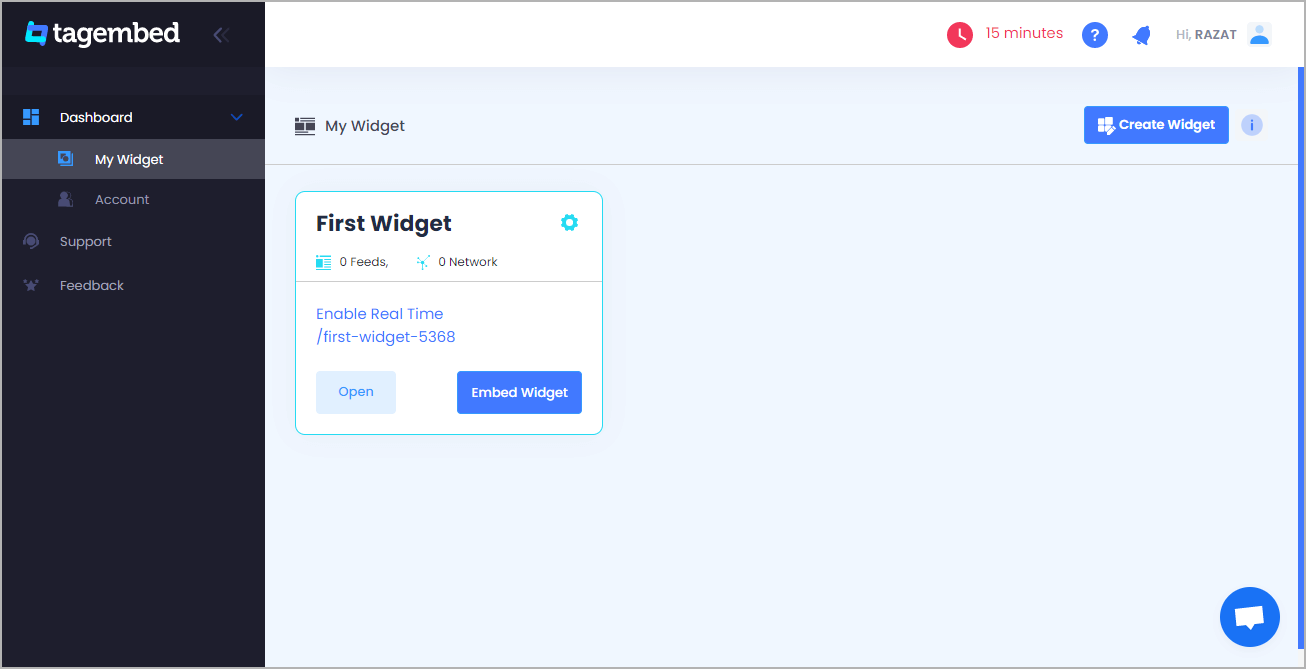
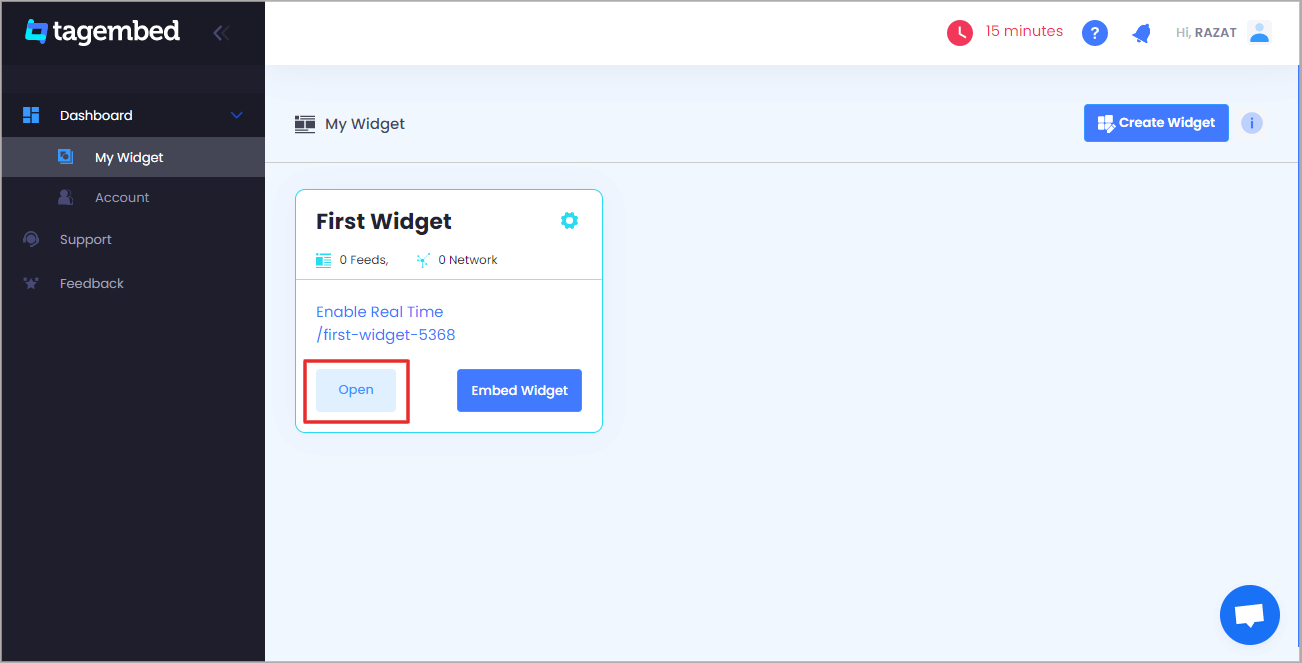
3. Your First Widget will be already created, just click on the Open button to proceed.
4. A screen “Pick a source” will appear, here select LinkedIn from the list of networks.

5. Now you can collect Linkedin Feeds using two simple ways:
- Company Page URL (Auto) – To collect all Linkedin feeds automatically in a single click.
- Post URL (Manual) – Copy and paste the post URL one by one to collect feeds in Linkedin Widget.
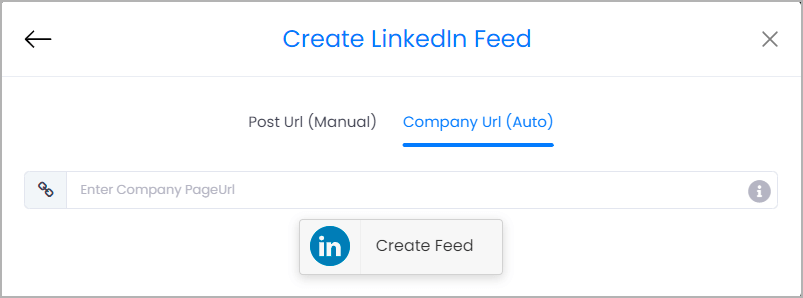
However, for auto-update of your Linkedin Posts choose Company URL and paste the URL of your company page. Finally, click on the “Create Feed” button to collect feeds.

Kudos! Your LinkedIn feeds are now collected on the Tagembed editor. Now you can proceed to customize and embed your Linkedin Widget on the Weebly website.
Read More – Embed Twitter Feed On Weebly Website
Step B – Generate Embed Code for the Weebly Website
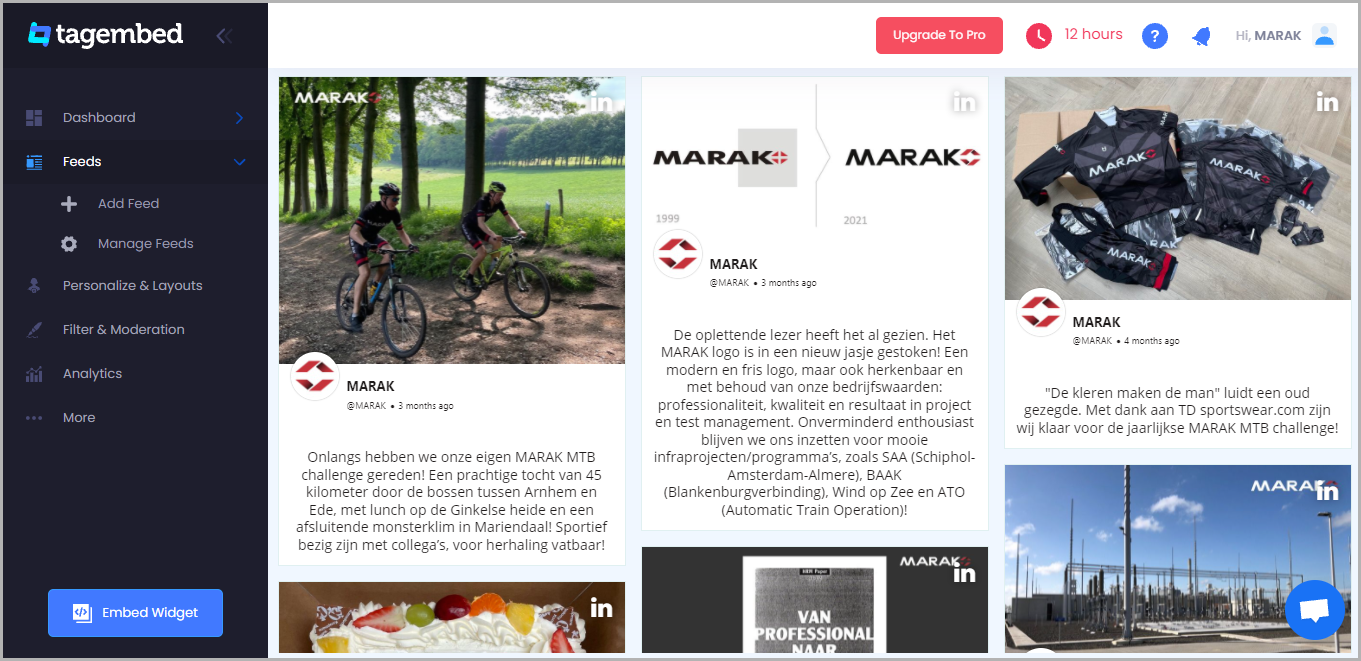
1. Click on the Embed Widget button at the bottom-left of the menu panel.
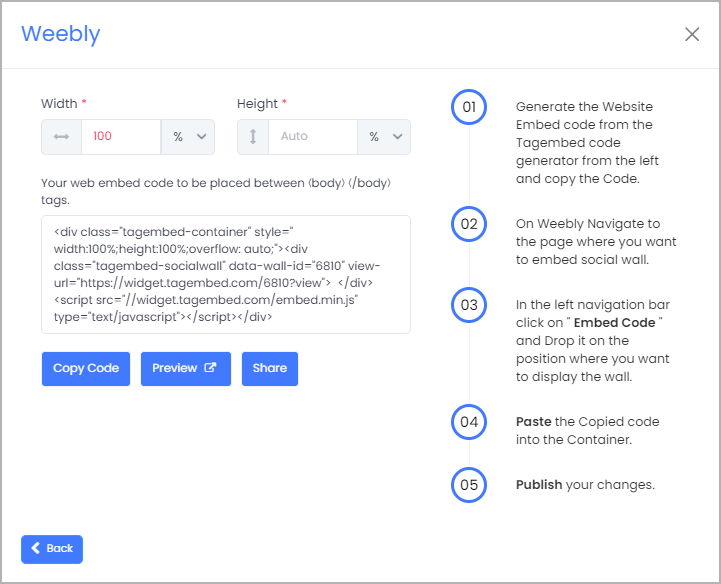
2. A new screen “Choose Your Platform” will appear with the list of different website CMS. So you can choose Weebly as your website CMS and then adjust the height and width of your widget.

3. Now click on the Copy Code button and copy the embed code.
Read More – Embed Facebook Feed On Weebly Website
Step C – Embed LinkedIn Feed on the Weebly Website
After copying the embed code follow a few more easy steps to complete the embedding process:
1. Now Login to the admin account of your Weebly website and navigate to the page where you want to add LinkedIn Feeds. And scroll the elements on the left-hand screen to find the Embed Code option. Drag and drop the option on the page where you want to embed LinkedIn Feed on the Weebly website.

2. A pop-up will appear Edit Custom Weebly click on it and Paste the embed code into it.
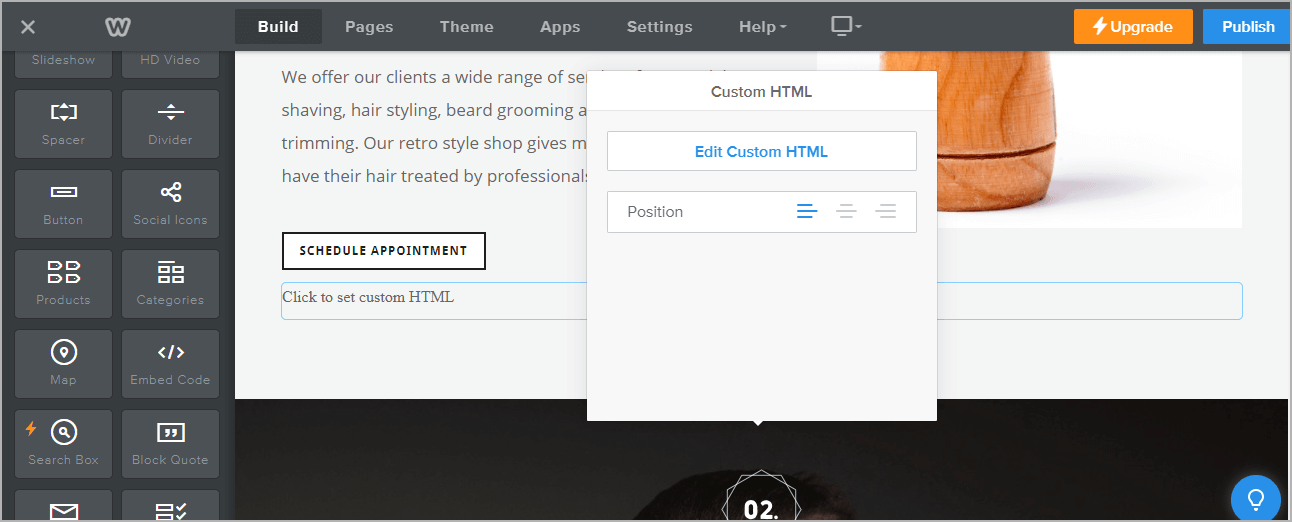
3. Finally, click on the Publish button at the top-right corner to make the changes effective.
Read More – Embed Google Reviews on Weebly Website
Conclusions
In a nutshell, we have explained to you the best way and using the free of cost tool to embed LinkedIn feed on Weebly Website. And it increases your brand’s visibility and makes your Weebly website more attractive, embedding LinkedIn posts on it. The unbelievable benefits of the visitors spending more time on your Weebly website, and will indirectly help you to improve your SERP.

 Social Widget