

Getting new customers to trust you enough to spend money on your services is one of the toughest parts of running a website. Therefore, it’s crucial to find easy yet effective ways to prove your brand’s reliability. Fortunately, you can make strides in this area by simply adding a testimonial slider widget to your website.
Testimonials slider widget is the best way to encourage customer trust (as long as they’re positive) since they show potential users that you have a track record for doing good work. Plus, securing a testimonial won’t cost you anything.
Why Should You Add Testimonials Slider Widget To Your Website?
Research shows that 88% of customers read reviews to determine the quality of someone’s business.
Posting customer Google reviews on your website is a perfect way to build trust and credibility. It works not only as strong proof of your product quality or service expertise but also, introduces visitors to the clients (companies) you had a chance to collaborate with.
In this blog, we will learn to add a testimonial slider widget to the website. Here we will be using the social media aggregator tool – Tagembed widget. It is an amazing tool and gives you an unlimited flow of user-generated content on your website. One of the mind-blowing things is that it is a lifetime free tool to add a Testimonial widget on the website and that means you don’t have to pay anything.
Read further and you’ll learn how to add a testimonials slider widget to the website using the Tagembed, So follow these simple steps are:
#Step1 – Create A Testimonial Slider Widget With Tagembed
#Step2 – Add Testimonial Reviews Slider On Website
#Step1 – Create A Testimonial Slider Widget With Tagembed
a). Firstly create a Free Tagembed account or log in if you already have an account.

b). And now you’ll be redirected towards the Tagembed dashboard.

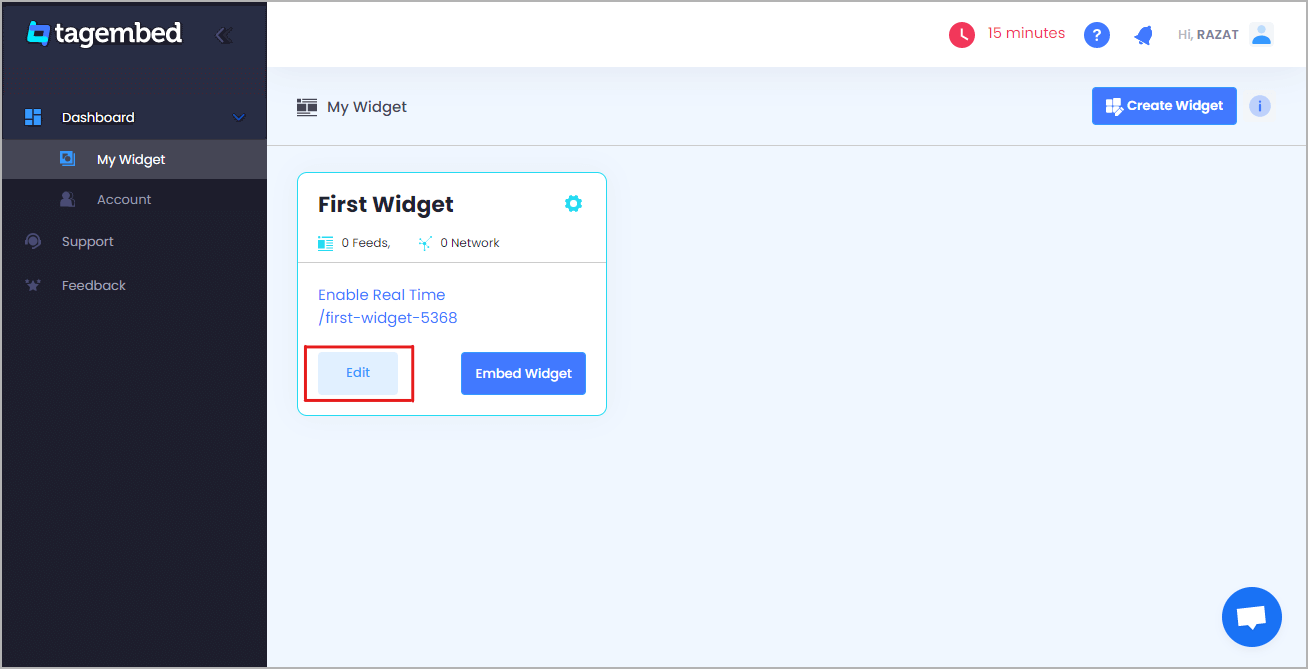
c). Your First Widget will be already created, just click on the Edit button to proceed.
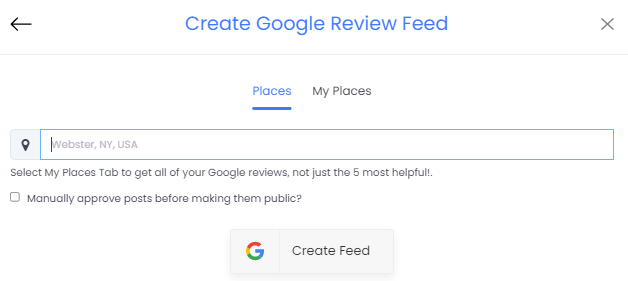
d). A dialogue box will open to “pick a source”, Choose Google Review now

e). So after that, a new dialogue box will open to create a reviews feed. You can choose any type of connection and aggregate all reviews from using the places and my places to fetch all the amazing review feed on the website.
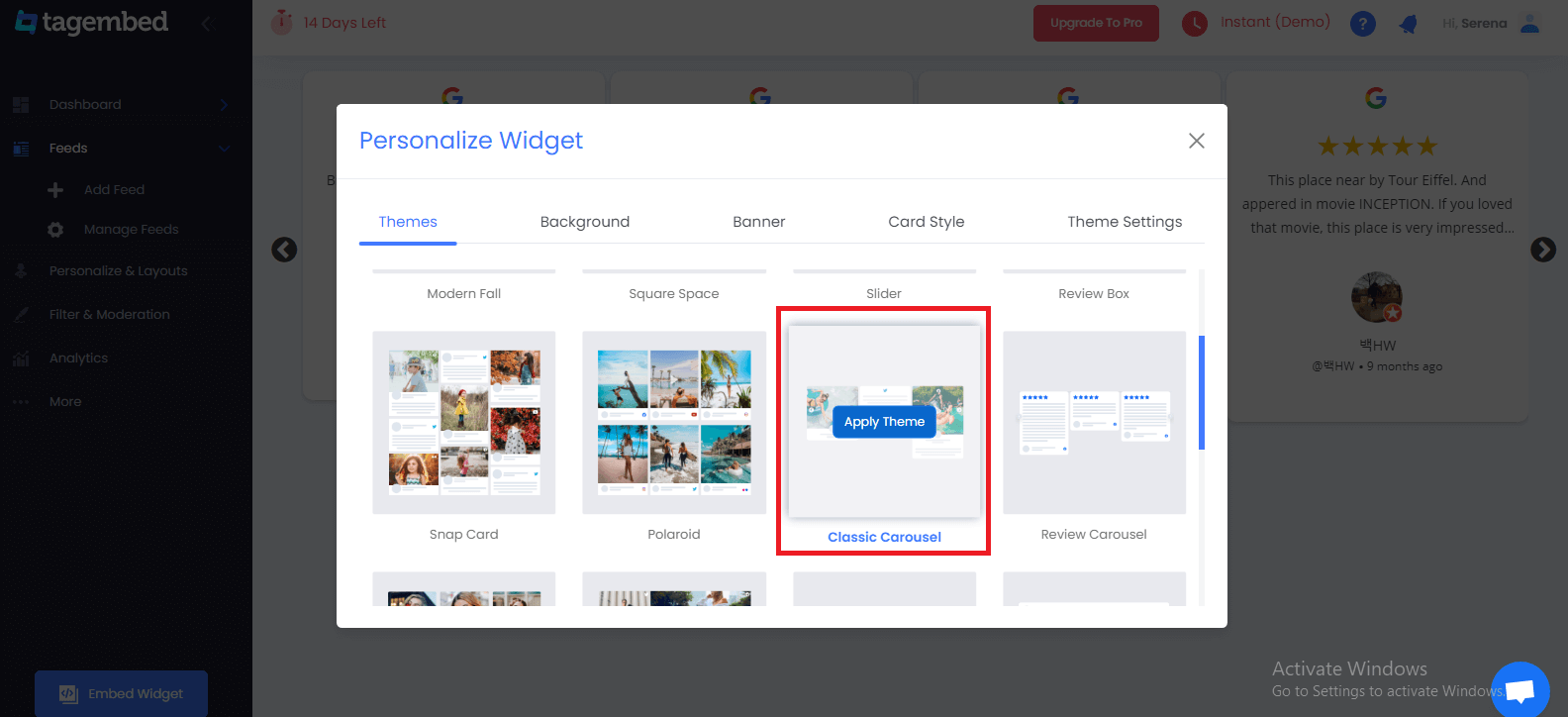
f). Now click on the “Personalize & Layouts” button from the dashboard menu.

g). Click on the “ Classic Carousel (Testimonial Slider) ” theme and click apply theme. You will see a bunch of different review widget examples.
#Step2 – Add Testimonial Reviews Slider On Website
a). Once you have selected the testimonial widget and click on the Embed Widget button displayed below the Google review widget feeds.

b). Dialogue box will appear with “Choose Any Website Platform” Now choose the WordPress

c). Now a new Dialogue box will appear, now adjust the height and widget accordingly to you and click on the get code button & copy this code
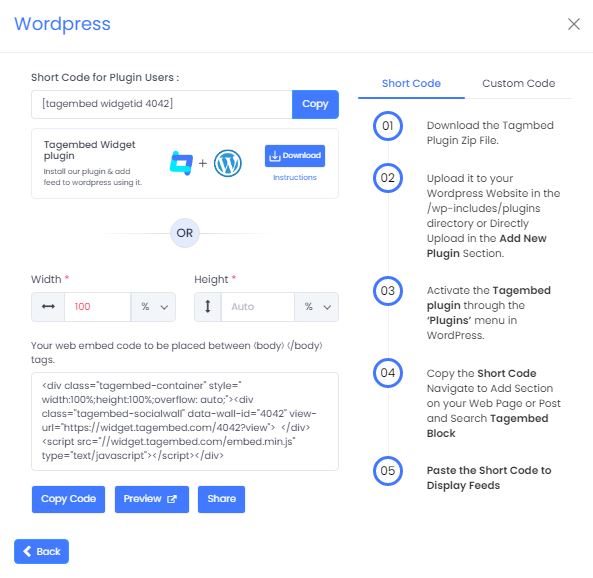
d). So now copy the embed code and paste it where you want to display the Testimonial slider widget on the website.
Final Thoughts:
Add a testimonial slider widget to your website to increases your conversion rates, whether you’re selling goods, or providing the best services. Fortunately, anyone can create a testimonial slider section on their websites using by Tagembed – Social Media Aggregator tool. So what are you waiting for? Follow the steps now, and prove your credibility to the world.
 Social Widget