

About 70 percent of the customers seek reviews before they make a purchase decision. Reviews from the real customers not only make your business trustworthy but it also increases the chances of purchases that generate higher revenue. Reviews make customers know about the authenticity of the brand and give the right view of your product and how much it is helpful for your business.
As businesses are marching towards making online presence, Squarespace stands as the popular choice as website building platform. And to prove their credibility marketers opt to embed Google review on Squarespace website.
Follow the easy step-by-step guide to add Google Reviews on the Squarespace website successfully:
#Step1 – Aggregate Google Reviews
1. Sign Up to create a Free Tagembed account or log in if you already have an account.

2. You’ll be redirected towards the Tagembed dashboard.

3. Your First Widget will be already created, just click on the Edit button to proceed.

4. A dialogue box will appear to “pick a source”, Choose “Google” now

5. You can Create an amazing Google Review Widget from the following methods:-
a). Business Page: To fetch Google Reviews from Business Page enter the Google business page URL
b). Business Name: To fetch Google Reviews with the help of Place Name enter location and keyword.

6. Finally, click on the Create Feed button to start aggregation.
Tip: You can click on the Personalize tab on the left menu panel to change the themes & layout, background, banners and other dedicated themes settings to make the widget look more appealing and attractive.
#Step2 – Generate Embed Code For Squarespace Website:
1. On the bottom-left menu panel, click on the Embed Widget button as displayed in the below image

2. New Dialogue box will open with “Choose Your Platform” Now Select “Squarespace“

3. Choose your website CMS as Squarespace and adjust the height & width of the widget.
Recommendation: Set the width in percentage % and Height in pixels Px for better exposure
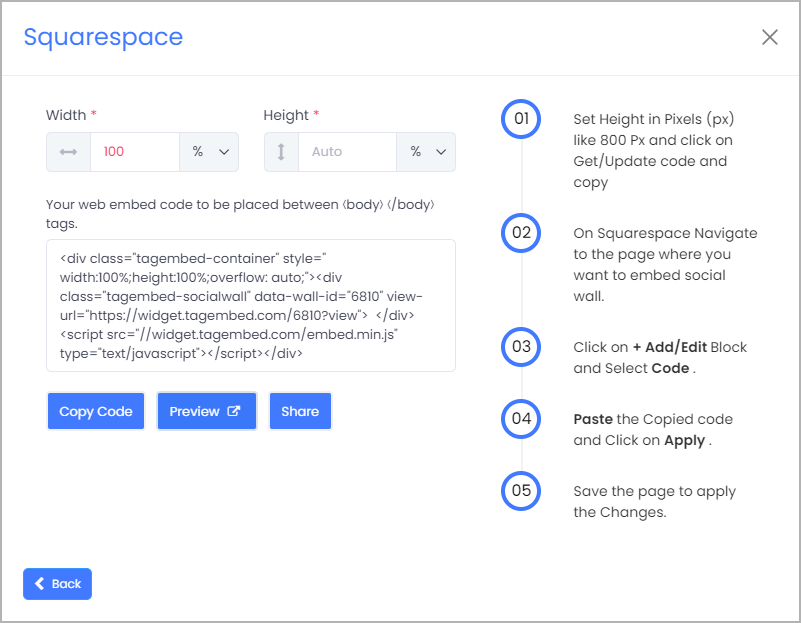
4. Finally, click on the Copy Code button to copy the embed code.
#Step3 – Embed Google Reviews on your Squarespace Website
After copying the embed code follow few more simple steps to complete the embedding process.
1. Login to the admin account of your Squarespace website and click on the Edit button to embed the Google reviews.

2. Now click on the “+” Button
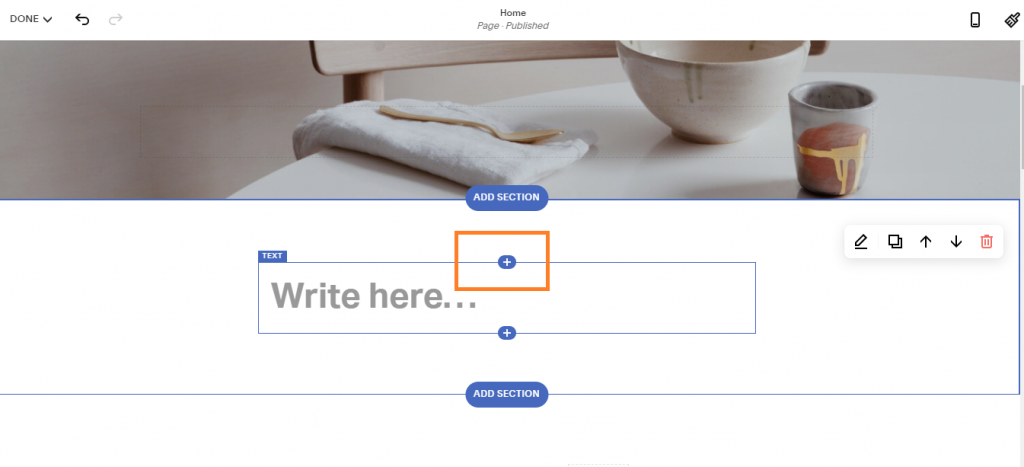
3. A new Option Menu will open, select the “</> Code” Option

4. Paste the embed code into the editor and click on Apply button.
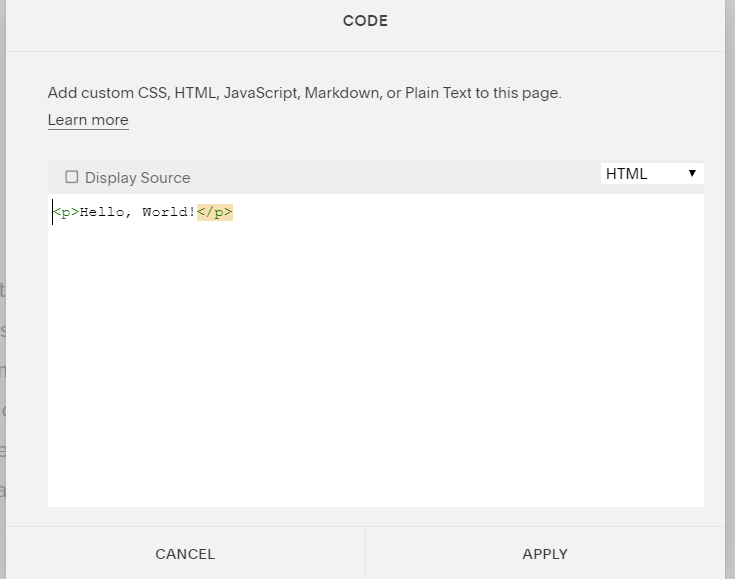
5. Save the changes made and reload the page.
Hence, your Squarespace webpage is loaded with Google reviews
Congratulations! You have successfully added Google reviews widget on the Squarespace website.

 Social Widget